Requesting ACME Certificates
Request and renew a certificate using an ACME DNS authenticator.
FreeCORE can request certificates through ACME and renew them before they expire. DNS validation uses an ACME DNS authenticator to create a temporary TXT record in the domain's authoritative DNS zone.
The certificate workflow is shared by 15.0 and 15.1. Amazon Route 53 is available on both lines; Cloudflare, DigitalOcean, OVHcloud, and Shell authenticators are available in 15.1-RC1.
Before You Begin
Configure an authenticator under System > ACME DNS with access to the authoritative zone for every name the certificate will contain. An entry saving successfully checks its required fields, not a complete DNS challenge.
Set an email address for the root account under Accounts > Users. FreeCORE uses this address when registering with the ACME service, the first time a certificate is requested from each ACME directory. Without it, the request stops with Please specify root email address which will be used with the ACME server.
Create or import a certificate signing request under System > Certificates.
Include the required domain names in the CSR. Each name needs an authenticator
assignment when requesting the certificate. A wildcard must begin with *.;
do not end domain names with a period. See
Adding Certificates or CSRs for the CSR fields.
Request the Certificate
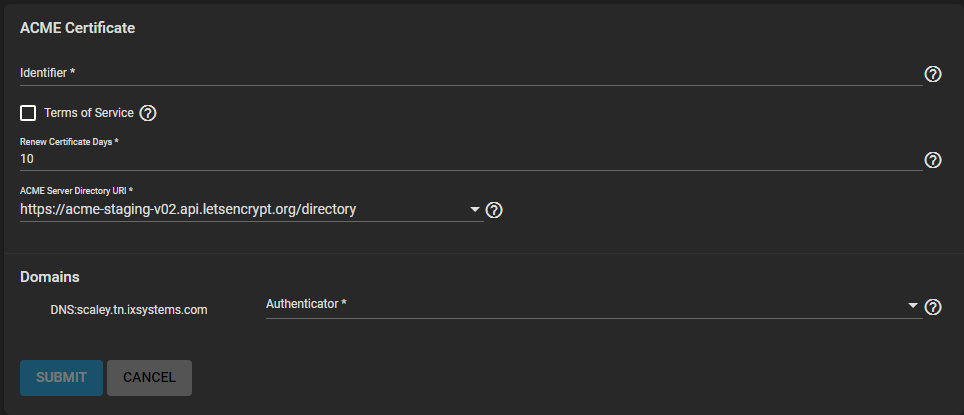
- Go to System > Certificates. Open the CSR's actions and select Create ACME Certificate.
- Enter an Identifier for the certificate. Use letters, numbers, underscores, or dashes.
- Review the selected ACME service's terms and select Terms of Service.
- Set Renew Certificate Days. The default is 10; use a positive number of days before expiry.
- Select ACME Server Directory URI. The form initially selects Let's Encrypt's staging directory. Use staging to check DNS automation, then request a production certificate for use by clients that require a trusted issuer. Staging certificates are for testing and are not trusted by ordinary client trust stores.
- For every entry under Domains, select the saved Authenticator that can manage that name's DNS challenge. Different names can use different authenticators.
- Click SUBMIT and wait for the certificate job to finish.
FreeCORE handles the names one at a time: it publishes each name's DNS challenge, waits for it to propagate, answers the challenge, and finally requests the signed certificate. Cloudflare, DigitalOcean, and OVHcloud use a 60-second propagation wait. Route 53 waits for its change to report INSYNC. Shell uses its configured propagation delay. A certificate with several names therefore takes several minutes, and the job can look stalled while it waits. A DNS propagation or provider error can also take time to appear.
On 15.1, FreeCORE removes the challenge records after validation, whether it succeeded or failed, including a record a provider created before reporting an error. On 15.0, the Route 53 challenge record stays in the hosted zone; remove it there if it is not wanted.
After success, review the certificate's names, issuer, and expiry under System > Certificates. Select it separately in the service that needs it, or under System > General for the web interface. Creating a certificate does not by itself change which certificate a service uses.
Renewal and Troubleshooting
FreeCORE checks ACME certificates daily. When a certificate is within its configured renewal period, it requests a replacement using the saved ACME directory and domain-to-authenticator assignments. Provider credentials, network access, and any Shell script must remain available for renewal.
If a request fails, read the job error before trying again. Check the domain assignments, authoritative zone, provider permissions, and DNS propagation. For Shell, check the selected user's ability to execute the script and the reported exit status or timeout. A request that does not validate within ten minutes times out; this usually means slow propagation, the wrong authoritative nameservers, or a Shell propagation delay that is too short. On 15.1, a cleanup error means removal of a challenge record failed and the certificate is not issued; remove only the matching challenge value from the TXT record, leaving unrelated values, before retrying.
When replacing provider credentials, edit the existing authenticator or update the affected certificate assignments before removing it. Keep an eye on certificate expiry after changing either the DNS provider or its access policy.