Using Two-Factor Authentication
Describes how to use two-factor authentication on FreeCORE.
FreeCORE supports time-based one-time passwords (TOTP) as a second factor for administrator sign-in. Use any authenticator application that supports standard TOTP codes.
Before Enabling Two-Factor Authentication
- Confirm that the system time and NTP configuration are correct. TOTP codes are time-dependent.
- Keep the current web session open while testing a second sign-in in a private browser window.
- Keep console access or another recovery path available.
- If possible, register the secret on a second authenticator device as a backup.
Anyone who obtains the QR code, provisioning URI, or secret can generate valid one-time passwords. Do not save or share them as ordinary screenshots.
Enable TOTP for the Web Interface
Go to System > 2FA. The defaults are suitable for most authenticator applications:
- One-Time Password (OTP) Digits:
6 - Interval:
30seconds - Window:
0
Leave Enable Two-Factor Auth for SSH and Enable Two-Factor Auth for Console cleared until web-interface sign-in has been tested successfully.
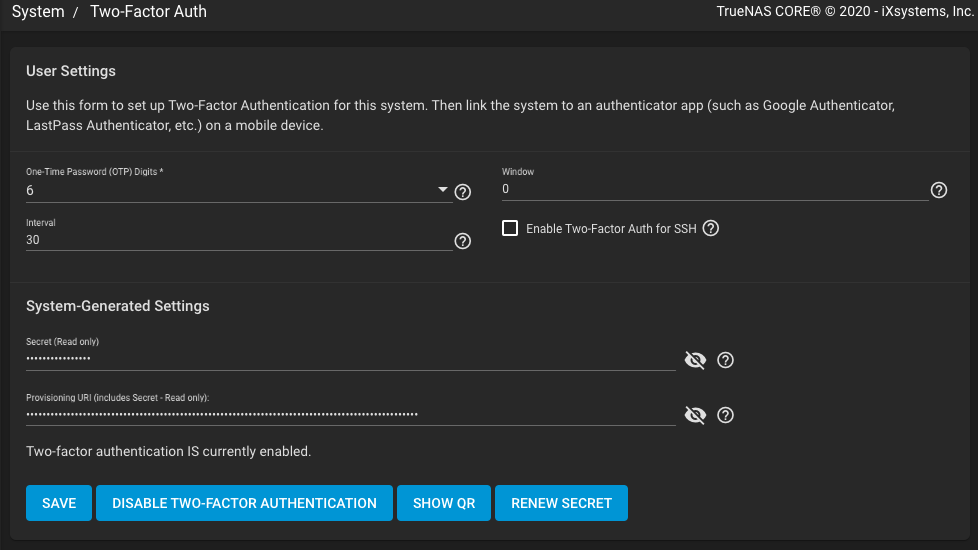
Click Enable Two-Factor Authentication, read the warning, and click Confirm. Then click Show QR and register the displayed code in the authenticator application. The same screen also provides the secret and provisioning URI as read-only fields.
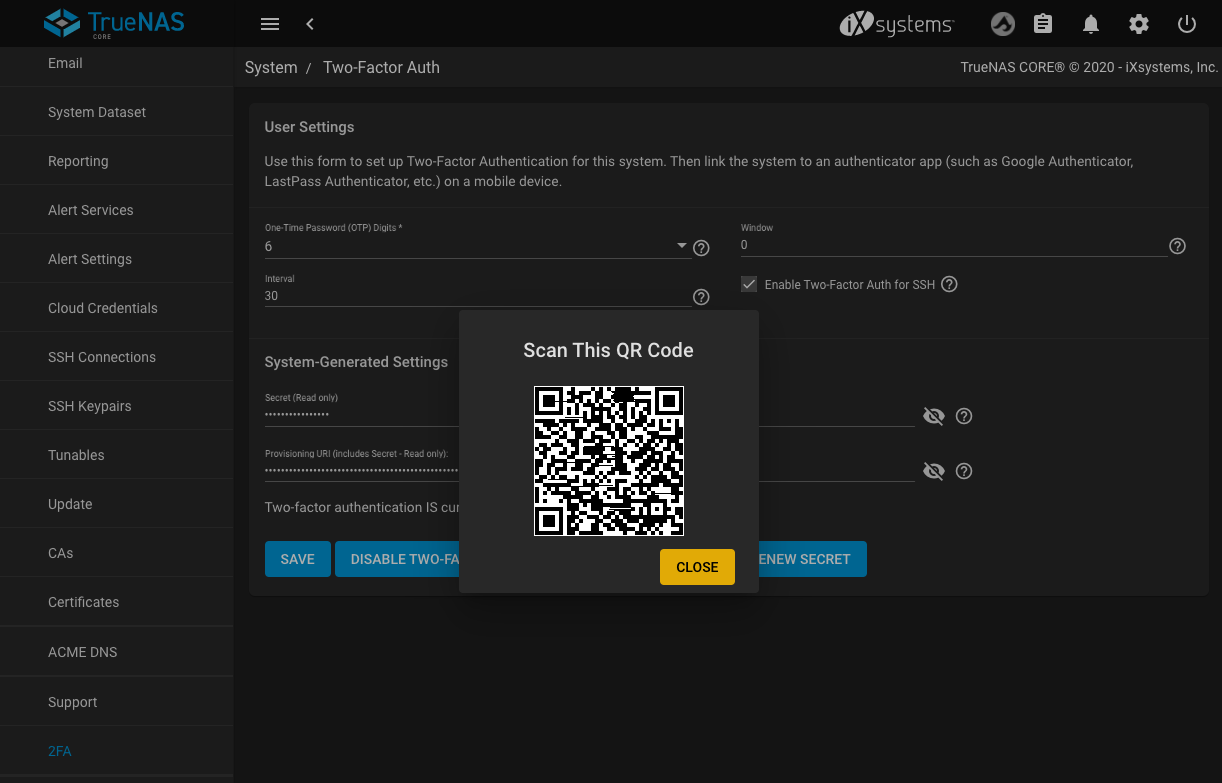
Changing the number of digits or the interval after enrollment requires registering the updated configuration in every authenticator again.
Test Web Interface Sign-In
Open a private browser window or a different browser and go to the FreeCORE sign-in page. It now includes Two-Factor Authentication Code.
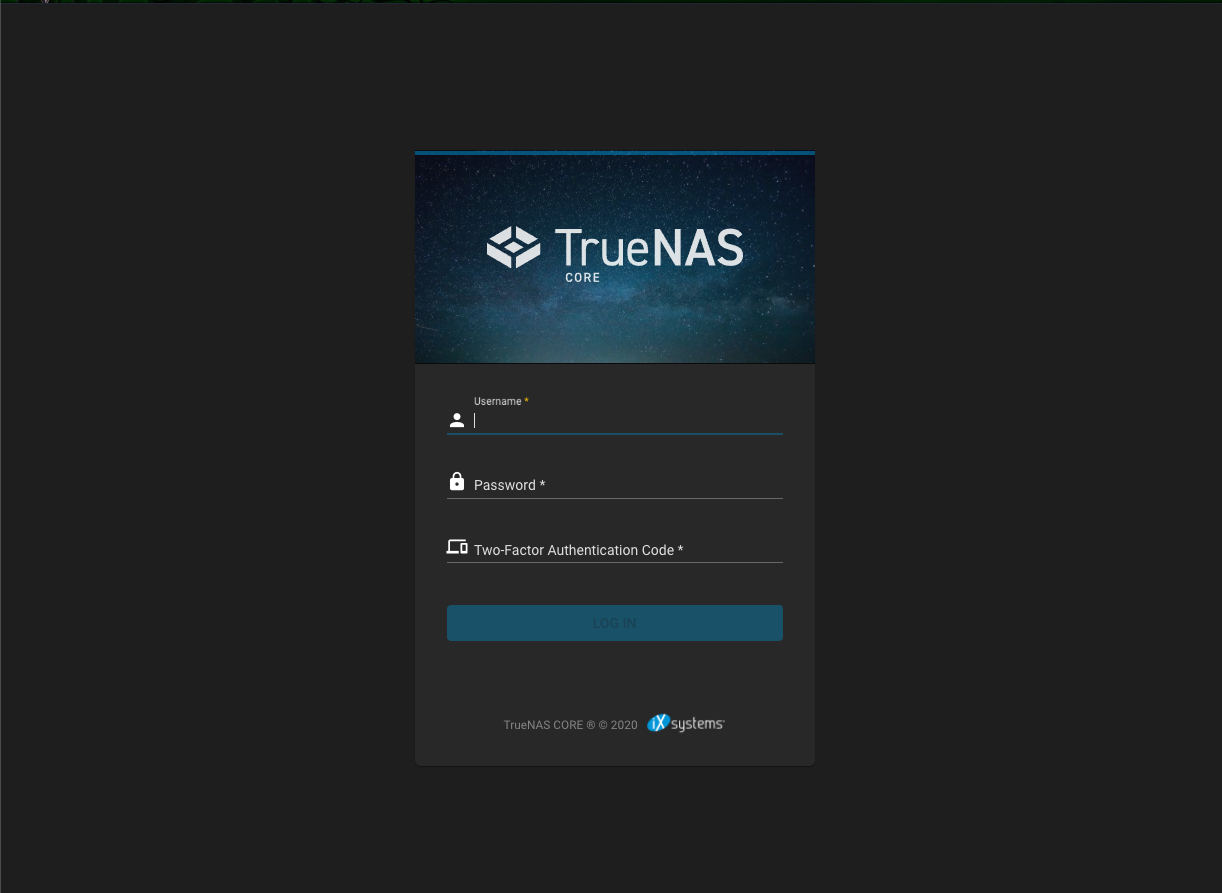
Enter the root username, its password, and the current code from the authenticator. Do not close the original signed-in session until this test succeeds.
Optional SSH Authentication
Web-interface TOTP does not enable SSH enforcement automatically. After the web sign-in test succeeds, select Enable Two-Factor Auth for SSH on System > 2FA and click Save. Configure and start the SSH service separately under Services.
An SSH client then completes the configured SSH authentication method and prompts for a one-time OATH password. Keep a working session or console path available while testing the first connection.
Optional Console Authentication
Enable Two-Factor Auth for Console protects local, serial, and out-of-band console logins. FreeCORE refuses to enable it while Show Text Console without Password Prompt is active under System > Advanced, because that passwordless menu bypasses login authentication.
See Using Console OTP for setup and recovery guidance.
Disable or Re-enroll
Use Renew Secret to replace the TOTP secret. Every authenticator must then be enrolled again. Use Disable Two-Factor Authentication to turn off TOTP enforcement.
If security-key authentication is also enabled, disable it first. FreeCORE keeps TOTP available as the fallback for browsers or console recovery paths where a security key cannot be used.