Using Security Keys (WebAuthn)
Provides instructions on requiring hardware security keys as a second factor for web interface logins.
FreeCORE can require a hardware security key (a YubiKey or any FIDO2 authenticator) as a second factor for web interface logins. Security keys are enforced alongside the existing one-time password (TOTP) option with either/or semantics: a login succeeds with the password plus either a tap of an enrolled security key or a one-time code.
Requirements
- Two-factor authentication (TOTP) must be enabled first, and it stays enabled while security keys are enforced. The one-time code is the fallback sign-in path when security keys are unavailable.
- The web interface must be reached over HTTPS using a DNS hostname, not an IP address. WebAuthn does not permit IP addresses as relying-party identifiers, and the browser must trust the system certificate — with an untrusted certificate the browser cancels the key ceremony.
Enrolling Keys
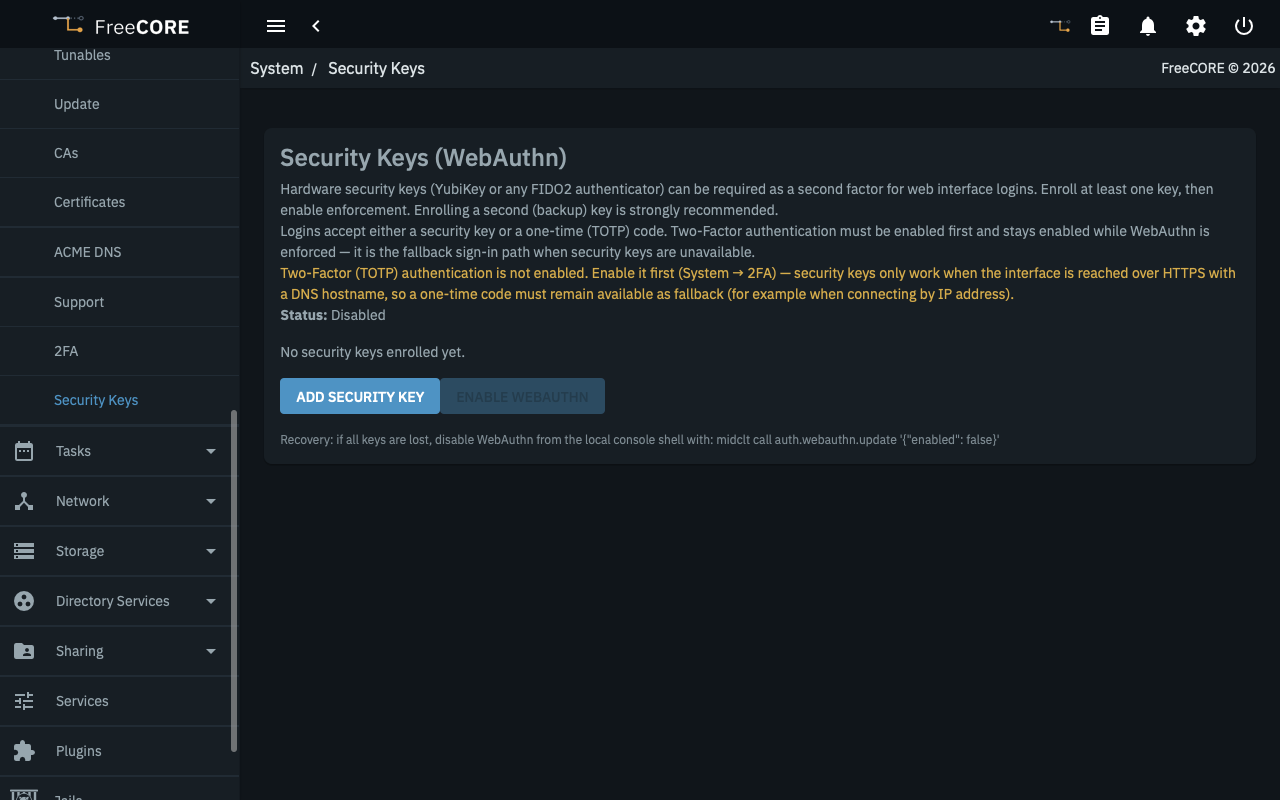
Go to System > Security Keys and click Add Security Key. Give the key a name you will recognize later (for example, YubiKey 5C primary) and follow the browser prompt to tap the key.
Enrolling a second, backup key is strongly recommended. Enrolled keys are listed with their name, enrollment date, and last use.
Enabling Enforcement
With at least one key enrolled, click Enable WebAuthn. From the next login, the web interface asks for a security key after the password, and accepts a one-time (TOTP) code as fallback.
While enforcement is active, HTTP basic authentication against the API is refused, the same as with one-time passwords.
Recovery
If all keys are lost, log in with the TOTP fallback, or disable WebAuthn from the local console shell:
midclt call auth.webauthn.update '{"enabled": false}'