Adding Certificates or CSRs
Provides instructions on adding or importing certificates and certificate signing requests (CSRs) in FreeCORE.
By default, FreeCORE comes equipped with an internal, self-signed certificate that enables encrypted access to the web interface.
You can either import or create a new certificate or signing request by navigating to System > Certificates and clicking ADD.
Adding Internal Certificates
To add an internal certificate:
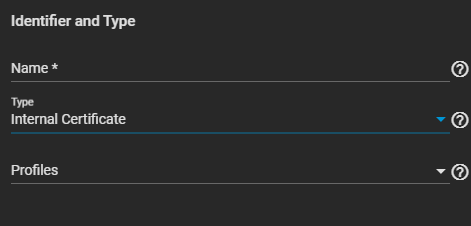
- Enter the name for the certificate, then select Internal Certificate from the Type dropdown list.
-
Select an option from the Profiles dropdown list. A profile for the certificate auto-fills options like Key Type, Key Length, Digest Algorithm. Otherwise, you must set options manually.
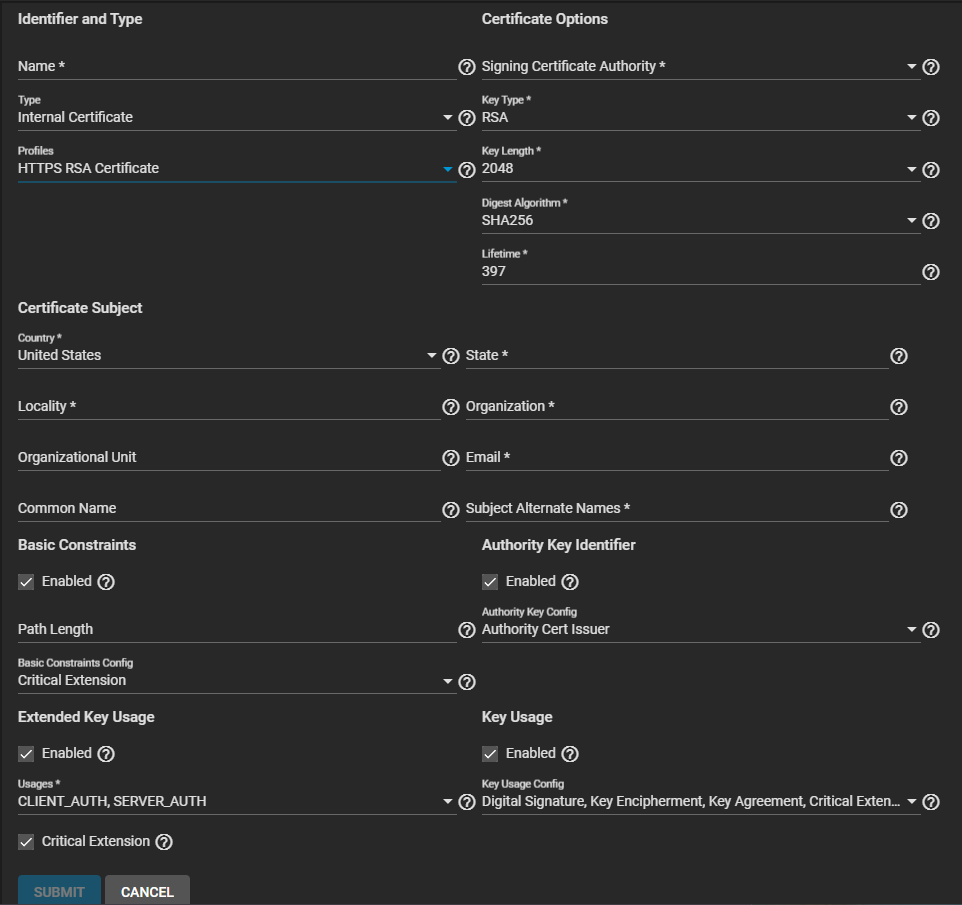
To add an HTTPS RSA certificate, the default certificate type, select HTTPS RSA Certificate. The configuration form populates with default settings, enables Basic Constraints, Authority Key Identifier, Extended Key Usage, and Key Usage, and set the options for each extension.
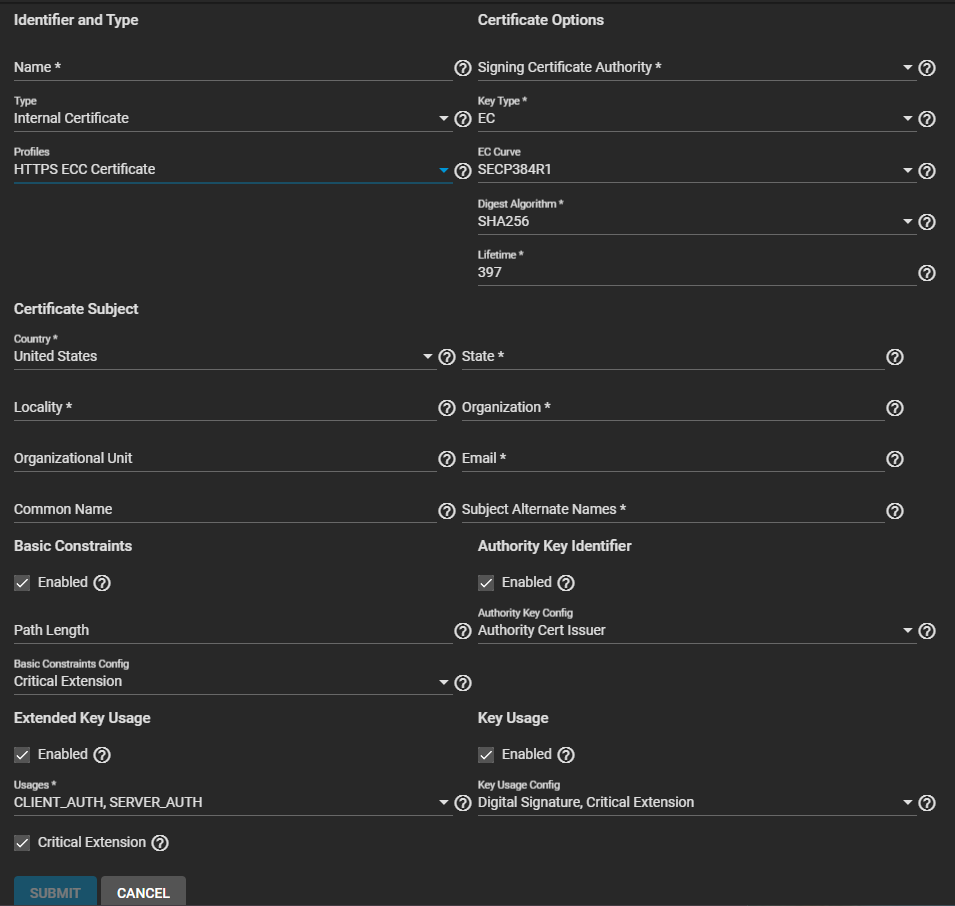
To add an elliptical curve certificate select HTTPS ECC Certificate. The configuration form populates with default settings, enables Basic Constraints, Authority Key Identifier, Extended Key Usage, and Key Usage, and set the options for each extension.
To add an OpenVPN certificate, select the client or server option that fits the certificate type you want to create. The configuration form populates with default settings, enables Basic Constraints, Authority Key Identifier, Extended Key Usage, and Key Usage, and set the options for each extension.
- Enter or select the Certificate Options settings if you did not select a Profile option.
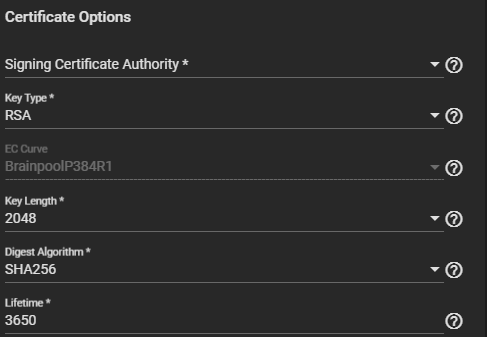
a. Select a Signing Certificate Authority from the dropdown list.
b. Select a Key Type from the dropdown list. We recommend selecting RSA.
c. Select the Key Length. We recommend a minimum of 2048 for security reasons.
d. Select a Digest Algorithm. We recommend SHA256.
e. Enter the Lifetime of the certificate CA in days to set how long the CA remains valid.
- Enter or select the Certificate Subject setting options.
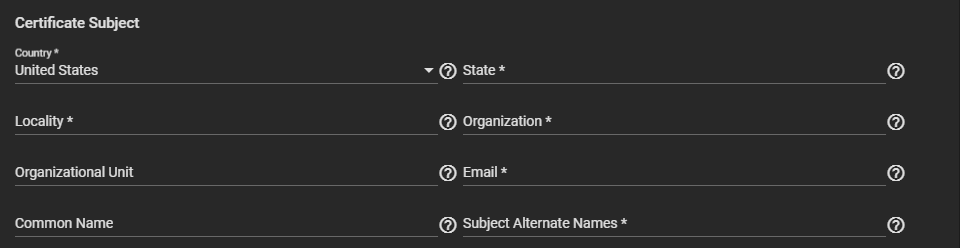
Enter the geographic and other information in Country, Locality, Organizational Unit (optional), Common Name, State, Organization, Email, and Subject Alternate Names.
Enter a fully-qualified hostname (FQDN) that us unique within a certificate chain in Common Name.
- Select enable and select extensions to use if you did not select an option in Profiles. If manually selecting and entering extension:
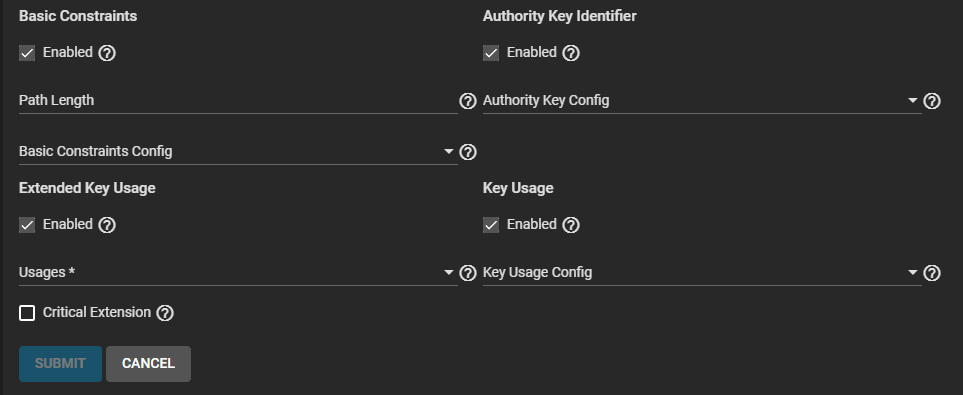
a. Select Enable, then enter the extensions for Basic Constraints.
  Enter a value in **Path Length** that determines how many non-self-issued intermediate certificates can follow the certificate in a valid certification path.
  Entering **0** allows a single additional certificate to follow in the certificate path. Then select the extension(s) to use.
b. Select Enable, then enter the extensions for Authority Key Identifier.
c. Select Enable, then enter the extensions for Extended Key Usage. Select one or more usages for the public key from the Usages dropdown list. FreeCORE uses Extended Key Usage for end-entity certificates.
  Enable **Critical Extension** if you want to identify this extension as critical for the certificate.
  Do not enable **Critical Extension** if **Usages** contains **ANY_EXTENDED_KEY_USAGE**.

  Using **Extended Key Usage** and **Key Usage** extensions requires that the certificate purpose is consistent with both extensions. See [RFC 3280, section 4.2.1.13](https://www.ietf.org/rfc/rfc3280.txt) for more details.
d. Select Enable, then enter the extensions for Key Usage. Select any extensions from the Key Usage Config dropdown list.
- Click Submit.
Creating a Certificate Signing Request
To add a certificate singing request (CSR) certificate:
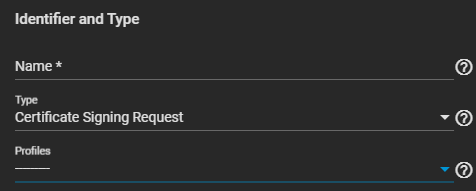
- Enter the name for the certificate, then select Certificate Signing Request from the Type dropdown list.
-
Select Certificate Signing Request from the Profiles dropdown list. A profile for the certificate auto-fills options like Key Type, Key Length, Digest Algorithm. Otherwise, you must set options manually.
To use an HTTPS RSA certificate, the default certificate type, select HTTPS RSA Certificate. The configuration form populates with default settings, enables Basic Constraints, Authority Key Identifier, Extended Key Usage, and Key Usage, and set the options for each extension.
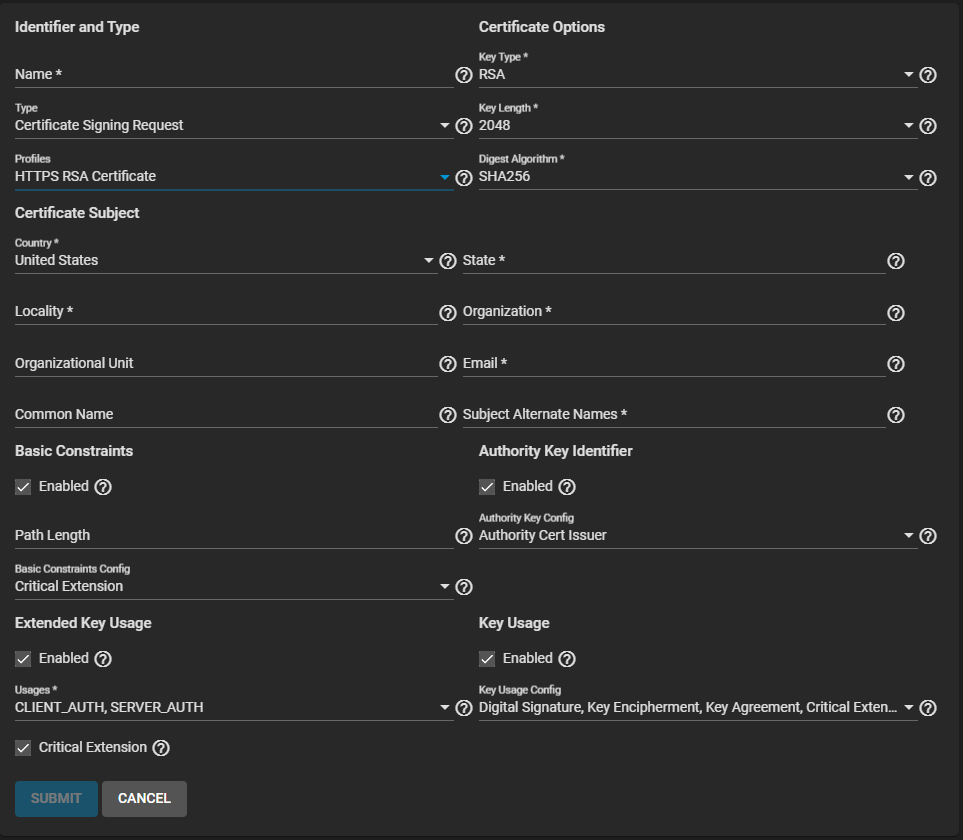
To use an elliptical curve certificate, select HTTPS ECC Certificate. The configuration form populates with default settings, enables Basic Constraints, Authority Key Identifier, Extended Key Usage, and Key Usage, and set the options for each extension.
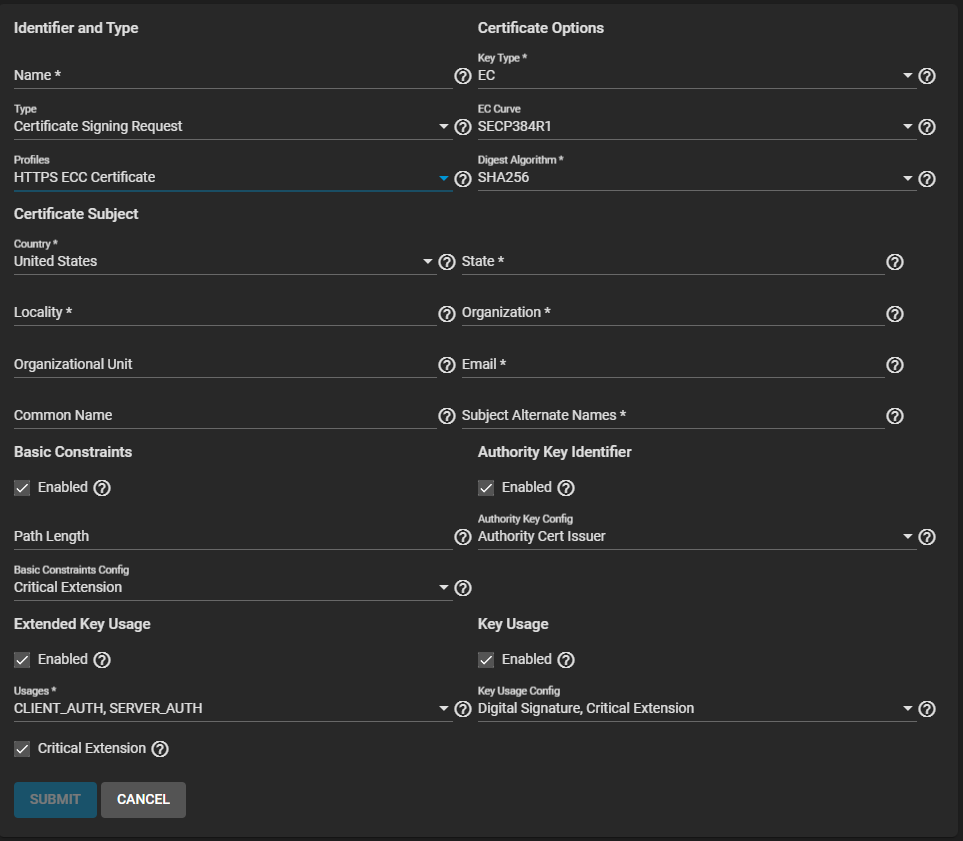
To use an OpenVPN certificate, select the client or server option that fits the certificate type. The configuration form populates with default settings, enables Basic Constraints, Authority Key Identifier, Extended Key Usage, and Key Usage, and set the options for each extension.
- Enter or select the Certificate Options settings if you did not select a Profile option.
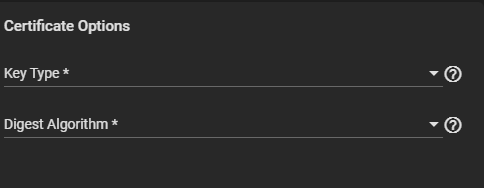
a. Select a Key Type from the dropdown list. We recommend selecting RSA.
b. Select a Digest Algorithm. We recommend SHA256.
- Enter or select the Certificate Subject setting options.
Enter the geographic and other information in Country, Locality, Organizational Unit (optional), Common Name, State, Organization, Email, and Subject Alternate Names.
Enter a fully-qualified hostname (FQDN) that us unique within a certificate chain in Common Name.
- Select enable and select extensions to use if you did not select an option in Profiles. If manually selecting and entering extension:
a. Select Enable, then enter the extensions for Basic Constraints.
  Enter a value in **Path Length** that determines how many non-self-issued intermediate certificates can follow the certificate in a valid certification path.
  Entering **0** allows a single additional certificate to follow in the certificate path. Then select the extension(s) to use.
b. Select Enable, then enter the extensions for Authority Key Identifier.
c. Select Enable, then enter the extensions for Extended Key Usage. Select one or more usages for the public key from the Usages dropdown list. FreeCORE uses Extended Key Usage for end-entity certificates.
  Enable **Critical Extension** if you want to identify this extension as critical for the certificate.
  Do not enable **Critical Extension** if **Usages** contains **ANY_EXTENDED_KEY_USAGE**.

  Using **Extended Key Usage** and **Key Usage** extensions requires that the certificate purpose is consistent with both extensions. See [RFC 3280, section 4.2.1.13](https://www.ietf.org/rfc/rfc3280.txt) for more details.
d. Select Enable, then enter the extensions for Key Usage. Select any extensions from the Key Usage Config dropdown list.
- Click Submit.
Importing a Certificate
To import a certificate:
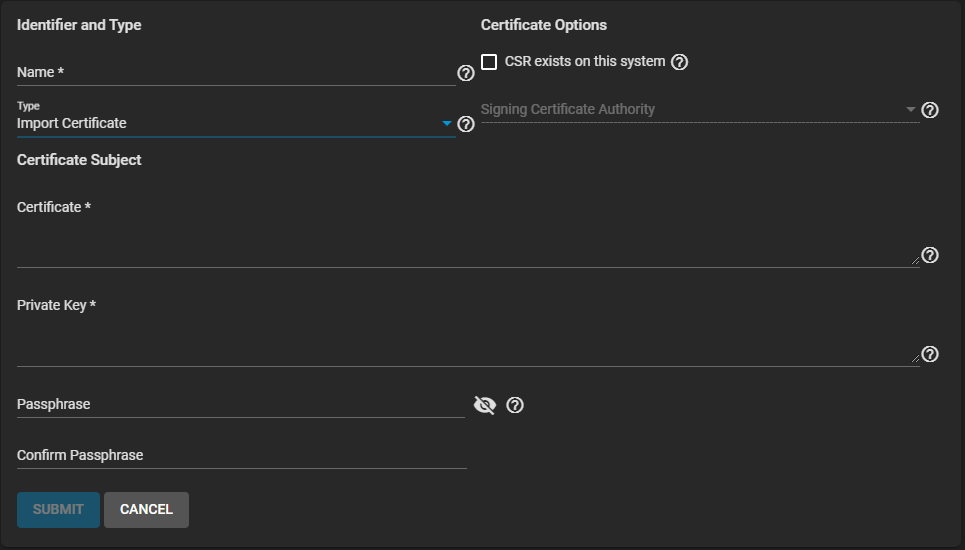
- Select Import Certificate as the Type.
-
Select the Certificate Options. To import a previously-added certificate for a CSR, select CSR exists on this system, then select one from the Signing Certificate Authority dropdown list.
-
Copy the certificate for the CA you want to import and paste it into the Certificate field.
-
Paste the certificate key that is least 1024 bits long into Private Key when available.
-
Enter and confirm the Private Key Passphrase.
-
Click Submit.
Importing a Certificate Signing Request
To import a certificate signing request (CSR):
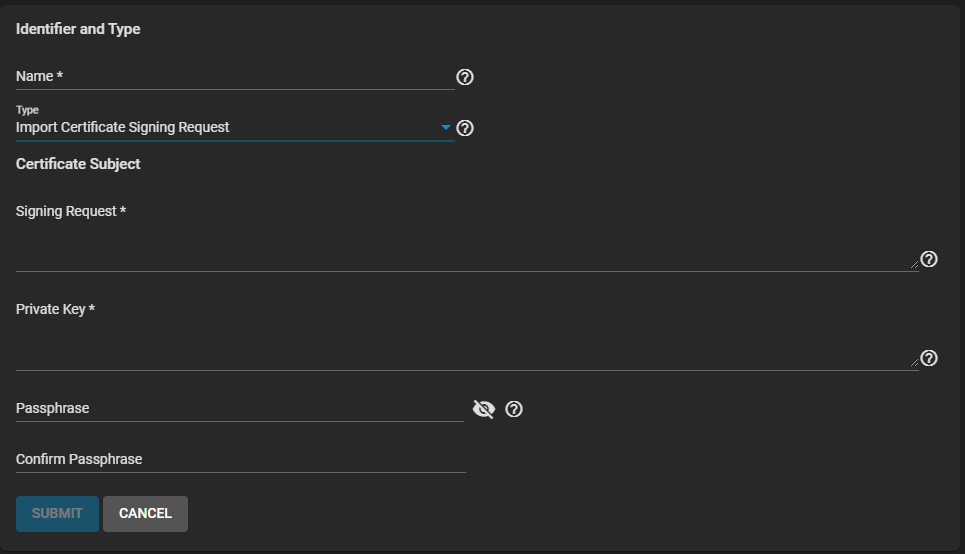
- Select Import Certificate Signing Request as the Type.
-
Copy the certificate for the CA you want to import and paste it into the Certificate field.
-
Paste the certificate key that is least 1024 bits long into Private Key when available.
-
Enter and confirm the Private Key Passphrase.
-
Click Submit.