Configuring SFTP
Configuring SSH File Transfer Protocol (SFTP) service on your FreeCORE.
SFTP transfers files over SSH. It is encrypted by SSH and does not use the FTP service or FTP over TLS.
Configure SFTP on FreeCORE
Create a non-root account for the person or application that needs access, and grant that account only the dataset permissions it requires. SSH-key authentication is preferred when the client supports it.
Go to Services, find SSH, and click Configure.
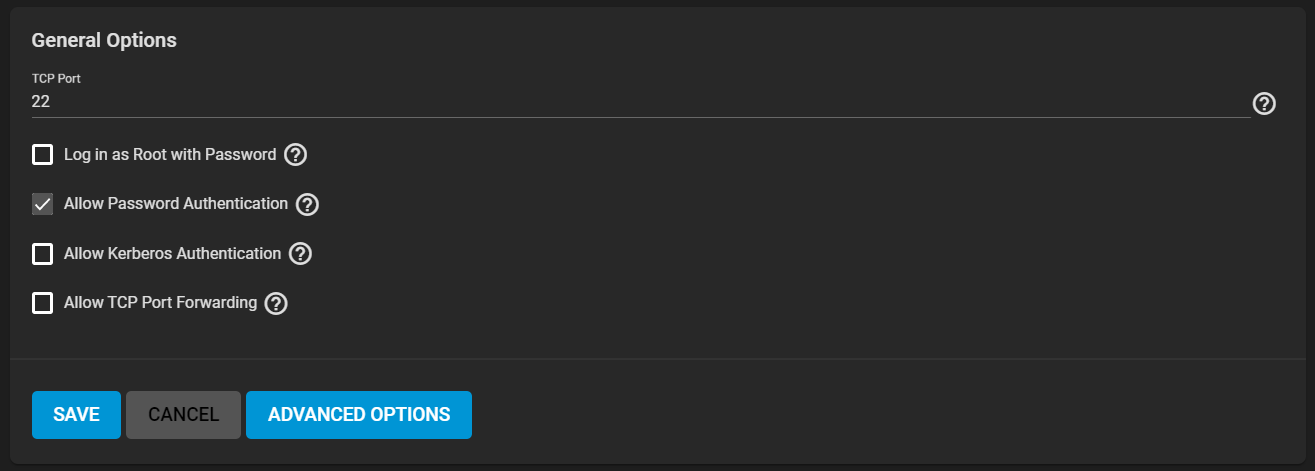
Leave Log in as Root with Password disabled. Enable Allow Password Authentication only when an account must use a password instead of an SSH key. Review the bind interfaces, TCP port, and other settings, then click Save.
Return to Services and start SSH. Enable Start Automatically if SFTP must remain available after a reboot.
Connect with an SFTP client using the system address, the configured SSH port, and the account credentials. From a command line using the default port:
sftp username@system-IP
Enabling SSH grants the account every SSH capability allowed by its shell, groups, and file permissions; it does not create an SFTP-only account automatically. Keep permissions narrow and do not enable root password login merely for file transfer.
Isolate SFTP in a Jail
A jail can isolate an SFTP service from the FreeCORE host. Create the jail, give it a deliberate network configuration, and use Mount Points to expose only the storage dataset that the SFTP users need. Configure the source dataset permissions before mounting it.
Start the jail and open its Shell, then create an account and enable the jail's SSH daemon:
adduser
sysrc sshd_enable=YES
service sshd start
Connect the SFTP client to the jail address using that jail account. The account can access only paths and mounted datasets visible inside the jail, subject to its FreeBSD permissions.