Configuring FTP
Provides information on how to configure File Transfer Protocol (FTP) on your FreeCORE.
The File Transfer Protocol (FTP) is a simple option for data transfers. SSH provides secure transfer methods for critical objects like configuration files, while TFTP provides simple file transfer methods for non-critical files.
FTP Connections
FTP connections cannot share connections with other accounts, such as SMB connections. FTP requires a new dataset and a local user account.
Go to Storage > Pools to add a new dataset.
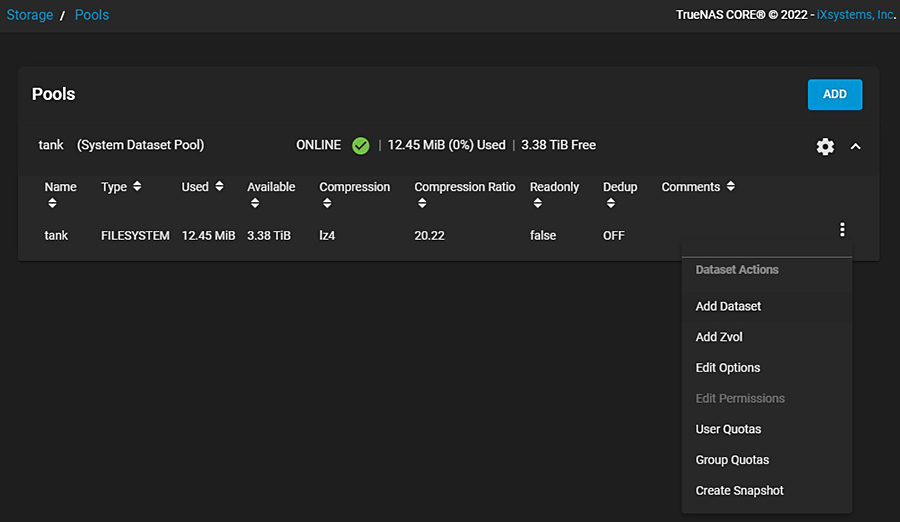
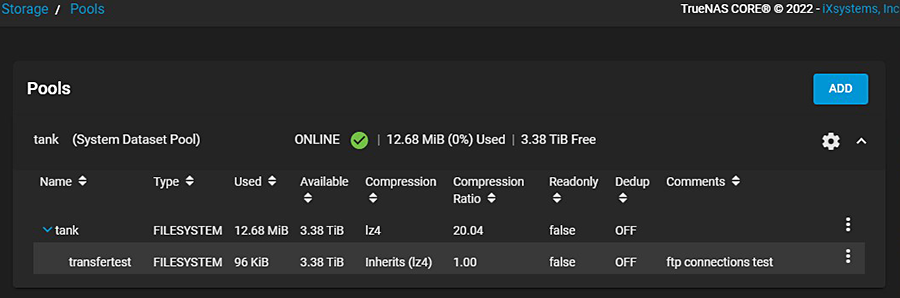
See Creating Datasets for information on creating the dataset. After you create the dataset, it appears nested beneath the pool.
Next, go to Accounts > Users > Add to create a local user on the FreeCORE.
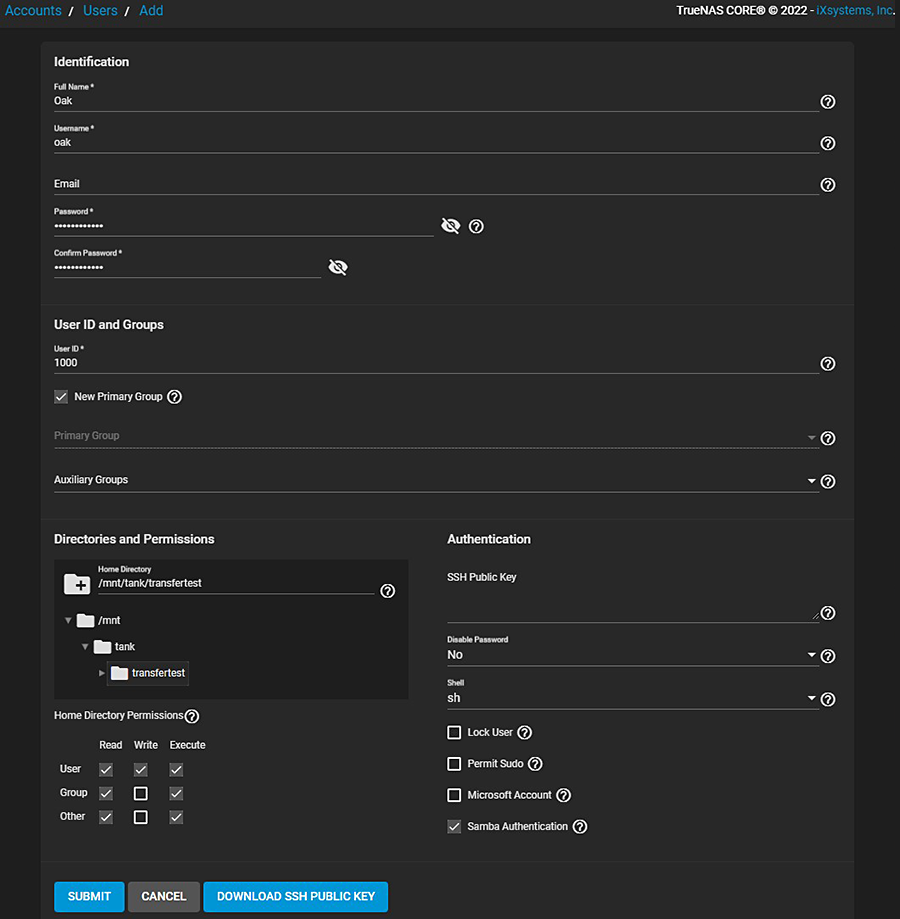
Assign a user name and password. Link the new dataset for the FTP share as the home directory of the user. Link the new dataset for the FTP share on a per-user basis, or create a global account for FTP (example: OurOrgFTPacnt).
Note
By default, only members of the ftp group can authenticate via FTP. Add your newly created user to the ftp group, or change this behavior in the FTP service configuration:
- Enable Allow Local User Login to allow any local user to authenticate
- Enable Allow Anonymous Login to allow anonymous connections without authentication
Dataset permissions are configured separately and control what files authenticated users can access.
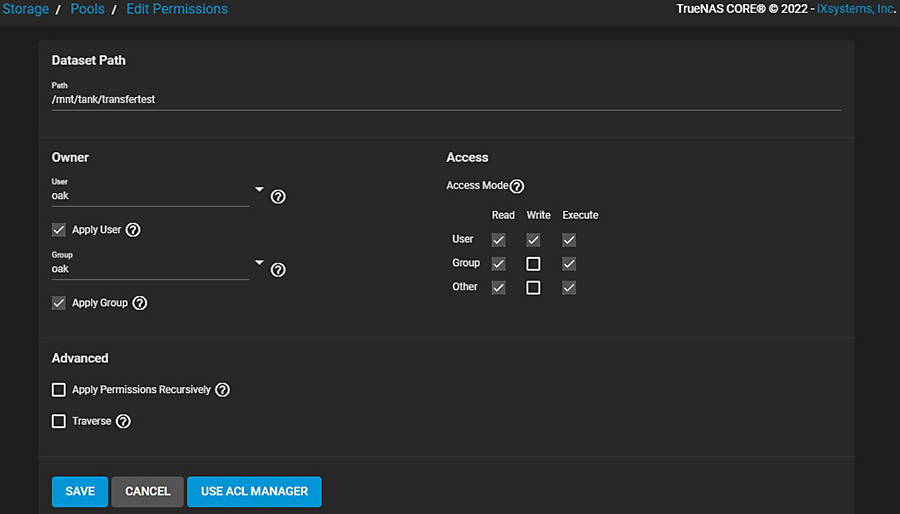
Return to Storage > Pools, find the new dataset, and click Options > Edit Permissions. In the Owner fields, select the new user account as the User and Group from the dropdown list. Be sure to select Apply User and Apply Group before saving.
Service Configuration
To configure FTP, go to the Services page, find the FTP entry, and click the Configure.
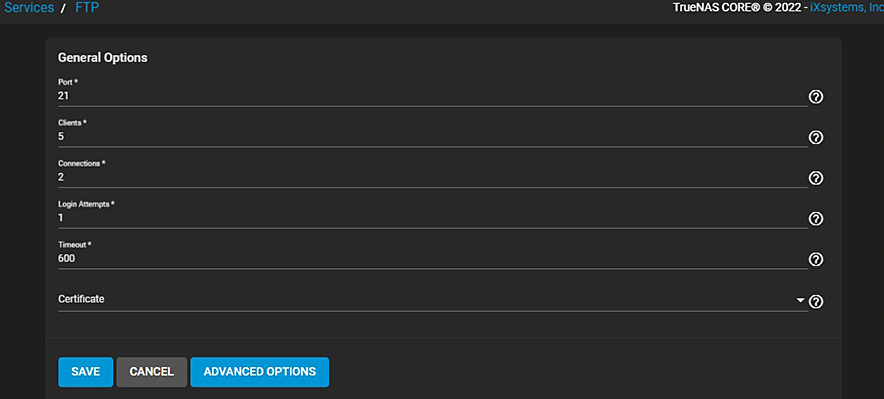
Configure the options according to your environment and security considerations. See FTP Screen.
Advanced Options
Enable chroot to confine FTP sessions to a local user home directory and allow Local User Login.
Important
Unless necessary, do not allow anonymous or root access. For better security, enable TLS when possible. This creates FTPS. Enable TLS when FTP involves a WAN.
FTP Connection
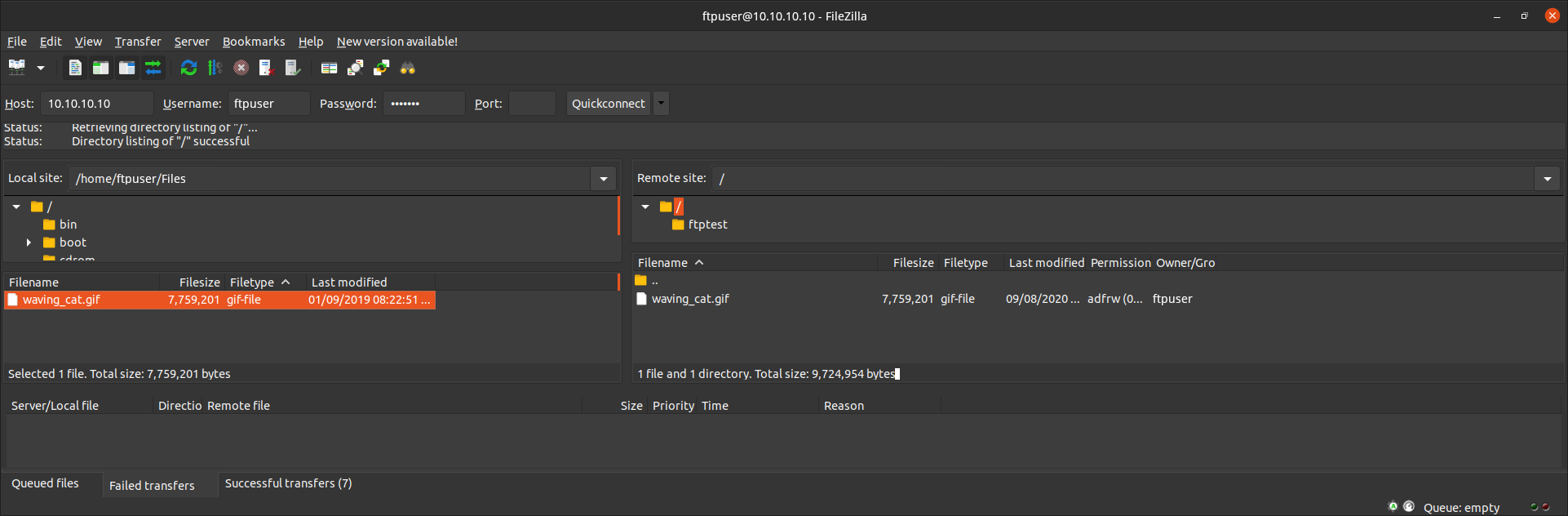
Use a browser or FTP client to connect to the FreeCORE FTP share. The images here show using FileZilla, a free option.
The user name and password are those of the local user account on the FreeCORE.
The default directory is the same as the user /home directory.
After connecting, you can create directories and upload or download files.