Remote Replication
Describes how to create a remote replication task on FreeCORE.
Configure SSH and automatic dataset snapshots in FreeCORE before creating a remote replication task. This ensures that both systems can connect and new snapshots are regularly available for replication.
To streamline creating simple replication configurations, the replication wizard assists with creating a new SSH connection and automatically creates a periodic snapshot task for sources with no existing snapshots.
Creating a Remote Replication Task
Go to Tasks > Replication Tasks and click ADD.
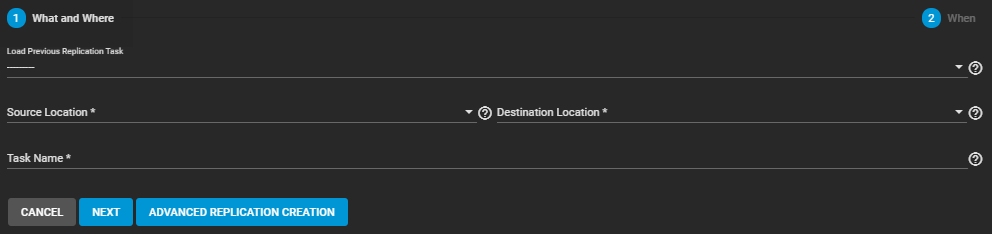
You can load any saved replication to prepopulate the wizard with that configuration. Saving changes to the configuration creates a new replication task without altering the one you loaded into the wizard. This saves time when creating multiple replication tasks between the same two systems.
Sources
Start by configuring the replication sources. Sources are the datasets or zvols with snapshots to use for replication. Choosing a remote source requires selecting an SSH connection to that system. Expanding the directory browser shows the current datasets or zvols available for replication. You can select multiple sources or manually type the names into the field.
FreeCORE shows how many snapshots are available for replication. We recommend you manually snapshot the sources or create a periodic snapshot task before creating the replication task. However, when the sources are on the local system and don't have any existing snapshots, FreeCORE can create a basic periodic snapshot task and snapshot the sources immediately before starting the replication. Enabling Recursive replicates all snapshots contained within the selected source dataset snapshots.
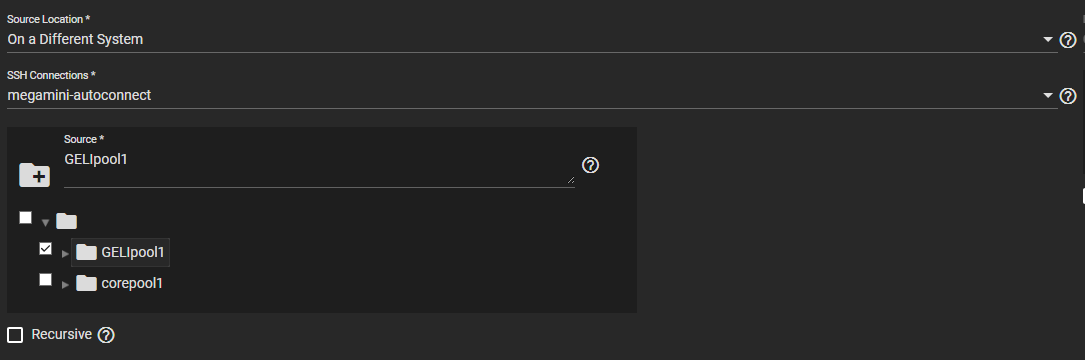
Remote sources require entering a Snapshot Naming Schema to identify the snapshots to replicate. A naming schema is a collection of strftime time and date strings and any identifiers that a user might have added to the snapshot name.
Local sources can also use a naming schema to identify and include custom snapshots in the replication.
Destination
The destination is where replicated snapshots are stored. Choosing a remote destination requires an SSH connection to that system. Expanding the directory browser shows the current datasets that are available for replication. You can select a destination dataset or manually type a path in the field. You cannot use Zvols as a remote replication destination. Adding a name to the end of the path creates a new dataset in that location.
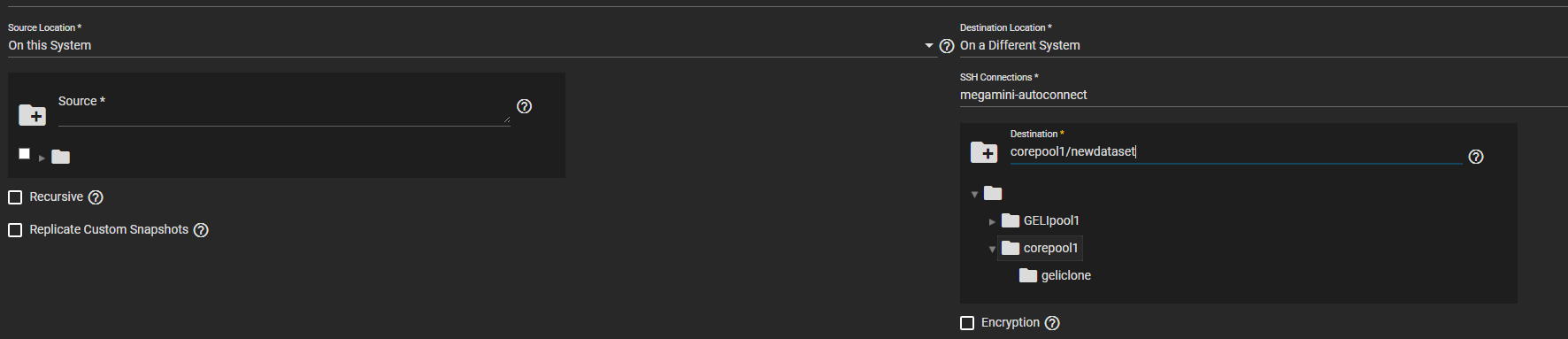
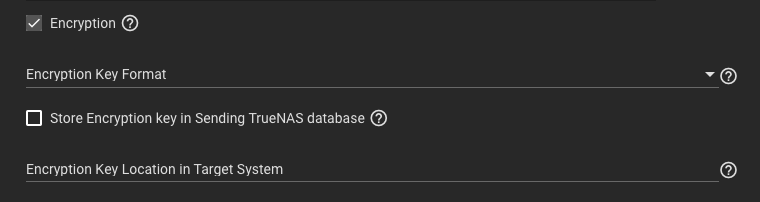
Encryption: To use encryption when replicating data, check the Encryption box.
- Encryption Key Format allows the user to choose between a Hex (base 16 numeral) or Passphrase (alphanumeric) style encryption key.
- Store Encryption key in Sending FreeCORE database allows the user to either store the Encryption key in the sending FreeCORE database (box checked) or choose a temporary location for the encryption key to decrypt replicated data (box unchecked).
Security and Task Name
Note
Using encryption for SSH transfer security is always recommended.
If you are using two systems within a secure network for replication, disabling encryption speeds up the transfer. However, the data is not protected from malicious sources.
Choosing no encryption for the task is the same as choosing the SSH+NETCAT transport method from the advanced options screen. NETCAT uses common port settings, but these can be overridden by switching to the advanced options screen or editing the task after creation.
FreeCORE suggests a name based on the selected sources and destination, but you can overwrite it with a custom name.
Adding a schedule automates the task to run according to your chosen times. You can choose between several preset schedules or create a custom schedule for when the replication runs. Choosing to run the replication once runs the replication immediately after saving the task, but you must manually trigger any additional replications.
Finally, define how long you want to keep snapshots on the destination system. We recommend defining snapshot lifetime to prevent cluttering the system with obsolete snapshots.
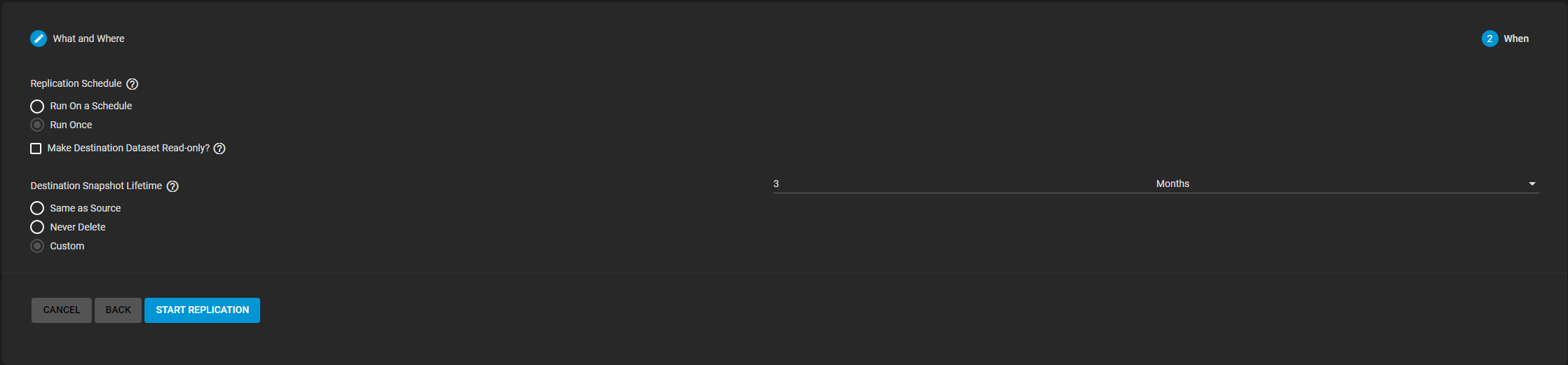
Starting the Replication
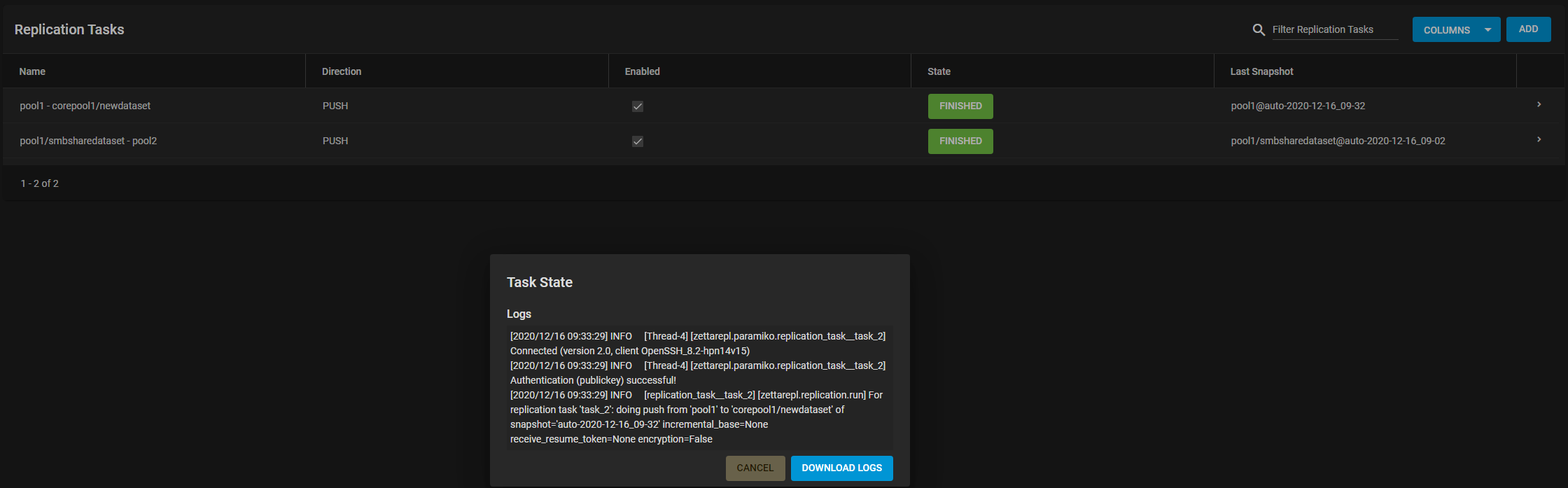
Start Replication saves the new replication task. FreeCORE enables new tasks by default and activates them according to their schedule (or immediately if you didn't choose a schedule). The first time a replication task runs, it takes longer because the snapshots must copy entirely fresh to the destination. Later replications run faster, as only the subsequent changes to snapshots replicate. Clicking the task state opens the log for that task.