Backing Up Google Drive to FreeCORE
Describes how to back up Google Drive to FreeCORE.
Google Drive and G Suite are widely used to create and share documents, spreadsheets, and presentations with team members.
Although cloud-based tools have inherent backups and replications included by the cloud provider, certain users may require additional backup or archive capabilities.
For example, companies using G Suite for important work may need to keep records for years, potentially beyond the scope of the G Suite subscription.
FreeCORE can easily back up Google Drive using its built-in cloud sync.
Use an Imported Google Drive Credential
FreeCORE retains a Google Drive OAuth credential imported from TrueNAS CORE 13.3. Go to System > Cloud Credentials, open the existing Google Drive entry, and verify it before using it in a Cloud Sync task. Do not delete or recreate an imported credential while a task depends on it.
FreeCORE does not initiate a new authorization through the iX-hosted OAuth service. The following authorization figures record the earlier hosted flow and are historical context, not steps for creating a FreeCORE credential.
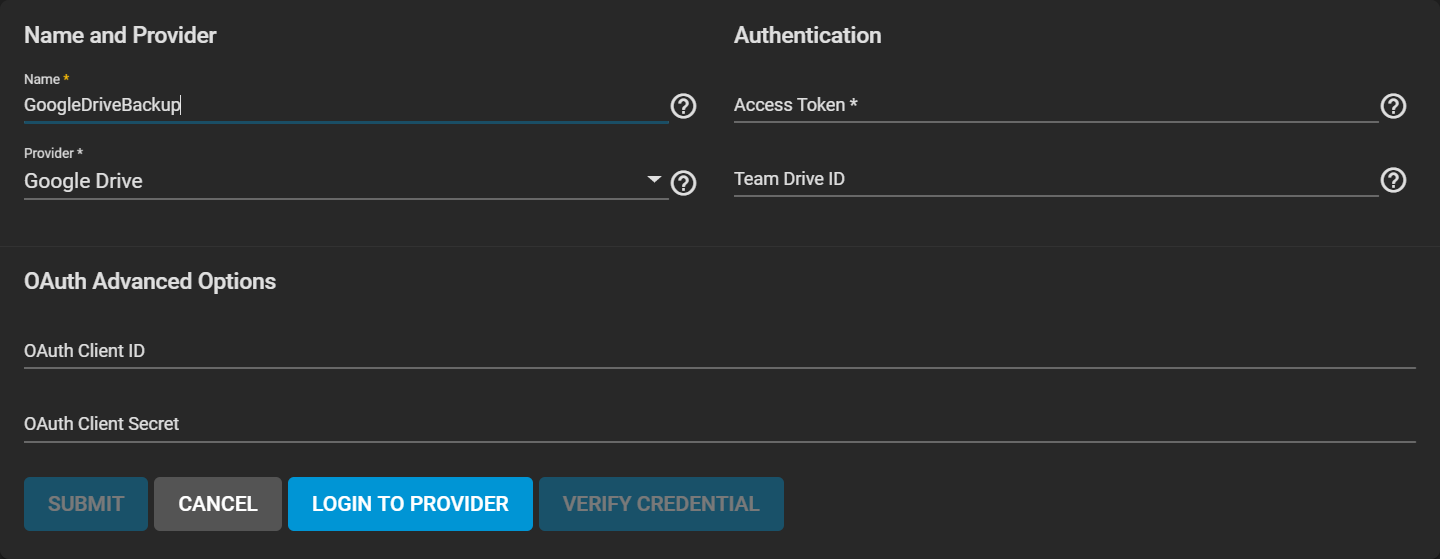
The 13.3 hosted flow requested permission to access the selected Google Drive account.
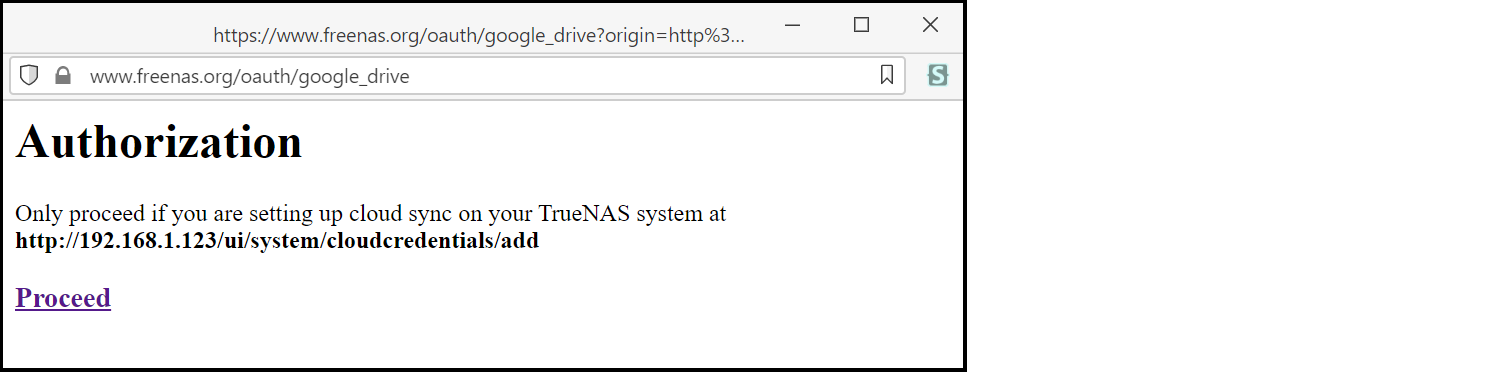
Inherited CORE 13.3 authorization step. This historical iX-hosted flow is not a FreeCORE setup instruction.
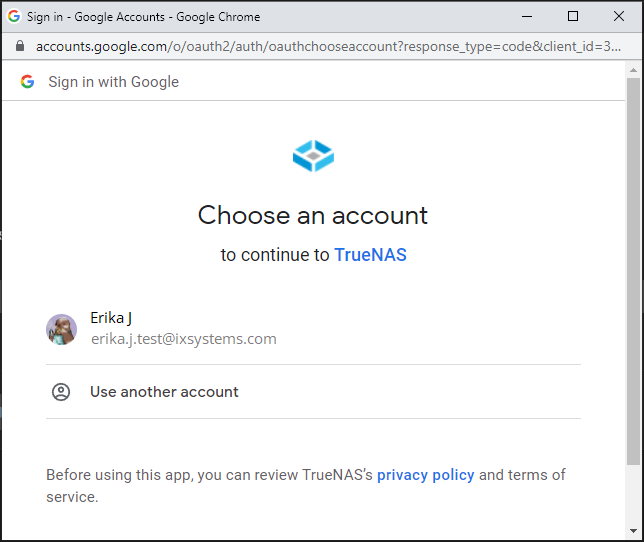
Inherited CORE 13.3 authorization step. This historical iX-hosted flow is not a FreeCORE setup instruction.
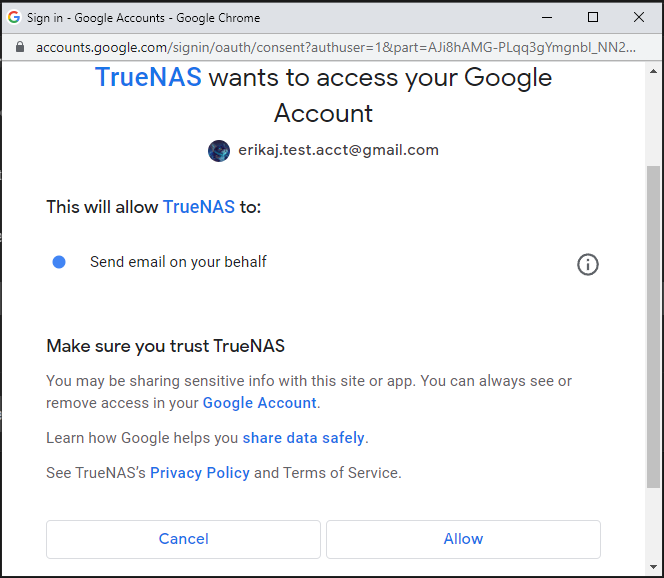
Inherited CORE 13.3 authorization step. This historical iX-hosted flow is not a FreeCORE setup instruction.
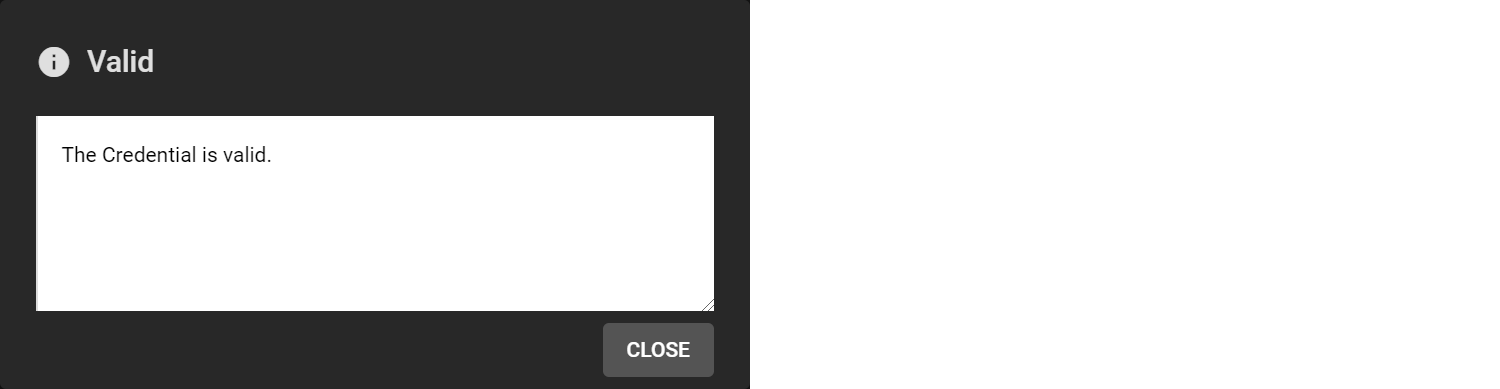
These screens belong to the former authorization flow; do not use them as setup instructions for FreeCORE. For an imported credential, click VERIFY CREDENTIAL and wait for verification, then click SUBMIT without changing its stored authorization values. If the provider has revoked the authorization, FreeCORE cannot restart the iX-hosted flow; configure a different supported credential before replacing the task reference.
Create the Cloud Sync Task
Go to Tasks > Cloud Sync Tasks and set the backup time frame, frequency, and folders (cloud-based folder and FreeCORE dataset). Set whether the synchronization should sync all changes, copy new files, or move files. Add a description for the task and select the cloud credentials. Choose the appropriate cloud folder target and FreeCORE storage location.
Select the file transfer mode:
- Sync: Keep files newly created or deleted the same.
- Copy: Copy new files to the appropriate target (i.e., FreeCORE pulls files from Google Drive or pushes files to Google Drive).
- Move: Copy files to the target and delete them from the source. With Move, users can set a folder in Google Drive for archival and move older documents to that folder from their Drive account. The task would automatically back up the files to the FreeCORE storage.
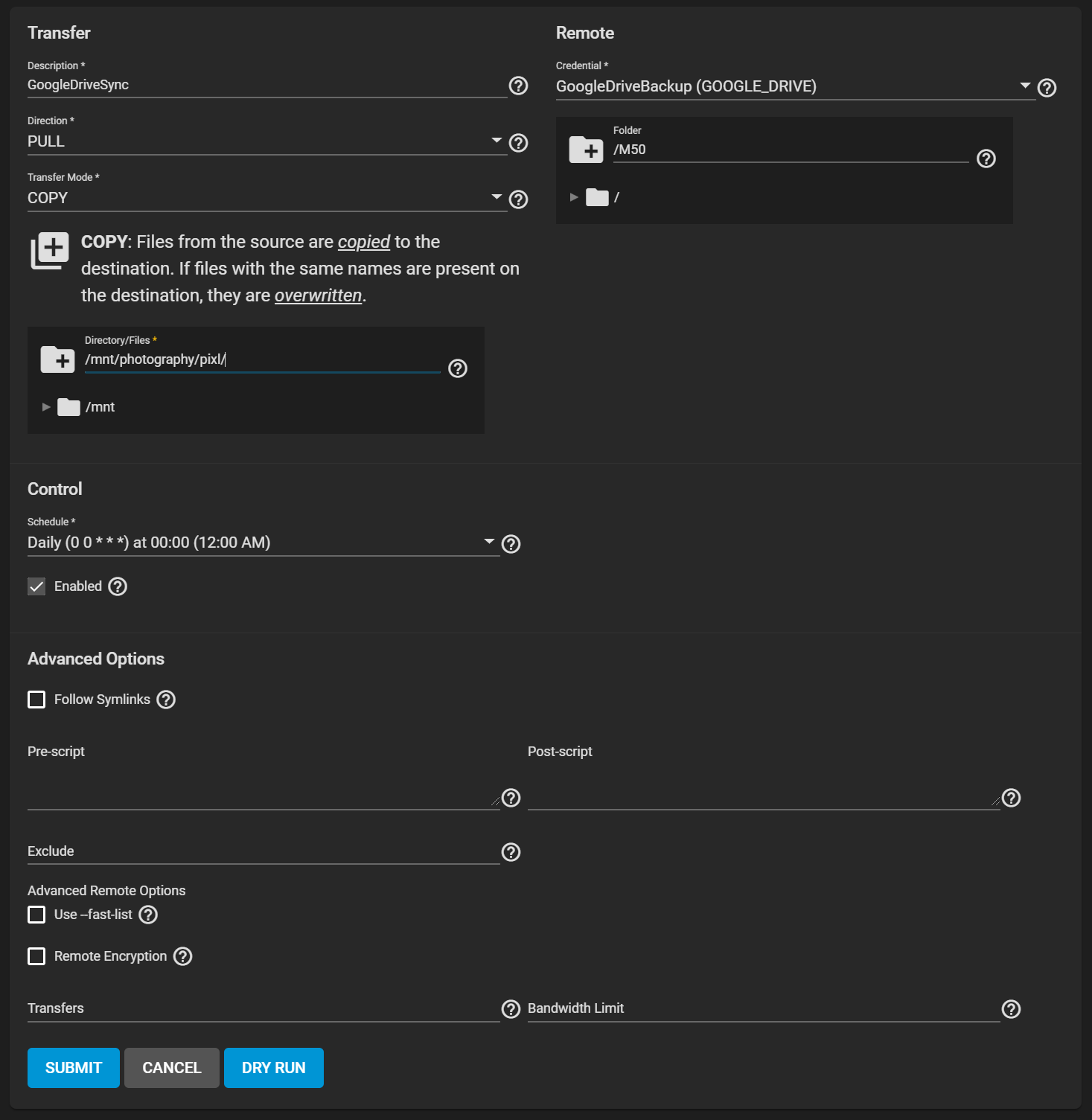
Once you create the task, attempt a Dry Run.
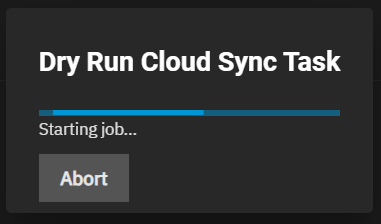
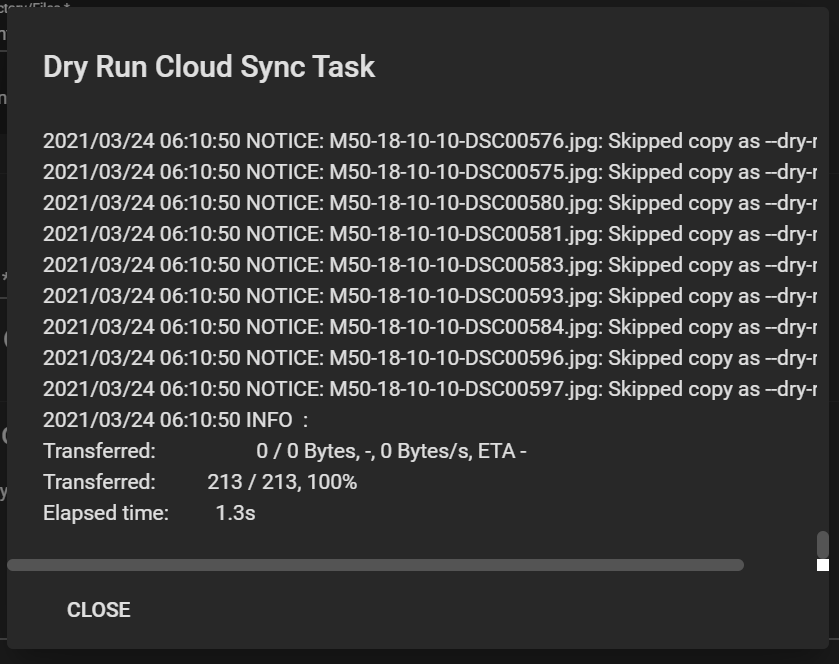
If the Dry Run succeeds, click SAVE..
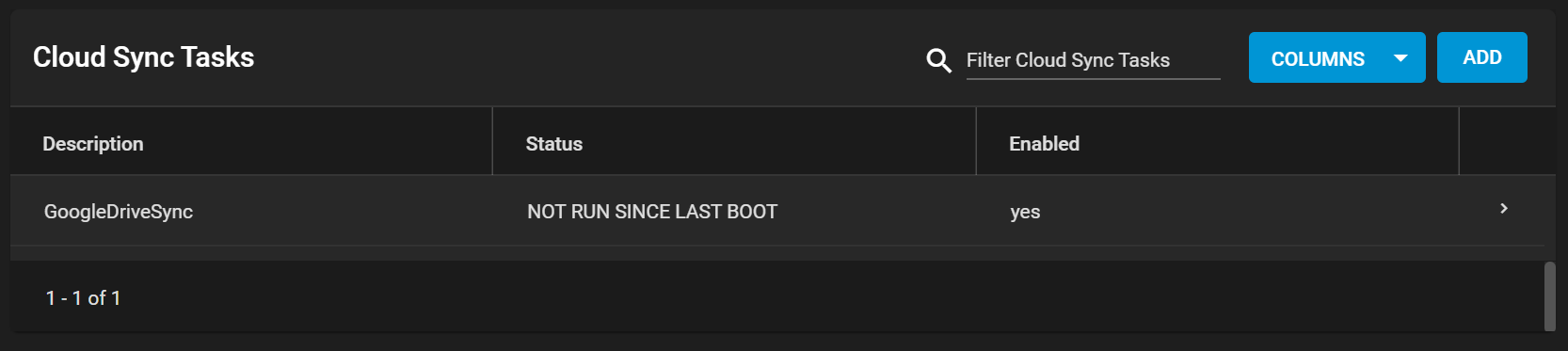
Expand the section down to see the task options.
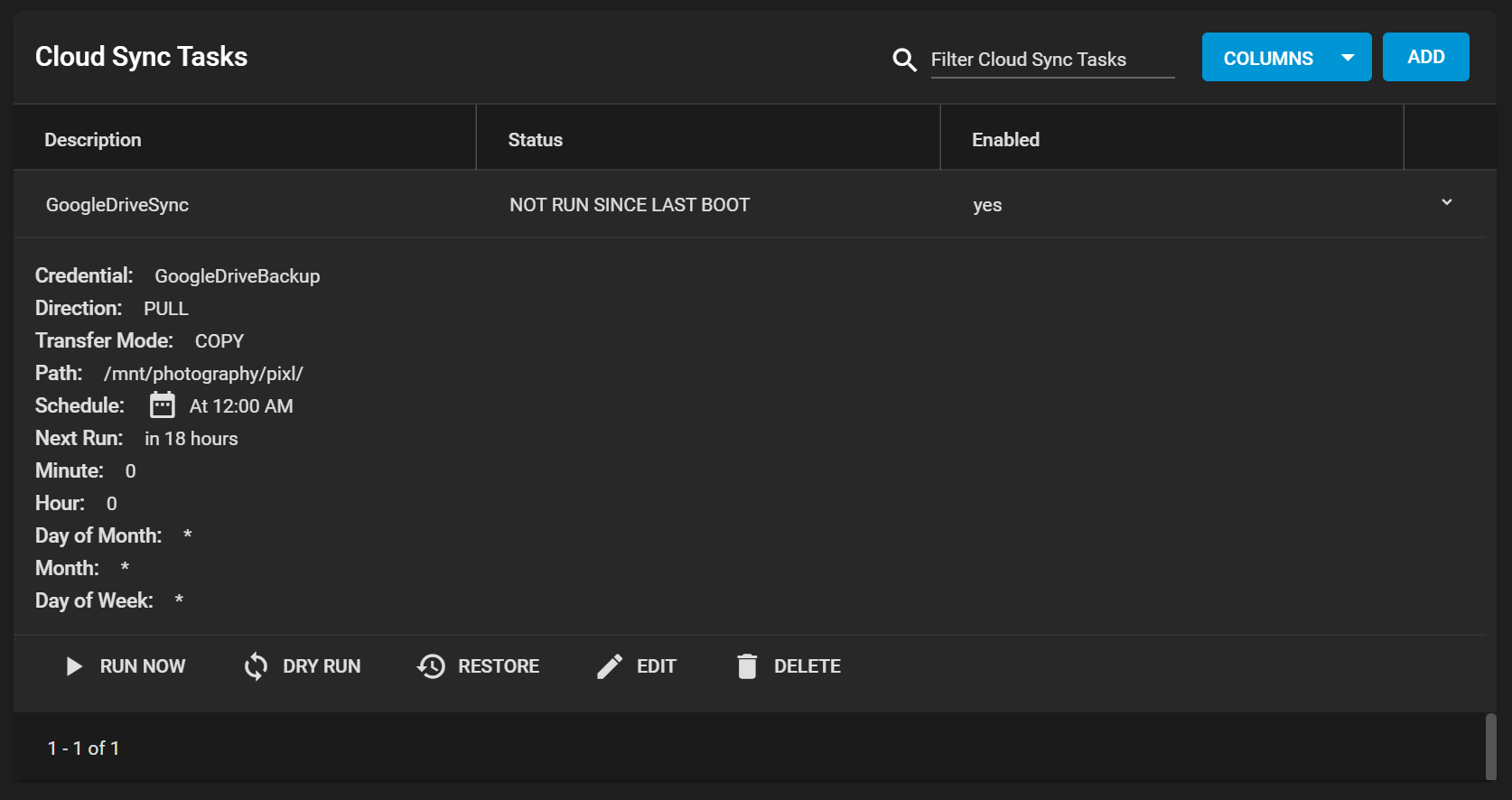
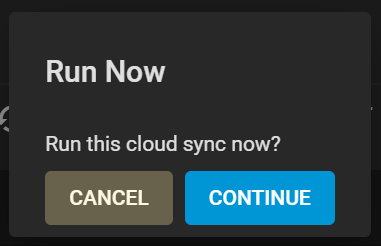
Clicking RUN NOW prompts the task to start immediately.
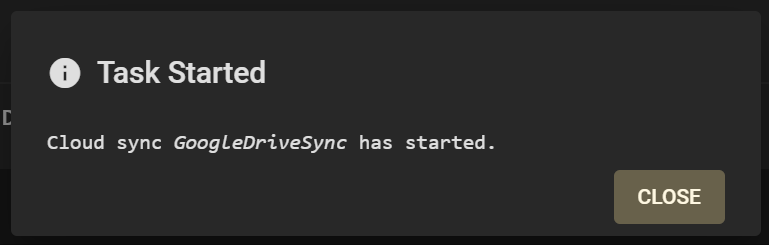
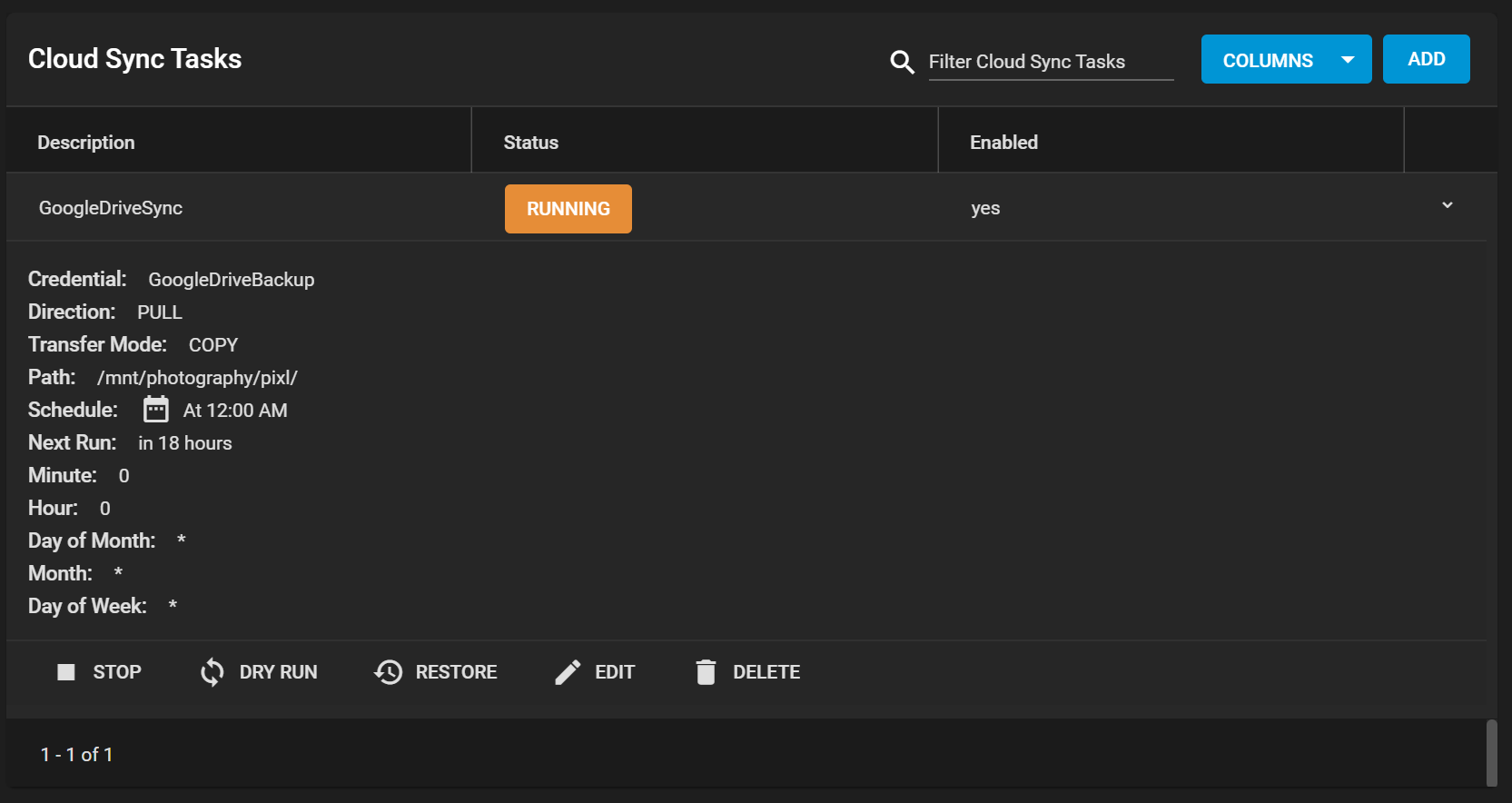
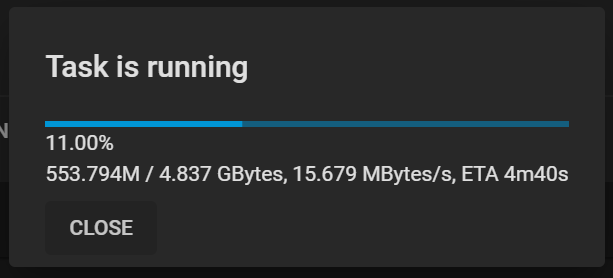
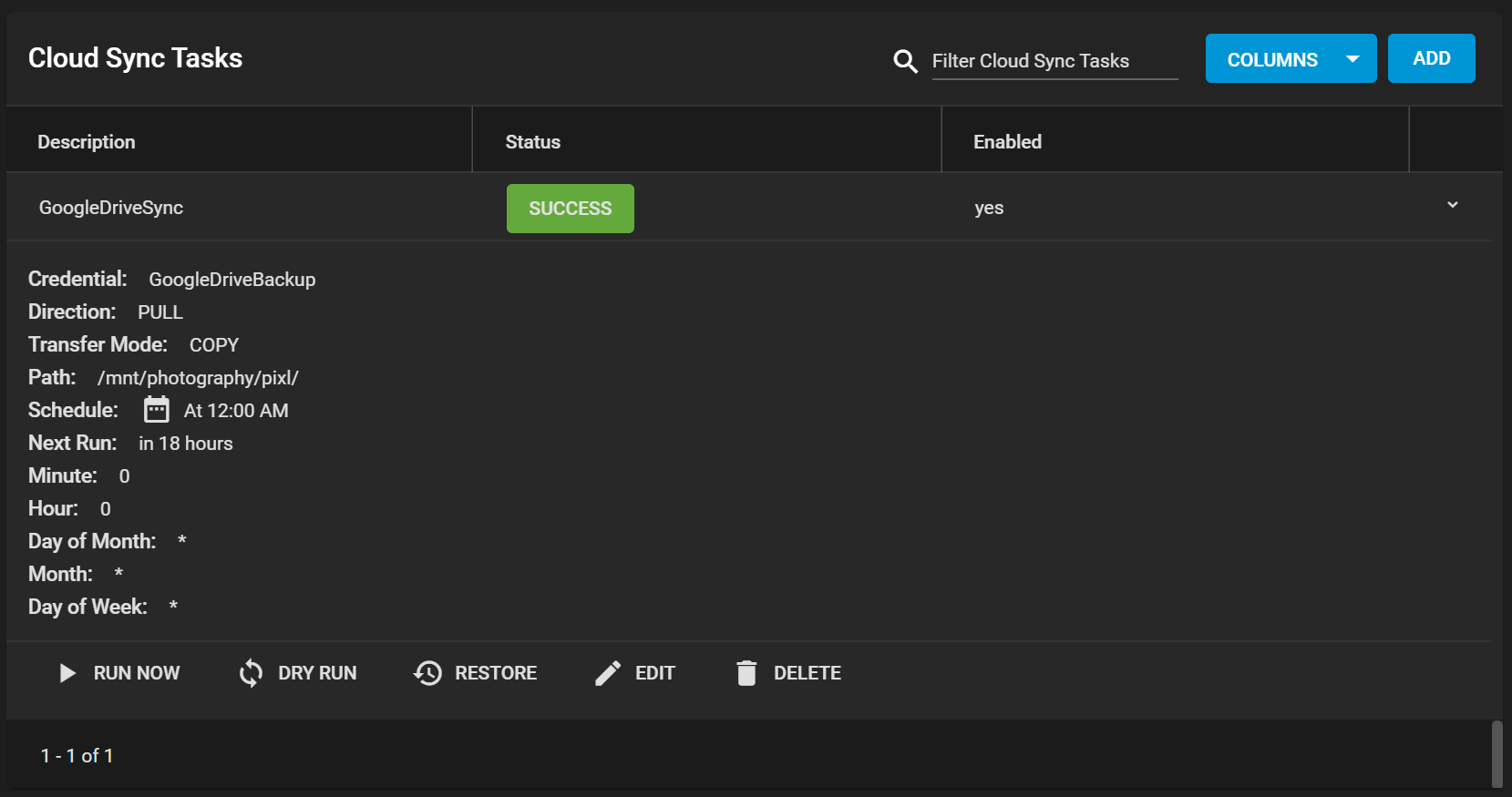
The web interface shows the status as RUNNING and SUCCESS upon completion. You can see details in the Task Manager. While the task runs, clicking on the RUNNING button reveals a popup log.
Once the sync reports SUCCESS, you can verify it by opening the folder on another computer if it is a share, through SSH access, or by checking the destination directory through the FreeCORE CLI.
Working with Google-Created Content
One caveat is that Google Docs and other files created with Google tools have their own proprietary set of permissions and their read/write characteristics unknown to the system over a standard file share. Files are unreadable as a result.
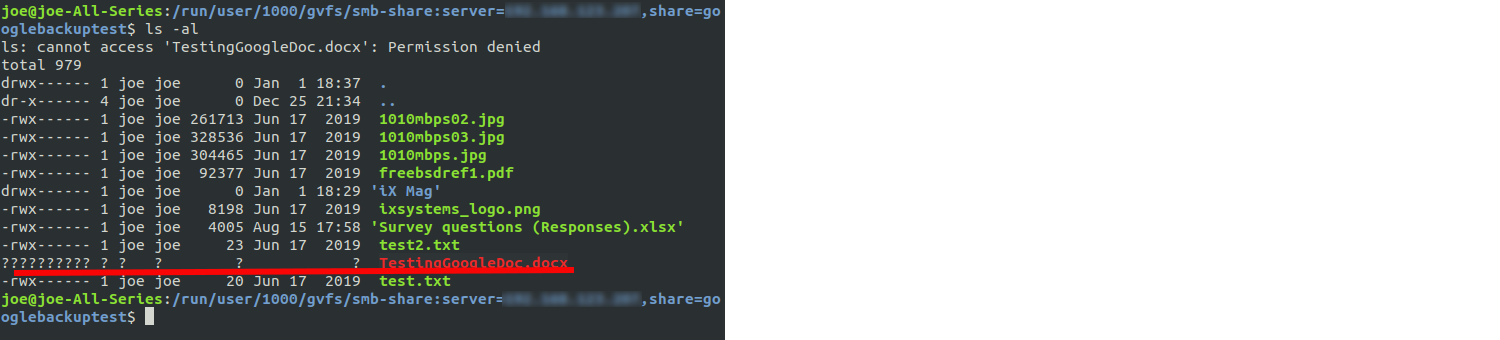
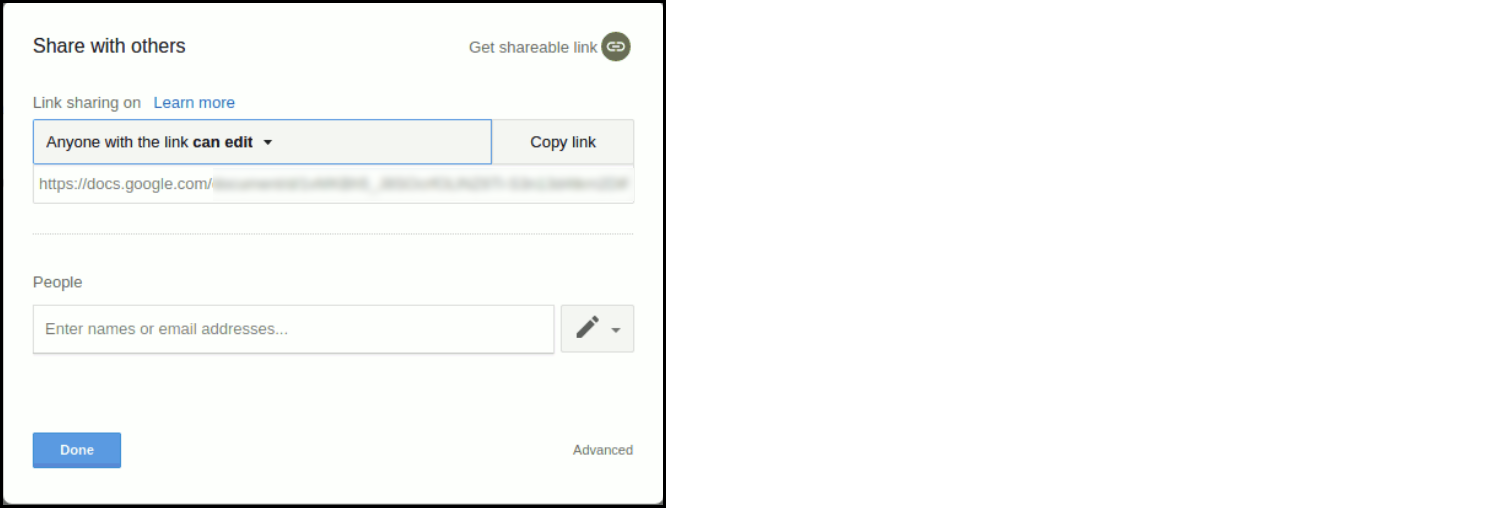
To allow Google-created files to become readable, allow link sharing to access the files before the backup. Doing so ensures that other users can open the files with read access, make changes, and then save them as another file if further edits are needed. Note that this is only necessary if the file was created using Google Docs, Google Sheets, or Google Slides; other files should not require modification of their share settings.
FreeCORE is perfect for storing content, including cloud-based content, for the long term. Not only is it simple to sync and backup from the cloud, but users can rest assured that their data is safe, with snapshots, copy-on-write, and built-in replication functionality.