Storage Encryption
Describes how to encrypt a storage pool in FreeCORE.
FreeCORE supports different encryption options for critical data.
Warning
Users are responsible for backing up and securing encryption keys and passphrases! Losing the ability to decrypt data is similar to a catastrophic data loss.
Data-at-rest encryption is available with:
- Self Encrypting Drives (SEDs) using OPAL or FIPS 140.2 (Both AES 256)
- Encryption of specific datasets (AES-256-GCM in CORE 12.0)
The local FreeCORE system manages keys for data-at-rest. The user is responsible for storing and securing their keys.
Encrypting a Storage Pool
Encrypting the root dataset of a new storage pool further increases data security. All datasets added to a pool with encryption applied inherit encryption. This means all datasets added to a pool with encryption are also encrypted.
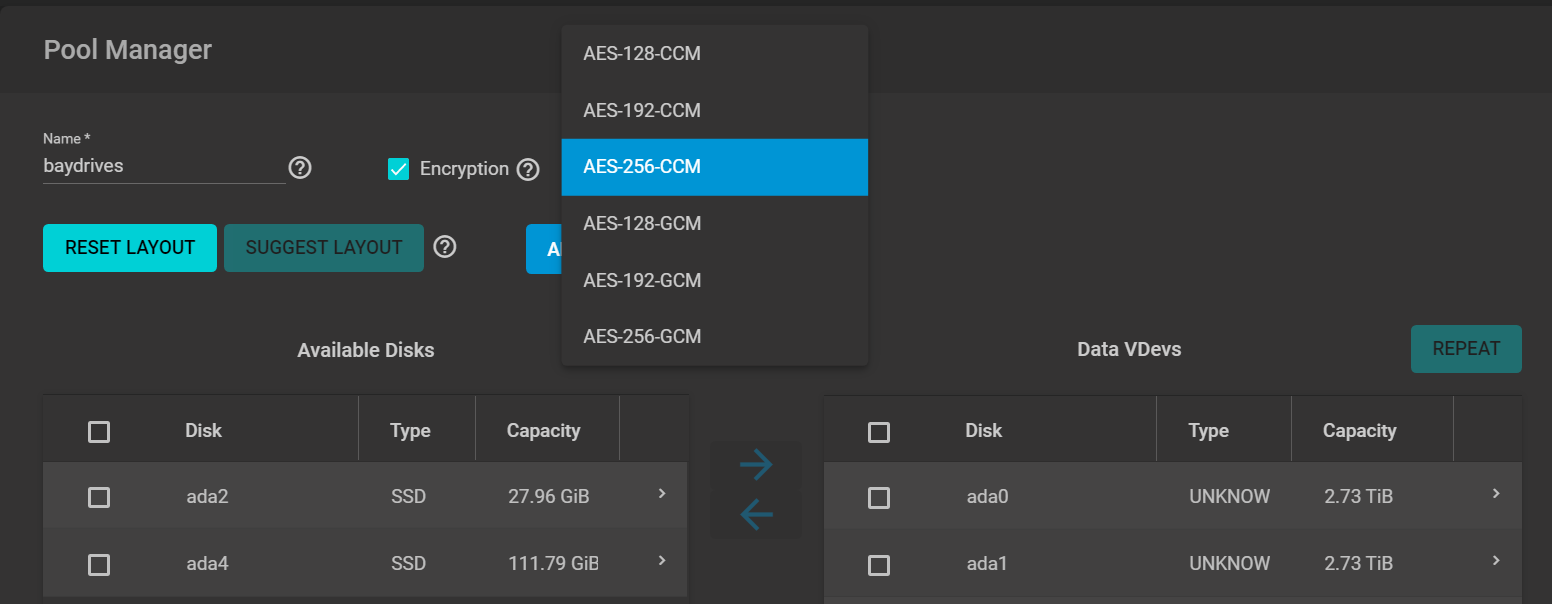
Create a new pool and set Encryption in the Pool Manager. FreeCORE shows a warning.
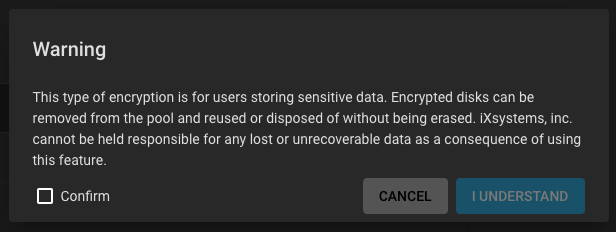
Read the warning, select Confirm, and click I Understand.
We recommend using the default encryption in Cipher, but other ciphers are available.
Encrypting a New Dataset
FreeCORE can encrypt new datasets within an existing unencrypted storage pool without having to encrypt the entire pool. To encrypt a single dataset, go to Storage > Pools, open the Options for an existing dataset, and click Add Dataset.
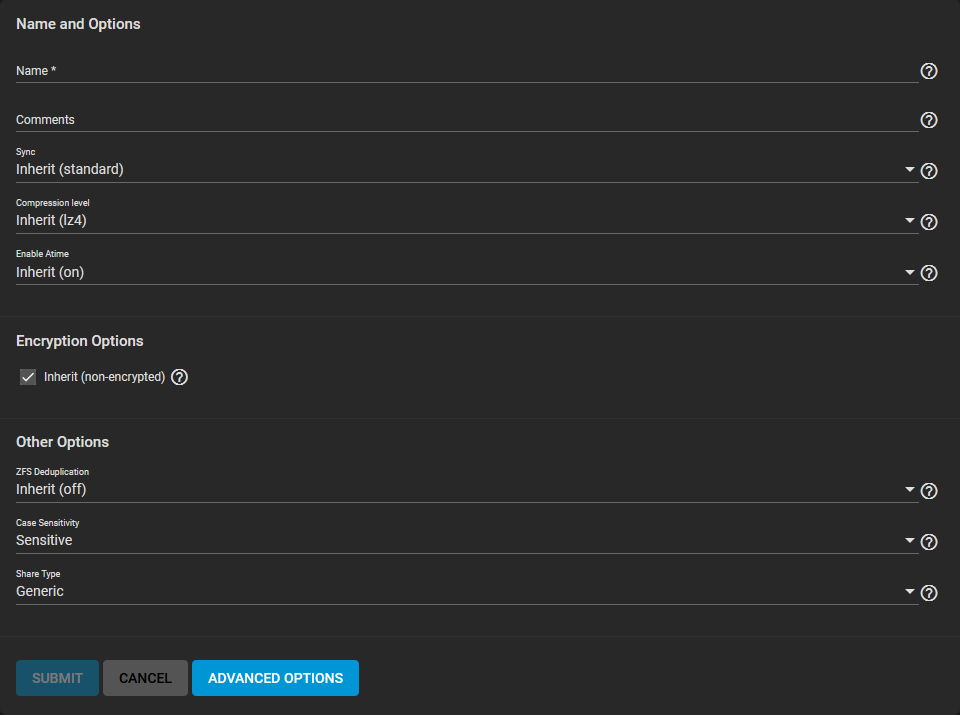
In the Encryption Options area, clear the Inherit checkbox, then select Encryption.
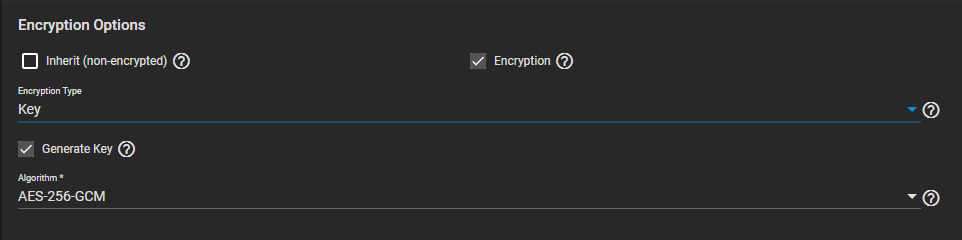
Now select the authentication to use from the two options in Type: either a Key or Passphrase. The remaining options are the same as a new pool. Datasets with encryption enabled show additional icons on the Storage > Pools list.
Locking and Unlocking Datasets
The dataset locked/unlocked status is determined from an icon:
- The dataset unlocked icon: <unlocked>.
- The dataset locked icon: <locked>.
- A Dataset on an encrypted pool with encryption properties that don't match the root dataset shows this icon:

Note
NOTE: An unencrypted pool with an encrypted dataset also shows this icon:
You can only lock or unlock encrypted datasets when they are secured with a passphrase instead of a key file. Before locking a dataset, verify that it is not currently in use, then click (Options) and Lock.
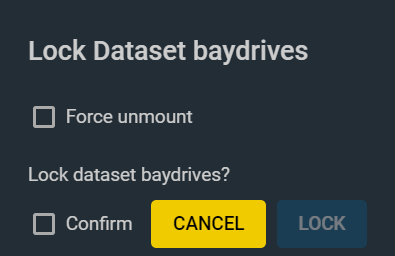
Use the Force unmount option only if you are certain no one is currently accessing the dataset. After locking a dataset, the unlock icon changes to a locked icon. While the dataset is locked, it is not available for use.
To unlock a dataset, click Options and Unlock.
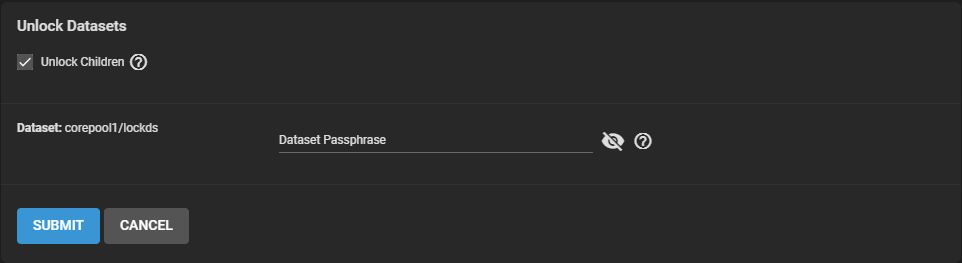
Enter the passphrase and click Submit. To unlock child datasets, select Unlock Children. Child datasets that inherited encryption settings from the parent dataset unlock when the parent unlocks. Users can simultaneously unlock child datasets with different passphrases from the parent by entering their passphrases.
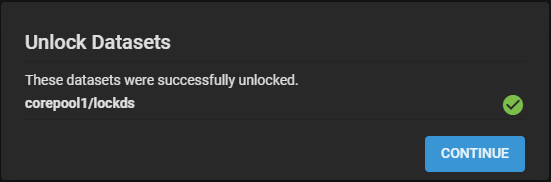
Confirm unlocking the datasets and wait for a dialog to show the unlock is successful.
Example

The parent dataset is media. It has three child datasets. The documents child dataset inherits the parent encryption settings and password. The other two child datasets (audio and video) have their own passphrases. When you lock the parent dataset all child datasets are also locked.
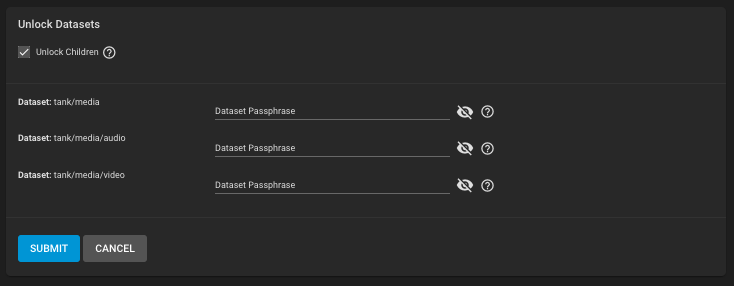
Open the Options for the parent dataset and select unlock. To unlock all the datasets, select Unlock Children and enter the passphrase for each dataset to unlock.
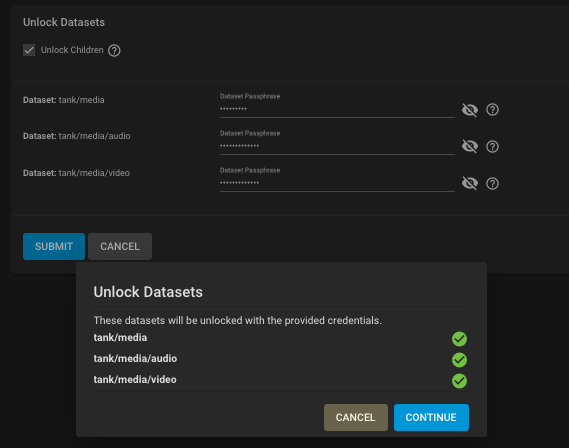
Click the Continue button in the dialog window that confirms that the unlocking was successful. The dataset listing changes to show the unlocked icon.
Encryption Management
There are two ways to manage the encryption credentials, with either key files or passphrases.
Warning
Always back up the key file to a safe and secure location!
Key Files
Creating a new encrypted pool automatically generates a new key file and prompts you to download it.
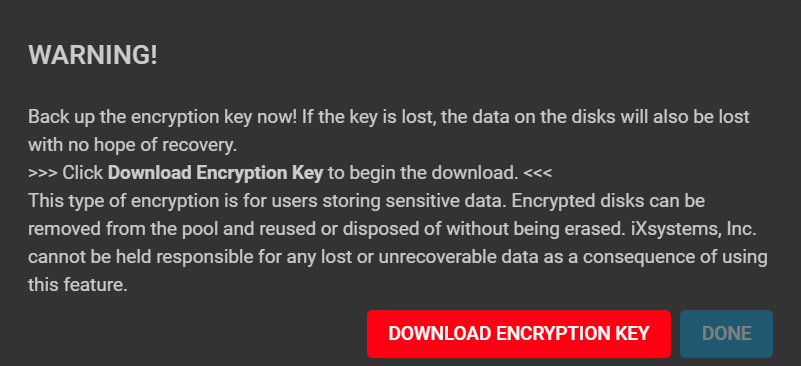
Pool Key File
Manually download a copy of the inherited and non-inherited encrypted dataset key files for the pool by opening the pool Settings menu and selecting Export Dataset Keys. Enter the root password and click CONTINUE.
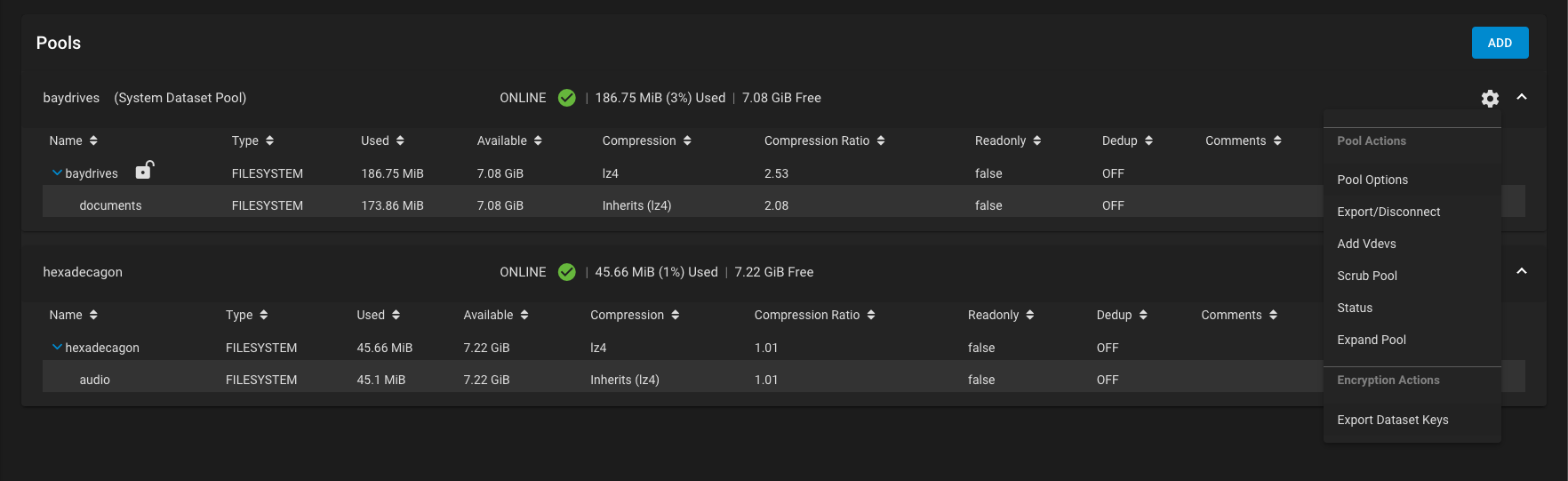
Dataset Key File
To manually download a back up of a single key file for the dataset, click the dataset Options and select Export Key. Enter the root password and click CONTINUE. Click DOWNLOAD KEY.
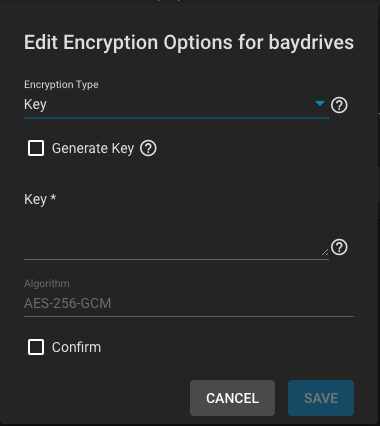
To change the key, click the dataset Options and Encryption Options.
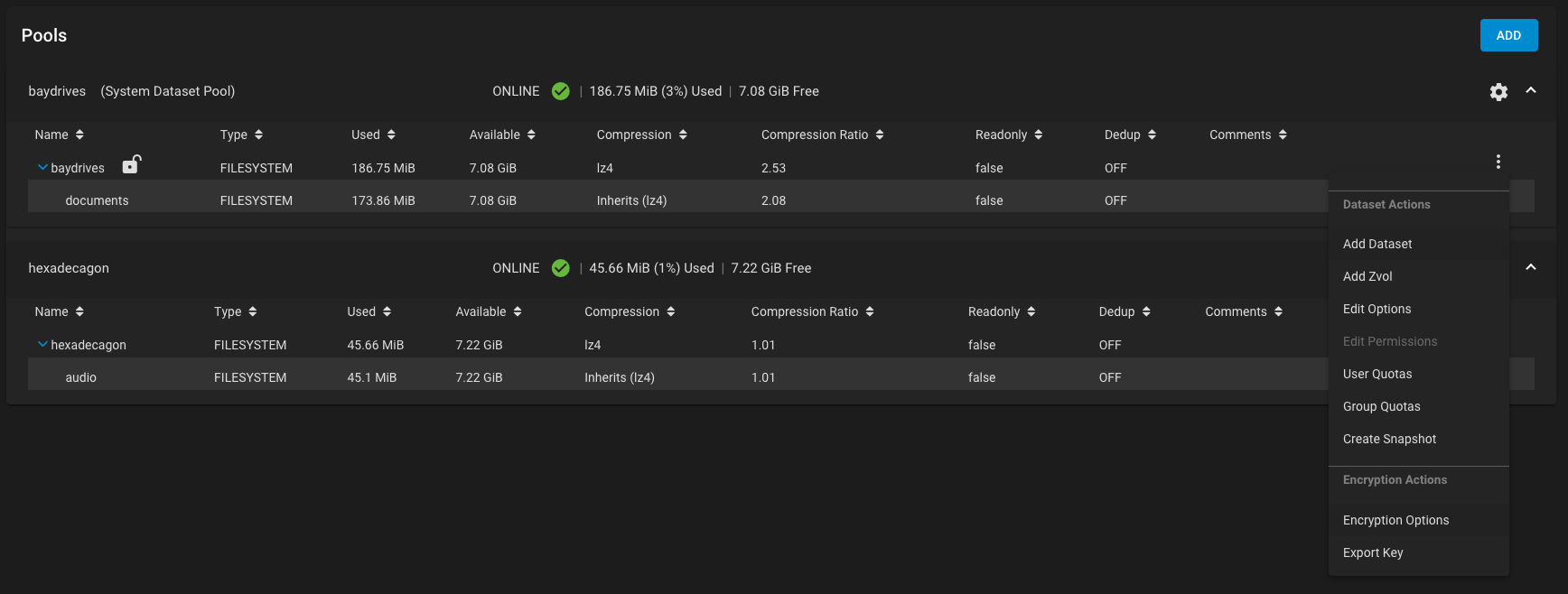
Enter your custom key or click Generate Key.
Passphrases
Important
The passphrase is the only means to decrypt the information stored in a dataset using passphrase encryption keys. Be sure to create a memorable passphrase or physically secure the passphrase.
To use a passphrase instead of a key file, click the dataset Options and Encryption Options. Change the Encryption Type from Key to Passphrase.
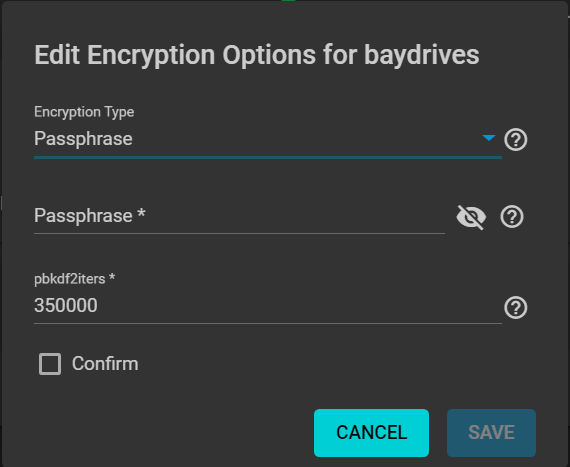
Set the rest of the options:
-
Passphrase is a user-defined string of eight to 512 characters in length, to use instead of an encryption key to decrypt the dataset.
-
pbkdf2iters is the number of password-based key derivation function 2 (PBKDF2) iterations to use for reducing vulnerability to brute-force attacks. Entering a number greater than 100000 is required.
Unlocking a Replicated Encrypted Dataset or Zvol Without a Passphrase
Either replicate the dataset or zvol without properties to disable encryption at the remote end or construct a special json manifest to unlock each child dataset/zvol with a unique key.
Unlocking Methods
Legacy GELI Encryption
FreeCORE does not create new GELI-encrypted pools. Existing GELI pools remain supported for import, unlock, key management, disk replacement, and migration, and appear as Legacy Encrypted pools. GELI is deprecated; plan to migrate the data to native ZFS encryption.
GELI Pool Migrations
Data can be migrated from the GELI-encrypted pool to a new ZFS-encrypted pool. Unlock the GELI-encrypted pool before attempting any data migrations. The new ZFS-encrypted pool must be at least the same size as the previous GELI-encrypted pool. Do not delete the GELI dataset until you verify the data migration.
There are a few options to migrate data from a GELI-encrypted pool to a new ZFS-encrypted pool:
- Using the Replication Wizard
- Using file transfer
- Using ZFS send and receive
Using the Replication Wizard
GELI encrypted pools continue to be detected and supported in the FreeCORE web interface as Legacy Encrypted pools. As of CORE 12.0-U1, a decrypted GELI pool can migrate data to a new ZFS encrypted pool using the Replication Wizard.
File Transfer Method
Important
This method does not preserve file ACLs.
The web interface supports using Tasks > Rsync Tasks to transfer files out of the GELI pool.