Permissions
This articled describes permissions configuration on FreeCORE.
Permissions control the actions users can perform on dataset contents. FreeCORE allows using both a simple permissions manager and editing a full Access Control List (ACL) for defining dataset permissions.
To change dataset permissions, go to Storage > Pools > Options Edit Permissions for a dataset.
Basic Permissions Editor
The Edit Permissions option allows basic adjustments to a datasets ACL.
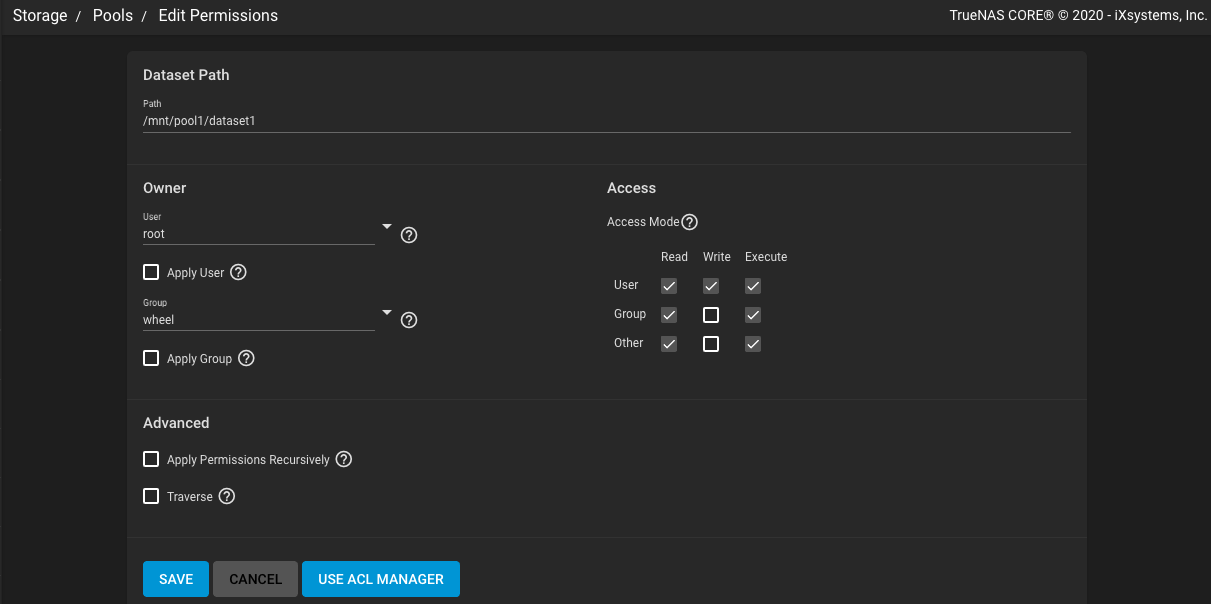
Options
The Owner section controls which FreeCORE user and group has full control of this dataset.
Access Mode defines the basic read, write, and execute permissions for the user, group, and other accounts that might access this dataset.
Advanced has several tuning options to set how permissions apply to directories and files within the current dataset.
To switch from the basic editor to the advanced ACL editor, click USE ACL MANAGER.
Access Control Lists
An Access Control List (ACL) is a set of account permissions associated with a dataset and applied to directories or files within that dataset. ACLs are typically used to manage user interactions with shared datasets and are created when a dataset is added to a pool.
When creating a dataset, you can choose how the ACL can be modified by selecting an ACL Mode:
-
Passthrough only updates ACL entries (ACEs) that are related to the file or directory mode.
-
Restricted does not allow
chmodto make changes to files or directories with a non-trivial ACL. An ACL is trivial if it can be fully expressed as a file mode without losing any access rules. Setting the ACL Mode to Restricted is typically used to optimize a dataset for SMB sharing, but can require further optimizations. For example, configuring an rsync task with this dataset could require adding--no-permsas an extra option for the task.
To view an ACL, go to Storage > Pools > Options Edit Permissions for a nested dataset within a pool.
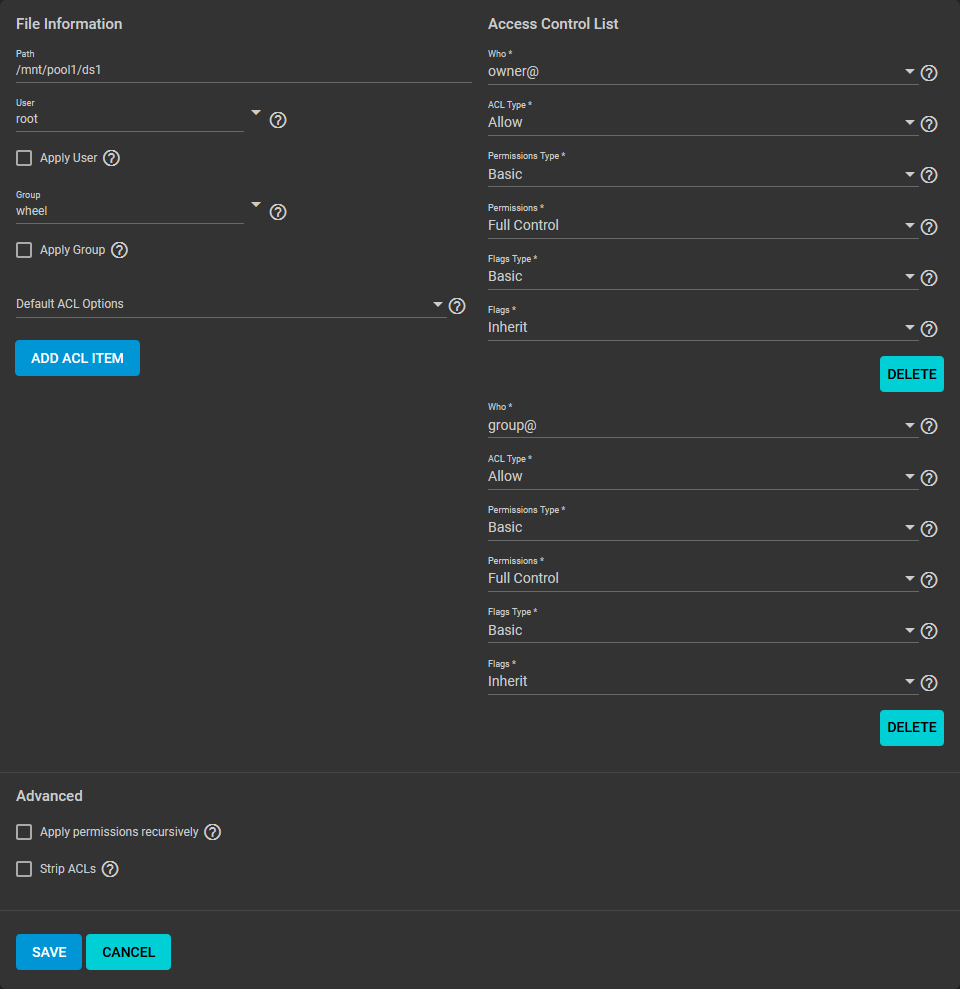
ACL Inheritance
The ACL for a new file or directory is typically inherited from the parent directory and is preserved when it is moved or renamed within the same dataset. An exception is when there are no File Inherit or Directory Inherit flags in the parent ACL owner@, group@, or everyone@ entries. These non-inheriting entries are added to the ACL of the newly created file or directory based on the Samba create and directory masks or the umask value.
Editing an ACL
Click ACL Manager to adjust file ownership or account permissions to the dataset. The first time viewing the ACL Manager a dialog suggests using basic presets. The ACL can be edited at any time after choosing to either apply a preset or create a custom ACL.
Choose Select a preset ACL and choose a preset. The preset options are OPEN, RESTRICTED, or HOME.
Choose Create a custom ACL to create a new list of customized permissions.
File Information
The selected User controls the dataset and always has permission to modify the ACL and other attributes. The selected Group also controls the dataset, but permissions change by adding or modifying a group@ ACE. Any user accounts or groups imported from a directory service can be selected as the primary in User or Group.
Access Control List (ACEs)
To add a new item to the ACL, define Who the Access Control Entry (ACE) applies to, and configure permissions and inheritance flags for the ACE.
Permissions
Permissions are divided between Basic and Advanced options. The basic options are commonly used groups of the advanced options.
Basic Permissions
- Read (
r-x---a-R-c---): view file or directory contents, attributes, named attributes, and ACL. Includes the Traverse permission. - Modify (
rwxpDdaARWc--s): adjust file or directory contents, attributes, and named attributes. Create new files or subdirectories. Includes the Traverse permission. Changing the ACL contents or owner is not allowed. - Traverse (
--x---a-R-c---): Execute a file or move through a directory. Directory contents are restricted from view unless the Read permission is also applied. To traverse and view files in a directory, but not be able to open individual files, set the Traverse and Read permissions, then add the advanced Directory Inherit flag. - Full Control (
rwxpDdaARWcCos): Apply all permissions.
Advanced Permissions
- Read Data (
r): View file contents or list directory contents. - Write Data (
w): Create new files or modify any part of a file. - Append Data (
p): Add new data to the end of a file. - Read Named Attributes (
R): view the named attributes directory. - Write Named Attributes (
W): create a named attribute directory. Must be paired with the Read Named Attributes permission. - Execute (
x): Execute a file, move through, or search a directory. - Delete Children (
D): delete files or subdirectories from inside a directory. - Read Attributes (
a): view file or directory non-ACL attributes. - Write Attributes (
A): change file or directory non-ACL attributes. - Delete (
d): remove the file or directory. - Read ACL (
c): view the ACL. - Write ACL* (
C): change the ACL and the ACL mode. - Write Owner (
o): change the user and group owners of the file or directory. - Synchronize (
s): synchronous file read/write with the server. This permission does not apply to FreeBSD clients.
Inheritance Flags
Basic inheritance flags only enable or disable ACE inheritance. Advanced flags offer finer control for applying an ACE to new files or directories.
Basic Flags
- Inherit (
fd-----): enable ACE inheritance. - No Inherit (
-------): disable ACE inheritance.
Advanced Flags
- File Inherit (
f): The ACE is inherited with subdirectories and files. It applies to new files. - Directory Inherit (
d): new subdirectories inherit the full ACE. - No Propagate Inherit (
n): The ACE can only be inherited once. - Inherit Only (
i): Remove the ACE from permission checks but allow it to be inherited by new files or subdirectories. Inherit Only is removed from these new objects. - Inherited (
I): set when the ACE has been inherited from another dataset.