Home Shares
Describes how to configure a Home Share on FreeCORE.
FreeCORE offers the Use as Home Share option for organizations or SMEs that want to use a single SMB share to provide a personal directory to every user account.
Important
The Use as Home Share feature is available for a single FreeCORE SMB share. You can create additional SMB shares as described in the SMB sharing article but without the Use as Home Share option enabled.
Create a Pool and Join Active Directory
First, go to Storage > Pools and create a pool.
Next, set up the Active Directory that you want to share resources with over your network.
Prepare a Dataset
Go to Storage > Pools and open the Options next to the root dataset in the pool you just created, then click Add Dataset.
Name the dataset (this article uses Home_Share_Dataset as an example) and set the Share Type to SMB.
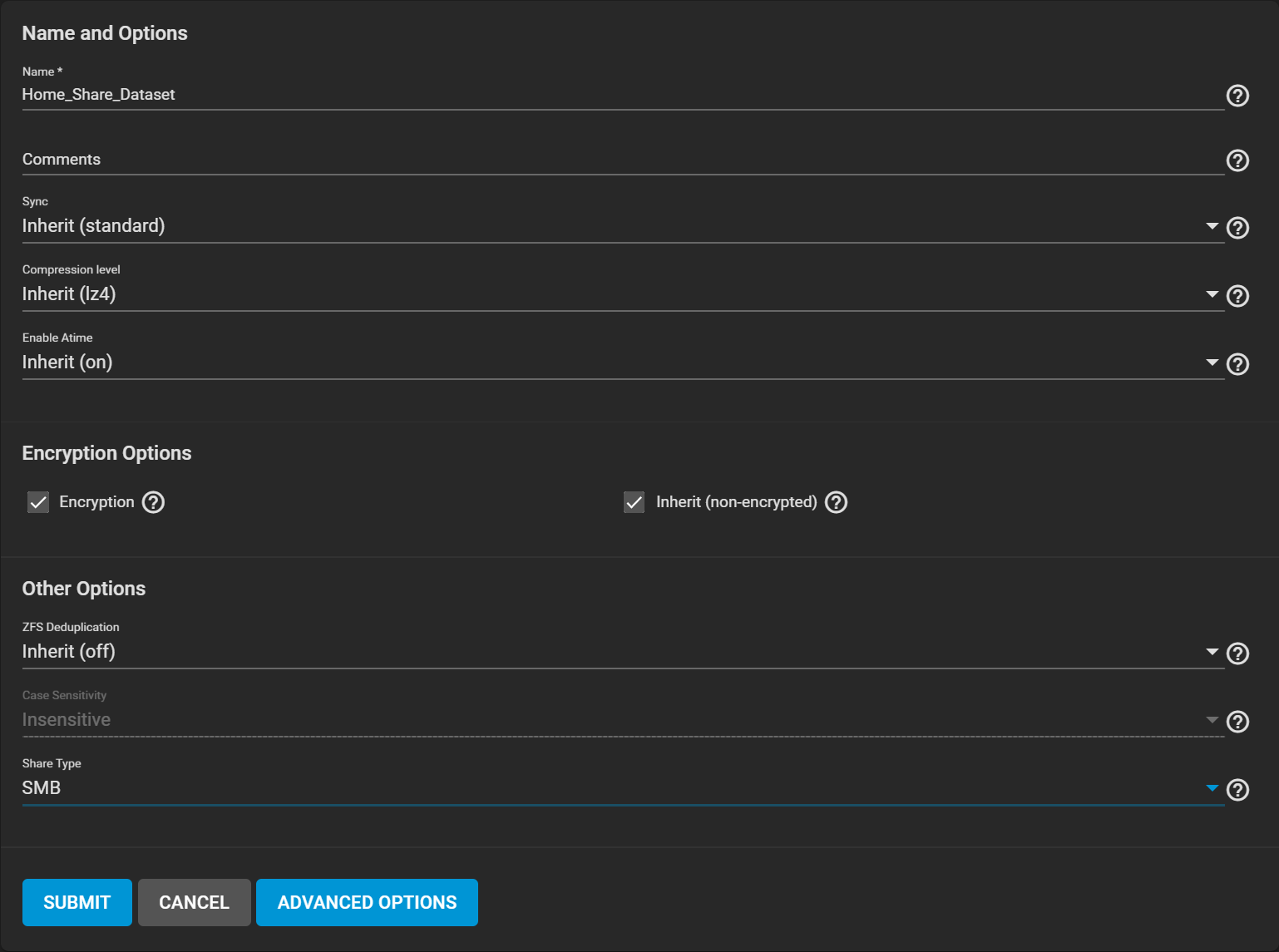
After creating the dataset, go to Storage > Pools and open Options next to the new dataset. Select Edit Permissions.
Click the Group dropdown menu and change the owning group to your Active Directory domain admins and check Apply Group.
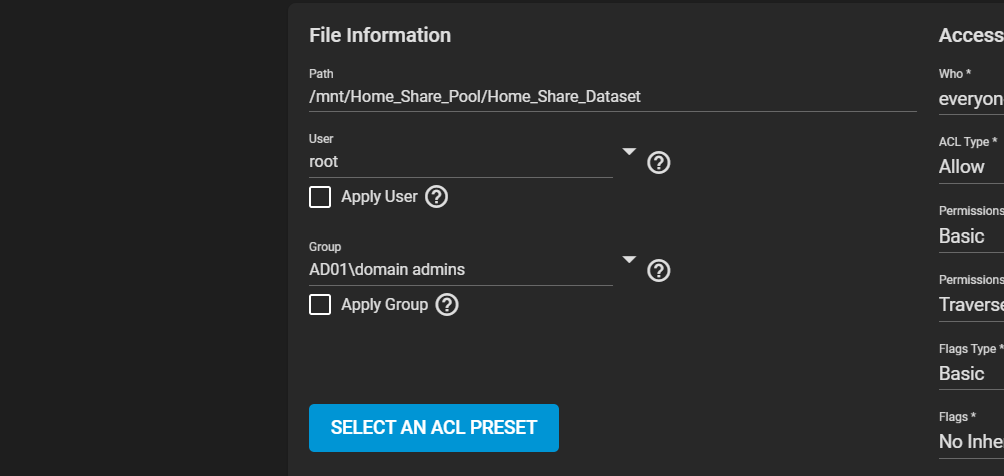
Click Select an ACL Preset and choose HOME. Then, click SAVE.
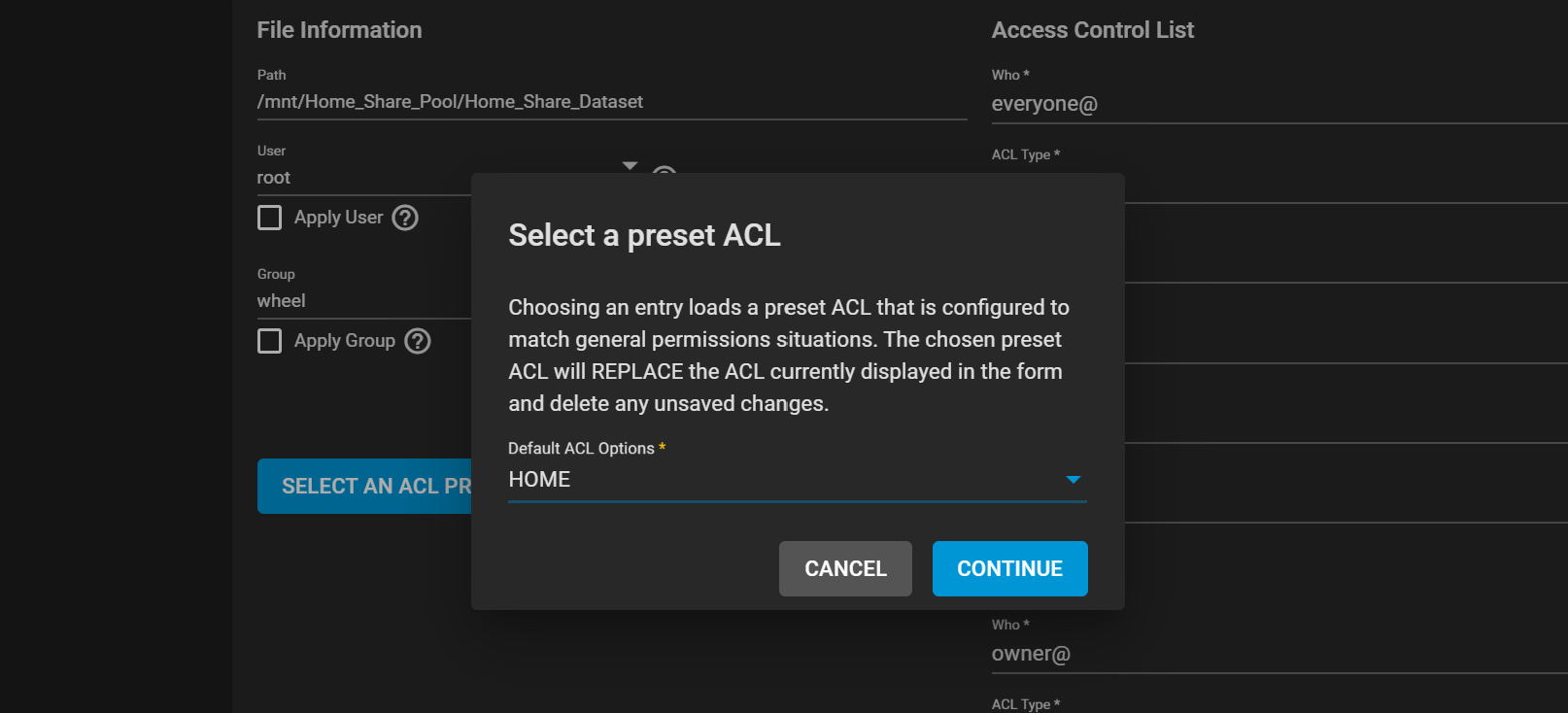
Create the Share
Go to Sharing > Windows Shares (SMB) and click ADD.
Set the Path to the prepared dataset (Home_Share_Dataset for example).
The Name automatically changes to be identical to the dataset. Leave this at the default.
Set the Purpose to No presets, then click ADVANCED OPTIONS and check Use as Home Share. Click SUBMIT.
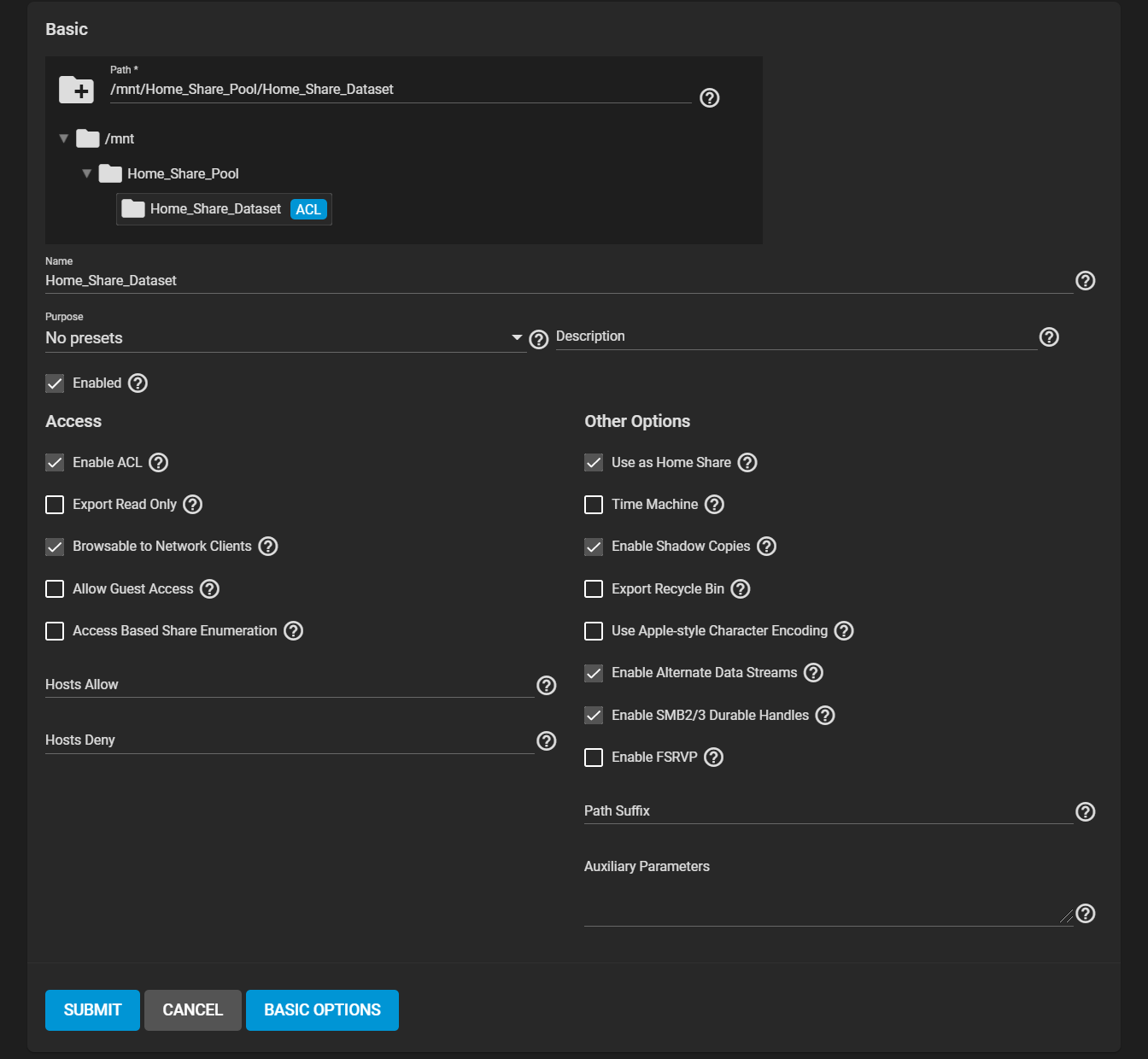
The ACL editor opens, displaying the home ACL preset values.
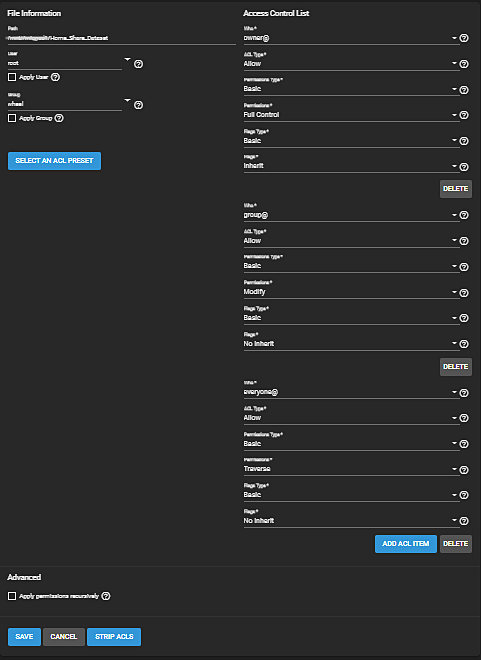
Click SAVE. Enable the SMB service in Services to make the share available on your network.
Add Users
Go to Accounts > Users and click ADD. Create a new user name and password. By default, the user Home Directory is titled from the user account name and added as a new subdirectory of Home_Share_Dataset.
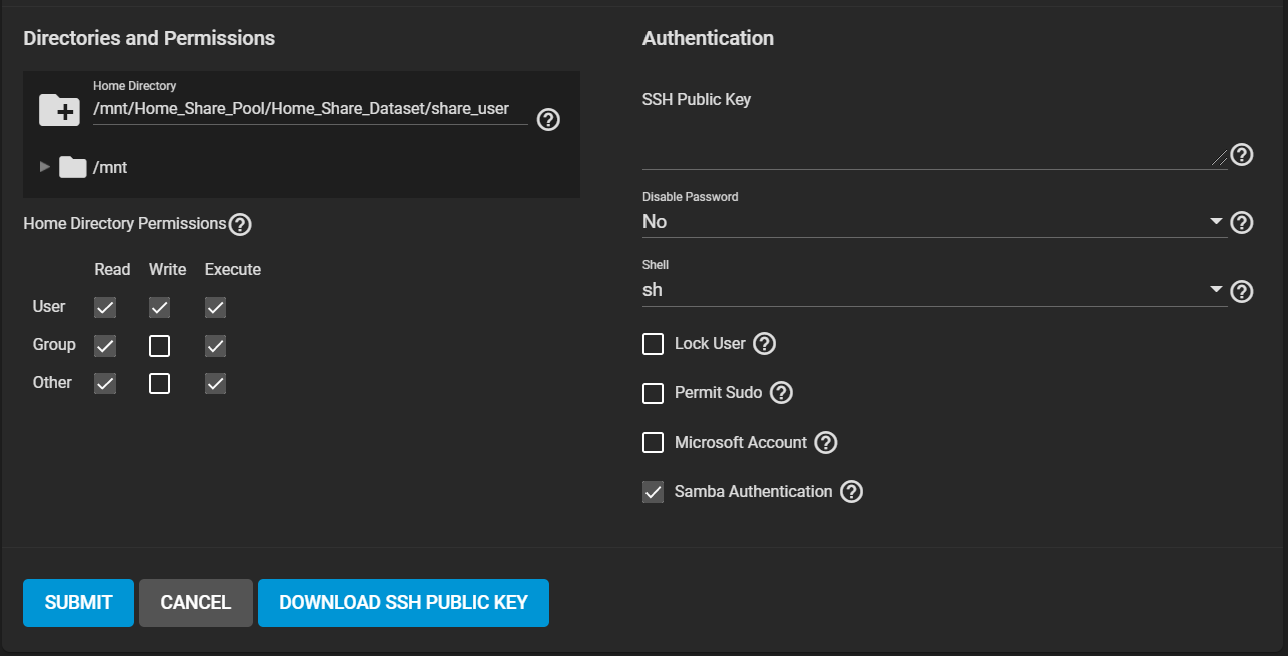
If existing users require access to the home share, go to Accounts > Users and edit an existing account.
Adjust the user home directory to the appropriate dataset and give it a name to create their own directory.
After the user accounts have been added and permissions configured, users can log in to the share and see a folder matching their user name.