Setting Up Active Directory
Provides information on how to configure Active Directory (AD) on your FreeCORE.
The Active Directory (AD) service shares resources in a Windows network. AD provides authentication and authorization services for the users in a network. This eliminates the need to recreate the user accounts on FreeCORE.
Domain users and groups in local ACLs are accessible after joining AD. Setting up shares acts as a file server.
Joining an AD domain configures the Privileged Access Manager (PAM). This allows domain users to log on via SSH or authenticate to local services.
It is possible to configure AD services on Windows. Or on Unix-like operating systems running Samba version 4.
To configure a connection, you need to know the following items:
- Determine the Active Directory domain controller domain.
- Make sure you have the account credentials for that system.
Preparation
Preparing the following before configuring Active Directory helps ensure the connection process.
Verify Name Resolution
Confirm that name resolution is functioning. Connect to shell and use ping to check the connection to the AD domain controller.
freecore# ping ad01.lab.example.com
PING ad01. lab.example.com (10.215.5.200) : 56 data bytes
64 bytes from 10.215.5.200: icmp_seq=0 ttl=126 time=0.800 ms
64 bytes from 10.215.5.200: icmp_seq=1 ttl=126 time=0.933 ms
64 bytes from 10.215.5.200: icmp_seq=2 ttl=126 time=0.810 ms
64 bytes from 10.215.5.200: icmp_seq=3 ttl=126 time=0.876 ms
^C
ad01. lab.example.com ping statistics
4 packets transmitted, 4 packets received, 0.0% packet loss
round-trip min/avg/max/stddev = 0.800/0.855/0.933/0.054 ms
The ability to send and receive packets without loss verifies the connection.
Press Ctrl + C to cancel the ping.
Another option is to use the command host -t srv _ldap._tcp.domainname.com. This checks the network SRV records and verifies DNS resolution.
Time Synchronization
Active Directory relies on Kerberos, a time-sensitive protocol. During the domain join process, the AD domain controller with the PDC Emulator FSMO Role is added as the preferred NTP server.
You can change NTP server settings in System > NTP Servers if necessary.
In a default AD environment, the local system time must be in sync with the AD domain controller time. Their times cannot differ from each other by more than 5 minutes. Use an external time source when configuring a virtualized domain controller. FreeCORE creates an Alert if the system time gets out of sync with the AD domain controller time.
The following options apply to time synchronization in FreeCORE:
- Go to System > General and make sure the value in Timezone matches the AD Domain Controller.
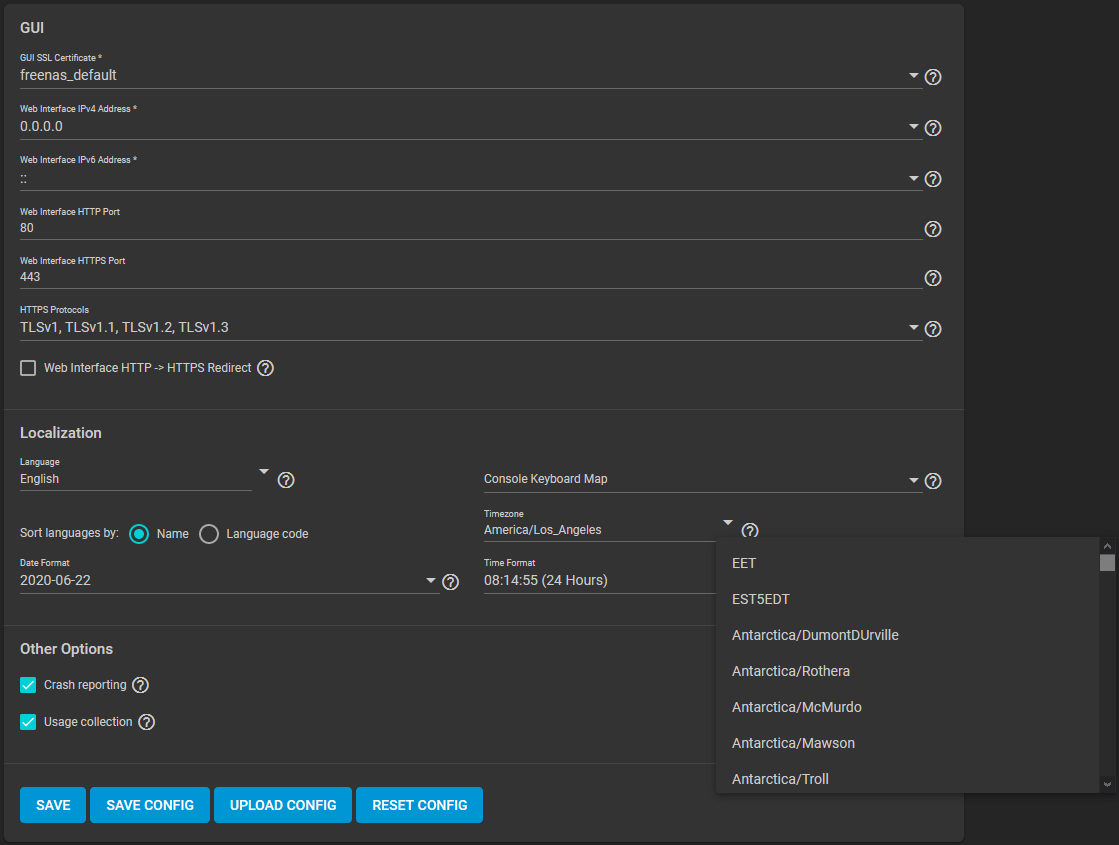
- Select either local time or universal time in the system BIOS.
Connect to the Active Directory Domain
To connect to Active Directory, go to Directory Services > Active Directory. Enter the AD Domain Name and account credentials. Select Enable to attempt to join the AD domain immediately after saving the configuration.
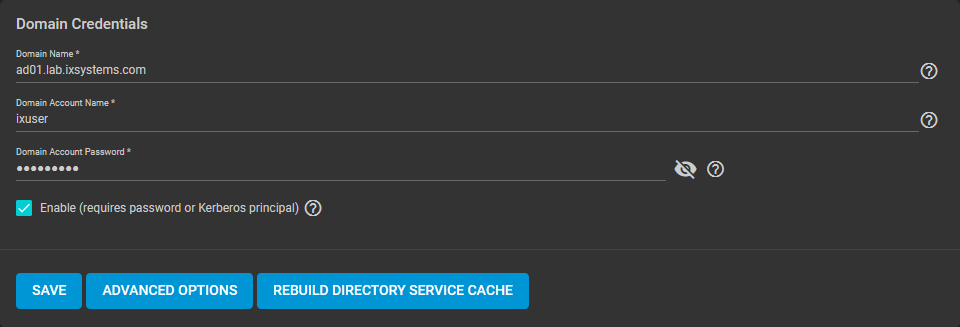
The preconfigured defaults are generally suitable. Advanced options are available for fine-tuning the AD configuration. Click ADVANCED OPTIONS to access extra options.
Click REBUILD DIRECTORY SERVICE CACHE to resync the cache if it becomes out of sync. Or if fewer users than expected are available in the permissions editors.
When the import completes, AD users and groups become available. These have basic dataset permissions or an Access Control List (ACL). Enabled is the default status for the FreeCORE cache.
Joining AD adds default Kerberos realms and generates a default AD_MACHINE_ACCOUNT keytab.
FreeCORE automatically begins using this default keytab. FreeCORE removes any administrator credentials stored in the FreeCORE configuration file.
Related Services: FTP Access
The recommendation is to use SFTP over FTP. But joined systems do allow FTP access. Keep these caveats in mind:
- Authentication uses DOMAIN\username as the user name by default.
- A user home directory needs to exist before joining.
- You cannot add an AD user to the FTP group. Enable local user auth for FTP instead.
- An existing samba homes share created in the GUI is set as the template homedir for AD users. This means that AD user home directories are set inside that path. Proper permissions are vital.
- There are no guarantees about how
proftpdhandles ACLs. - AD users can have populated homedir information in their LDAP schema. The admin (or
pam_mkhomedir) must ensure that these paths exist. - When the admin is pulling home directories from their LDAP schema, take an extra step of caution. Ensure that users aren't writing files to the boot device.
Troubleshooting
Resync the cache if it becomes out of sync. Or if fewer users than expected are available in the permissions editors. Go to Directory Services > Active Directory > REBUILD DIRECTORY SERVICE CACHE.
If you are using Windows Server with 2008 R2 or older, try the following options:
Create a Computer entry on the Windows server Organizational Unit (OU). When creating this entry, enter the FreeCORE host name in the name field. Make sure it is the same name as the one set in the Hostname field in Network > Global Configuration. Must match the NetBIOS alias from Directory Services > Active Directory > Advanced Options.