Sharing Storage
Describes sharing configurations on FreeCORE.
With FreeCORE Storage configured and backed up, it's time to begin sharing data. There are several available sharing solutions, but we'll look at the most common in this article. Choose a tab to get started with simple sharing examples:
Sharing Data
Windows (SMB)
Requirements
- Dataset with Share Type set to SMB.
- FreeCORE user accounts with Samba Authentication set.
Set Permissions
Go to Storage > Pools and find the dataset to share. Click and Edit Permissions.
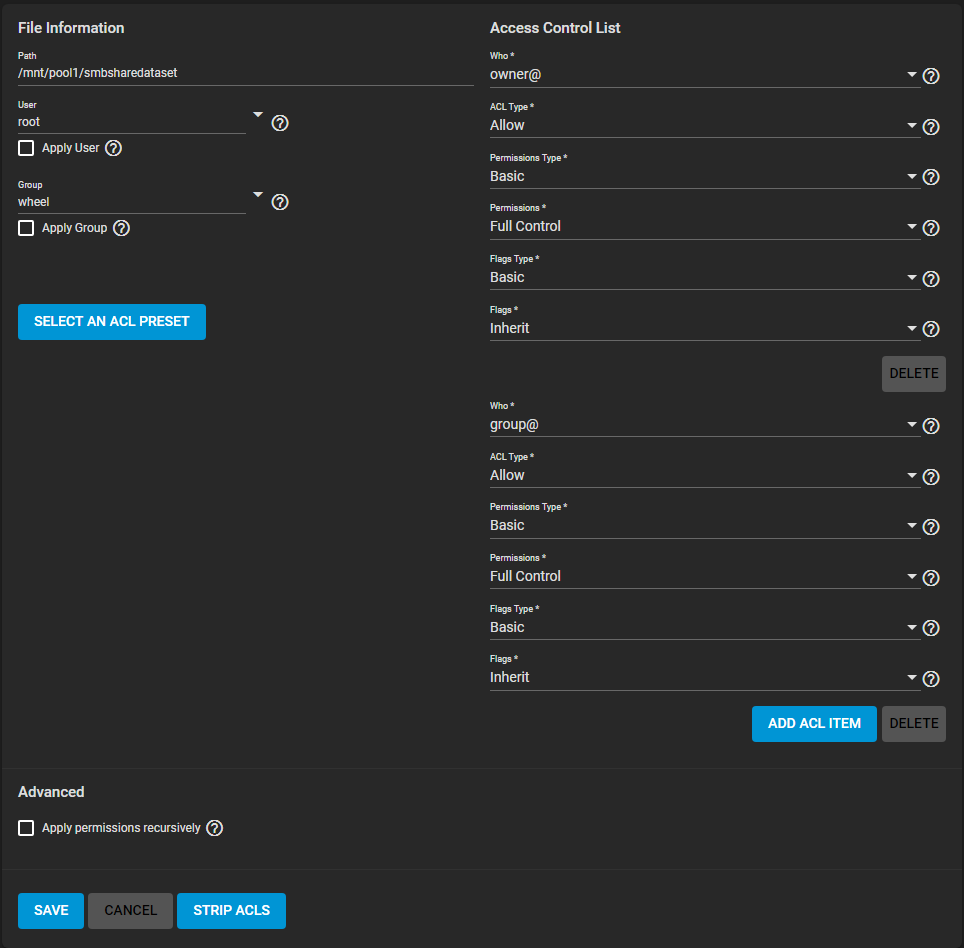
Click SELECT AN ACL PRESET, open the dropdown, and choose OPEN. Click SAVE.
Create the Share
Go to Sharing > Windows Shares (SMB) and click ADD.
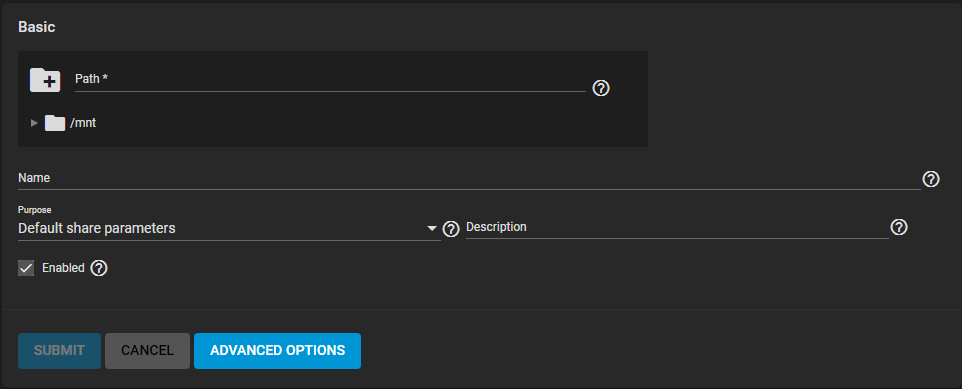
Only the Path and Name are initially required. The Path is the directory tree on FreeCORE that is shared using the SMB protocol. The Name forms part of the "full share path name" when SMB clients connect.
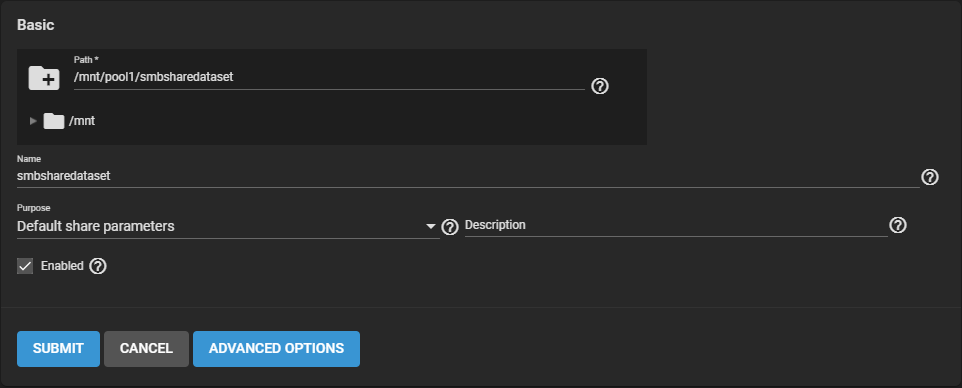
Click SUBMIT to save the configuration to Sharing > Windows Shares (SMB).
Activate the Service
Go to Services and toggle SMB. Set Start Automatically when you want the share to become accessible immediately after FreeCORE boots.
Connecting to the Share
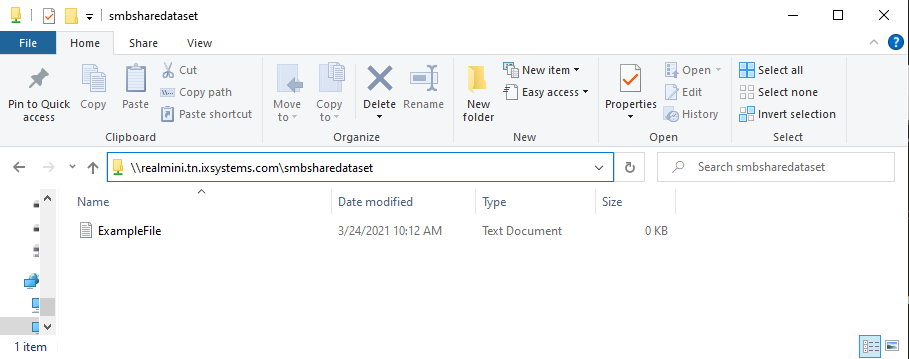
On a Windows 10 system, open the File Browser.
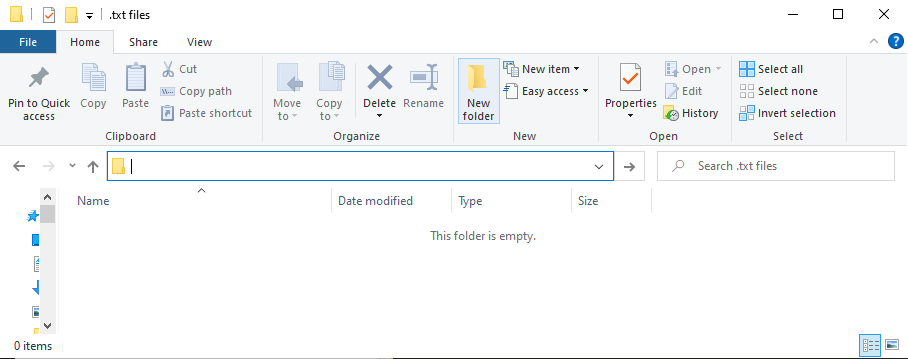
In the navigation bar, enter \\ and the FreeCORE system name.
When prompted, enter the FreeCORE user account credentials and begin browsing the dataset.
Unix-like (NFS)
Requirements
- FreeCORE dataset to share.
- Client systems might require additional packages like
nfs-common.
Creating the Share
Go to Sharing > Unix Shares (NFS) and click ADD.
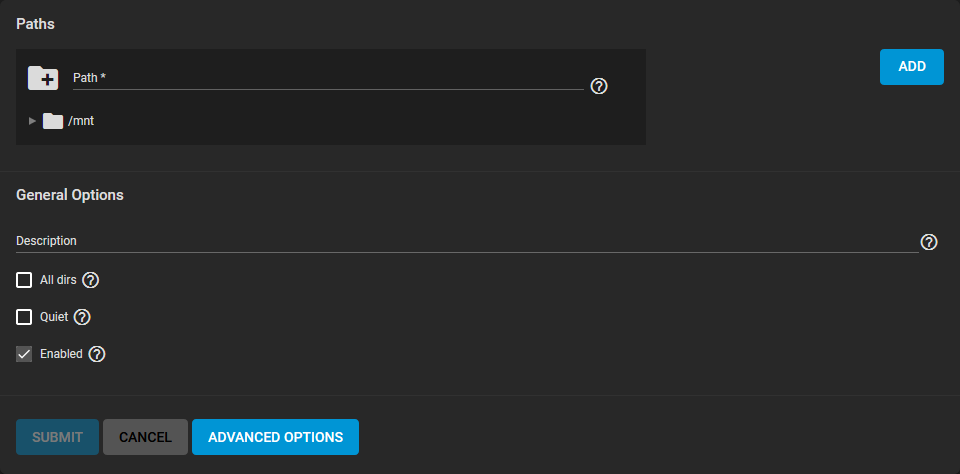
Use the file browser to select the dataset to be shared and click SUBMIT. When prompted, click ENABLE SERVICE to immediately begin sharing the dataset.
Accessing the Dataset
On a Unix-like system, open a command line.
Enter showmount -e IPADDRESS, replacing IPADDRESS with your FreeCORE system address:
tmoore@ChimaeraPrime:~$ showmount -e 10.238.15.194
Export list for 10.238.15.194:
/mnt/pool1/testds (everyone)
Now make a local directory for the NFS mount:
tmoore@ChimaeraPrime:~$ sudo mkdir nfstemp/
Finally, mount the shared directory:
tmoore@ChimaeraPrime:~$ sudo mount -t nfs 10.238.15.194:/mnt/pool1/testds nfstemp/
From here, cd into the local directory and view or modify the files as needed.
Block Shares (iSCSI)
Block sharing is a complicated scenario that requires detailed configuration steps and knowledge of your network environment. A simple configuration is beyond the scope of this getting started guide, but detailed articles are available in iSCSI Shares.
With simple sharing done, FreeCORE is now installed, accessible, and able to receive or share data over your network. Now it is time to protect the FreeCORE storage by setting up data backups.