Storage Configuration
Describes how to configure storage on FreeCORE.
Now that you have logged in to the web interface, it's time to set up FreeCORE storage. These instructions demonstrate a simple mirrored pool setup, where you use one disk for storage and the other for data protection. However, there are many configuration possibilities for your storage environment!
You can read more about these options in the in-depth Pool Creation article. You can also use the ZFS Capacity Calculator and ZFS Capacity Graph to compare configuration options.
Requirements
The system needs at least two identically sized disks to create a mirrored storage pool. While a single-disk pool is technically allowed, we do not recommend it. The disk you used for the FreeCORE installation does not count toward this limit.
You can configure data backups in several ways and have different requirements. Backing data up in the Cloud requires a 3rd party Cloud Storage provider account. Backups with Replication require either additional storage on the FreeCORE system or (ideally) another FreeCORE system in a different location.
Simple Storage Setup
Go to Storage > Pools and click ADD. Set Create a new pool and click CREATE POOL
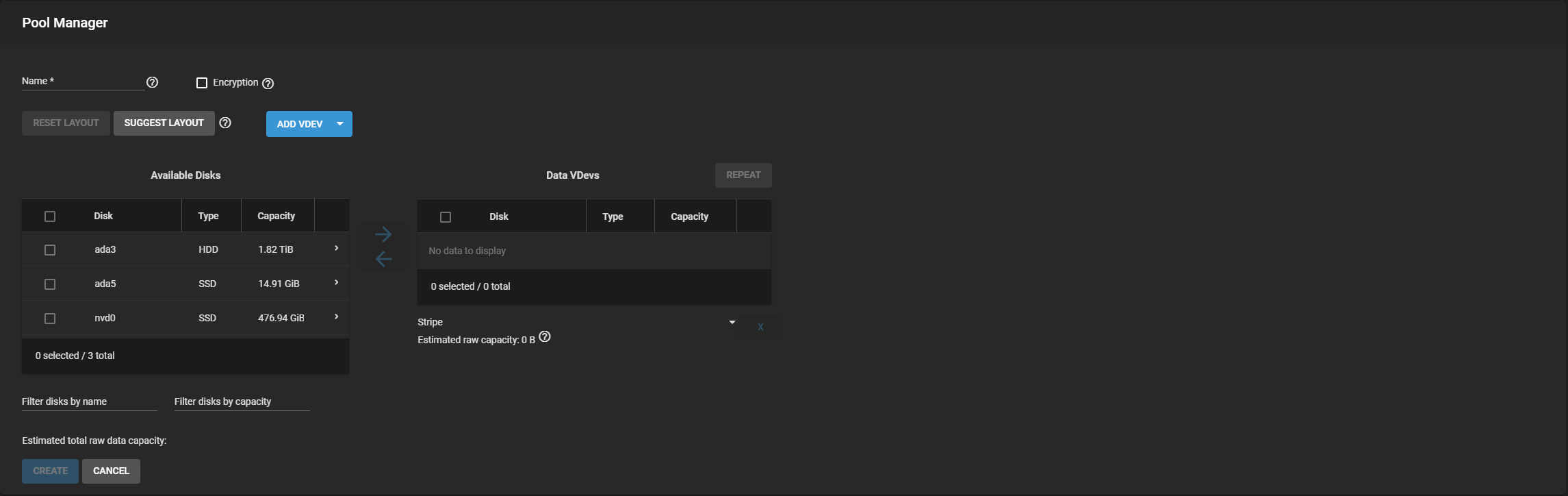
For the Name, enter tank or any other preferred name. In the Available Disks, set two identical disks and click the forward arrow to move them to the Data VDevs area.
Note
If the disks used have non-unique serial numbers, they do not populate the Available Disks section until you enable the Show disk with non-unique serial numbers checkbox.
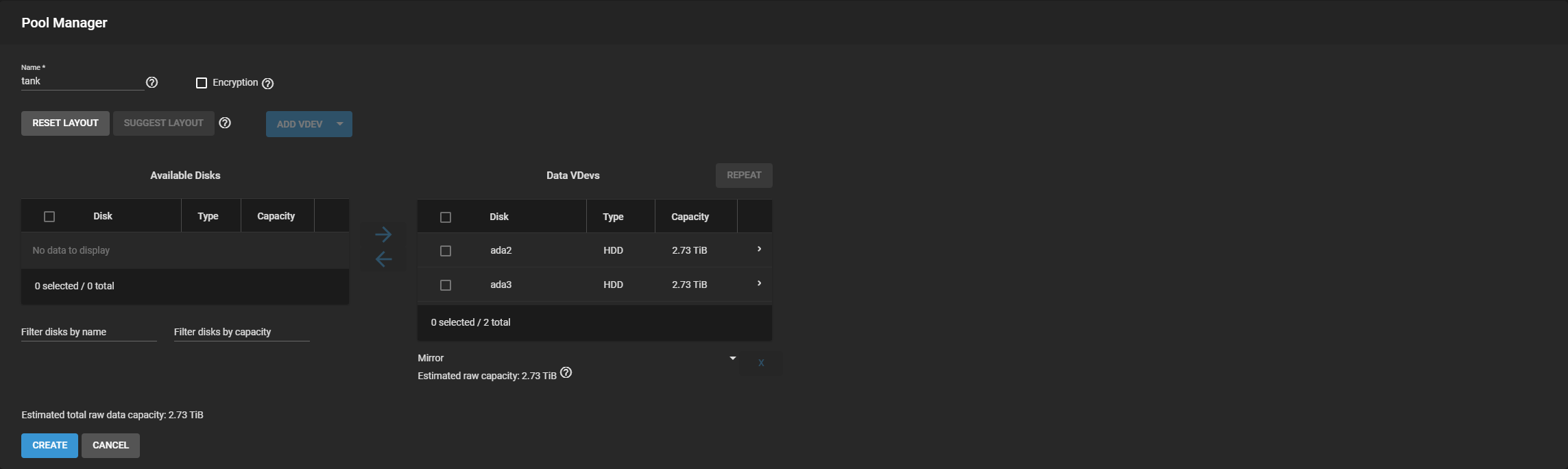
FreeCORE automatically suggests Mirror as the ideal layout for maximized data storage and protection.
Review the Estimated total raw data capacity and click CREATE. FreeCORE wipes the disks and adds tank to the Storage > Pools list.

Adding Datasets or Zvols
New pools have a root dataset that allows further division into new datasets or zvols. A dataset is a file system that stores data and has specific permissions. A zvol is a virtual block device with a predefined storage size. To create either one, go to Storage > Pools, click , and select Add Dataset or Add Zvol.

Users create datasets and zvols as part of configuring specific data-sharing situations:
- A dataset with a Share Type set to SMB optimizes that dataset for the Windows sharing protocol.
- Block device sharing (iSCSI) requires a zvol.
Organize the pool with additional datasets or zvols according to your access and data-sharing requirements before moving any data into the pool.
When you finish building and organizing your FreeCORE pools, move on to configuring how the system shares data.