Interfaces
Editing an Interface
Important
Be careful when configuring the network interface that controls the FreeCORE web interface. An error can result in the loss of web connectivity.
Network > Interfaces lists all physical Network Interface Controllers (NICs) connected to your FreeCORE system.
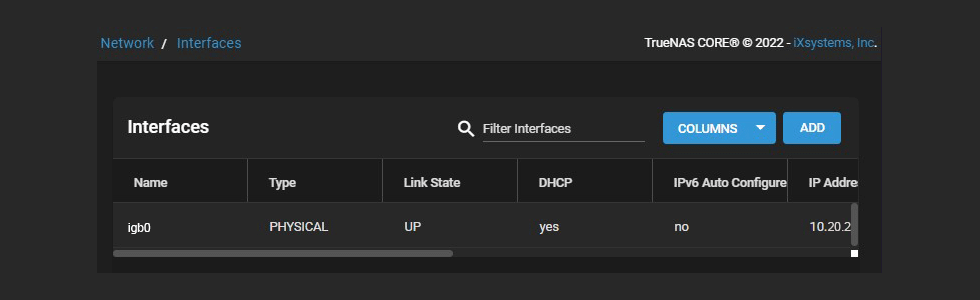
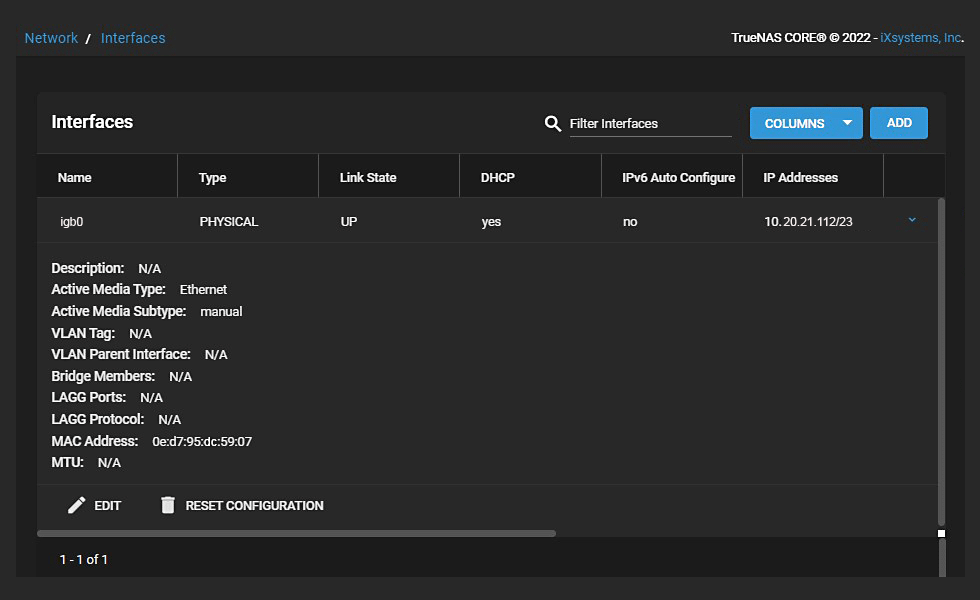
To edit an interface, click > next to it to expand the view. This provides a general description about the chosen interface. Click EDIT.
Note
The Type of interface determines the interface editing options available.
See Interfaces Screen for more information on settings.
Saving Interface Changes
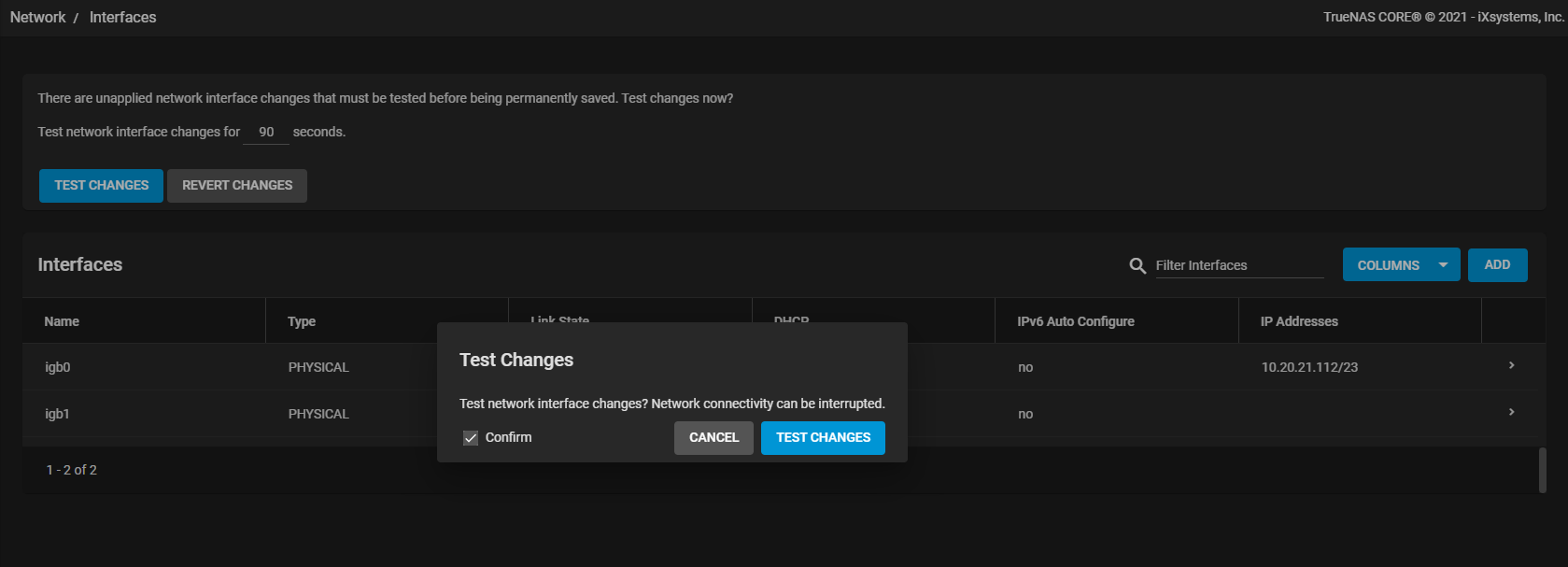
After completing interface editing, click SAVE. You have the option to TEST CHANGES or REVERT CHANGES. The default time for testing changes is 60 seconds, but you can change it to your desired setting.
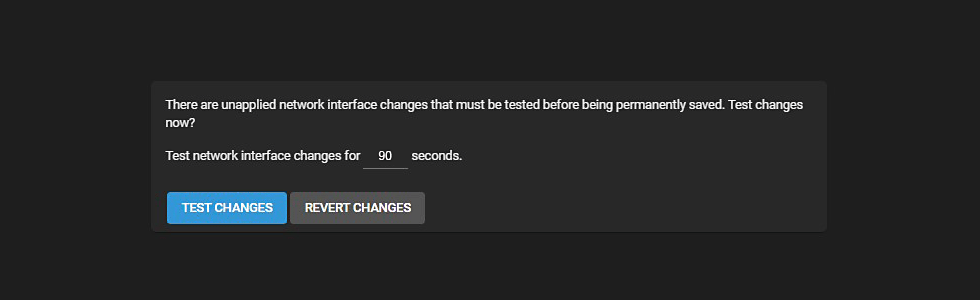
After clicking TEST CHANGES, confirm your choice and click TEST CHANGES again.
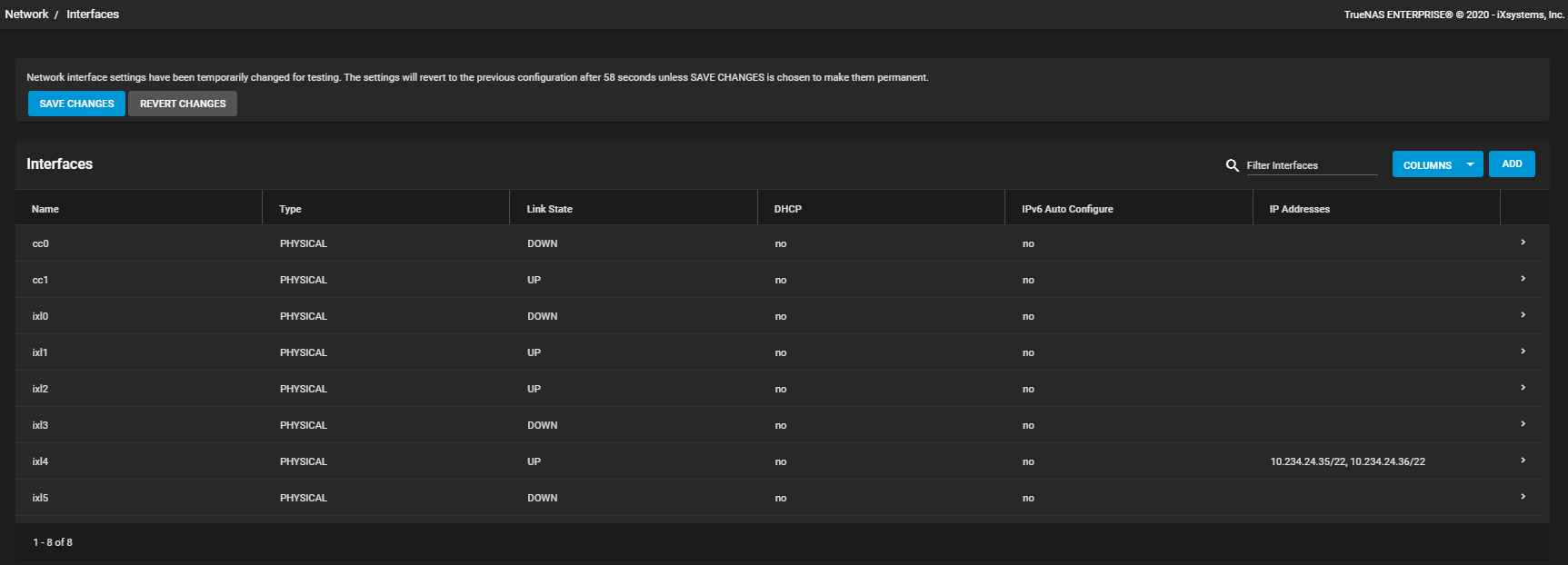
Either click SAVE CHANGES or REVERT CHANGES. You have the time specified to make this choice. Clicking SAVE CHANGES opens a dialog with the option to CANCEL or SAVE network interface changes. Click SAVE.
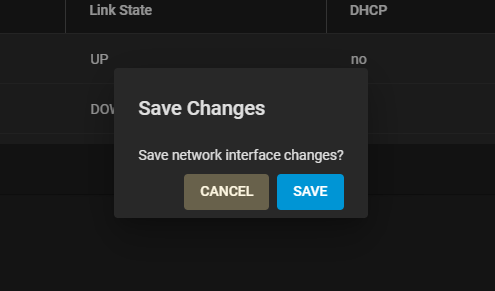
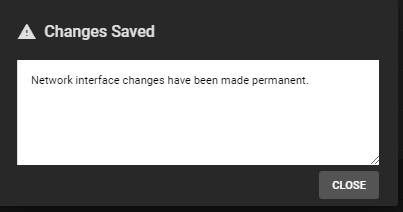
The system displays a dialog that shows the network interface changes are now permanent.