Installing and Managing Applications
Install native FreeBSD applications from the Daemonless catalog, import your own images, and run Linux images under the experimental compatibility setting in FreeCORE 15.1.
FreeCORE 15.1 adds Applications to the navigation menu. It runs native FreeBSD OCI images and keeps their persistent data in ZFS datasets. The catalog records the image, ports, storage and settings each application requires.
The catalog is read directly from the Daemonless organisation: its version index, its repository list, its catalog of application descriptions and icons, and each application's compose contract. Daemonless builds and patches the images; FreeCORE wires them into the appliance and does not review them. Application images and support are supplied by their maintainers. The FreeCORE image carries a copy of the catalog, icons included, so a new installation lists applications before the first Update Catalog and a system without internet access still lists them. Update Catalog replaces that copy.
Two experimental features are behind settings that are off by default: running Linux images, and Convert & Import.
FreeCORE 15.0 retains the earlier Plugins interface. See Plugins, Jails and Applications before moving an existing installation between the two versions.
Choose Storage and Networking
Open Applications, then click the Applications Settings button in the
page header. Choose a healthy, online, unlocked Data Pool and a
Managed Container Subnet. The default subnet is 10.88.0.0/16; use a
private IPv4 subnet that does not overlap the host's networks or routes.
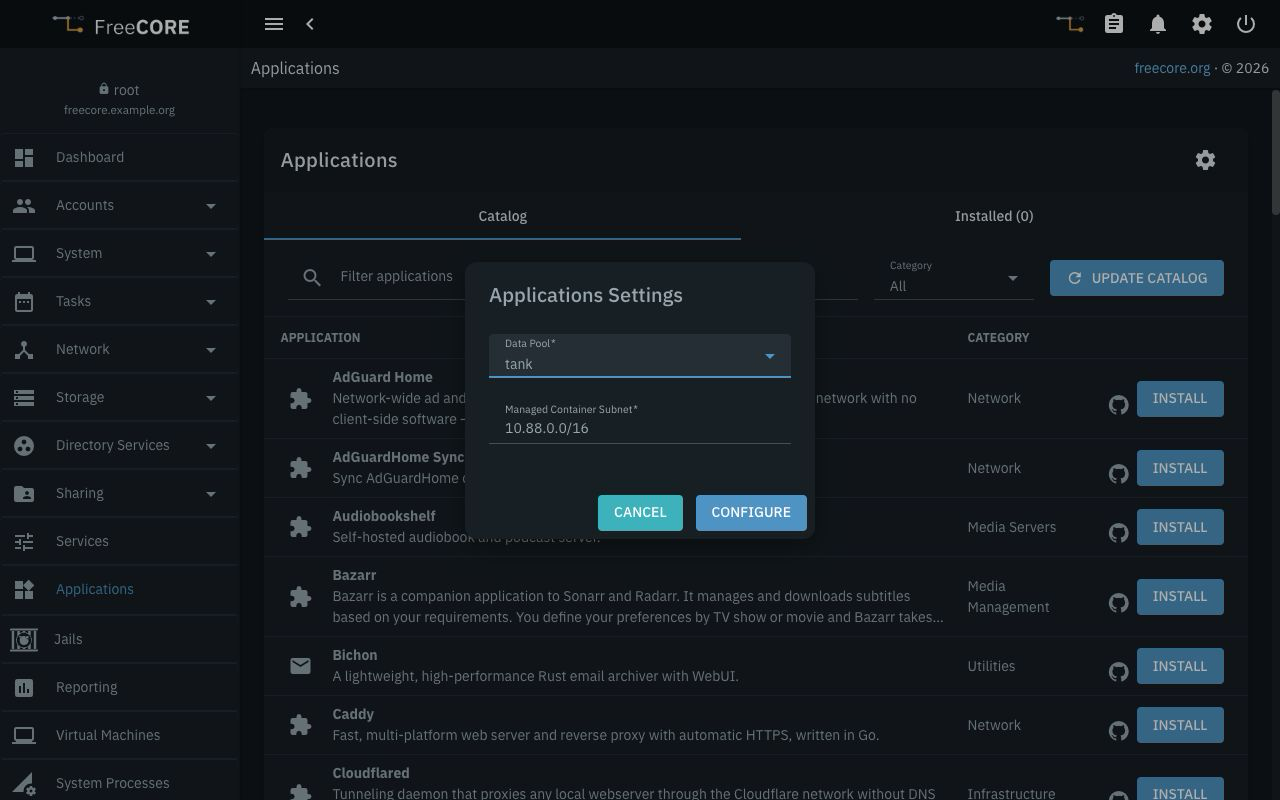
Click Configure to prepare the runtime and storage. The same fields are available during the first application installation, under Applications Setup. The selected pool holds the Applications runtime and any app-owned datasets.
The same settings hold two experimental switches, both off by default. Linux binary compatibility (experimental) loads the Linux ABI for the whole host so that Linux images can run as applications; it is best effort, and every jail on the host can then execute Linux binaries. See Linux Images below. Convert & Import (experimental) enables converting a jail into an application (Convert jail… on the Catalog tab) and Export for Linux on installed applications; see Convert & Import.
Changing the pool does not move applications. Stop running applications before changing the pool or subnet. A pool change is also blocked while installed applications reference external datasets; back up and remove those applications first if a pool change is necessary. Applications on the previous pool disappear from the Installed list while a different pool is selected; their data stays on the original pool. Select that pool again to return to them.
A subnet change is also refused while installed applications keep a fixed address on the Applications bridge, and the refusal names them. From 15.1-RC6, every application on the Applications bridge keeps one, and so does a LAN-attached application that also reaches the bridge; an application installed earlier gets one with its next Update or Edit. To change the subnet, delete those applications while keeping their app-owned data, change the subnet, and install them again under the same names.
To return the system to the state it had before Applications was configured, click Unconfigure Applications in the settings. It stops the Applications runtime and returns the settings to their defaults. While applications are installed, Remove the installed applications must be selected; each is removed as Delete would. Keep the store's data on the pool is selected by default and leaves the store's datasets, and the applications' app-owned data, on the pool, where configuring Applications on the same pool again adopts them. Clear it to destroy the store and that data.
Install an Application
- Open the Catalog tab. The applications are tiles in a strip; the arrows page through it. Click Update Catalog to read the current Daemonless catalog.
- Narrow the strip with Filter applications or Category, then select an application's tile. Its review panel opens under the strip. A tile marked Unavailable gives its reason in its tooltip and in the review panel.
- Read the Source, Support, Version, the Upstream and SBOM links, the image identity and the configuration requirements.
- Enter an Application name and review its Restart policy, its Network mode, environment settings and Published ports. Choose unused host ports; the container ports and protocols come from the reviewed entry.
- Choose persistent storage for each listed volume. Leave External dataset
(optional) blank for app-owned storage, or enter an existing dataset
such as
tank/app-data/homepage. Use a dedicated leaf dataset with the permissions required by the application. - Select Confirm settings, then click Install. Wait for the job to finish before starting another operation.
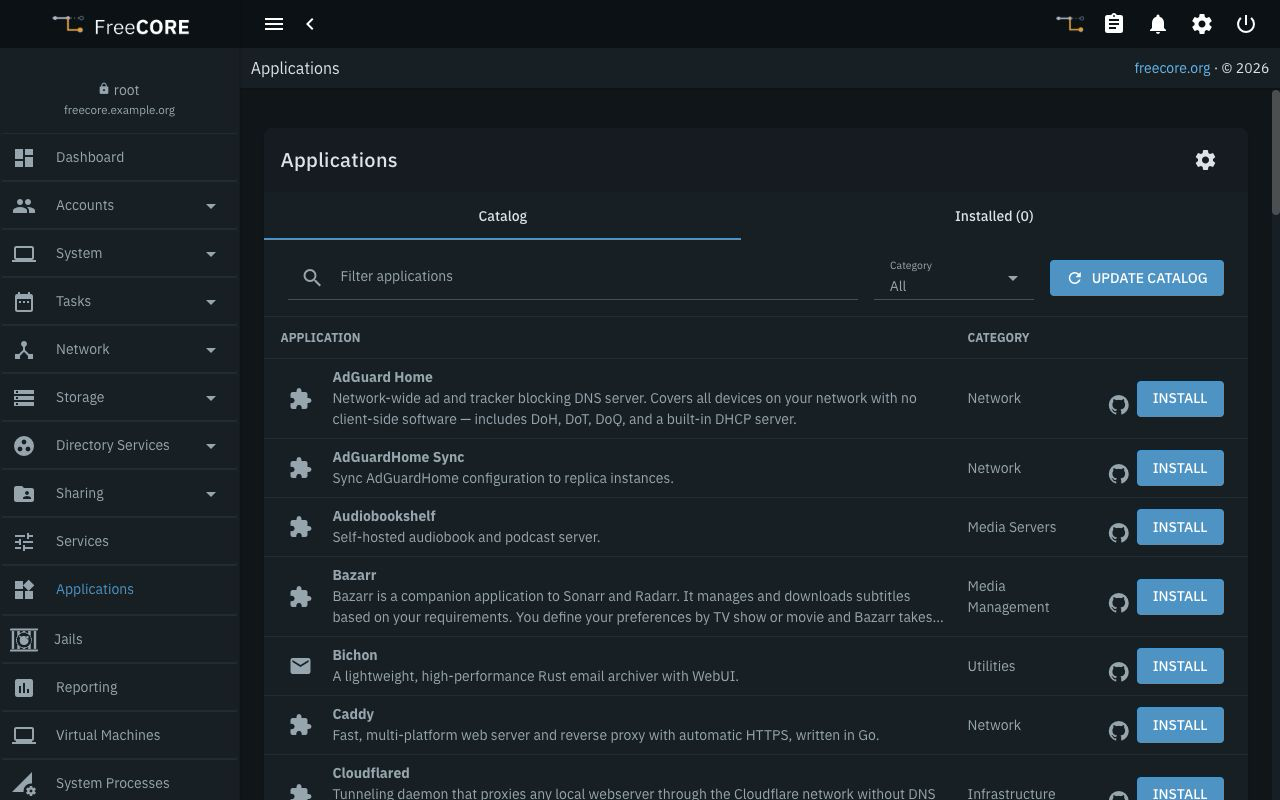
Network chooses how the application is reached. Applications bridge, the default, joins the managed bridge and publishes the host ports you choose. Attach to LAN gives the application its own IPv4 address on a host interface: every port it listens on is reachable on that address, and nothing is published through the host. See Applications Networking.
An external dataset is mounted into the container at the location specified by the catalog entry. The application can change files in a writable mount, including their ownership. Read-only mounts remain read-only. Prepare permissions for the application's user and group; selecting a dataset does not make every existing file writable.
The review panel shows the Tag the catalog follows and, when the registry answered during review, the Digest it currently resolves to. Installation pulls the tag and records the digest it received. After Update Catalog, the next review of an entry reads its current contract from Daemonless; when that read fails, the copy already on the system is used. FreeCORE checks that the submitted settings still match the reviewed contract before installing. If the contract changes, review it again.
Open and Manage the Application
Switch to Installed. Each application's row shows its State and Restart policy. Expand the row for its Image, Network, Source and OS, and for its actions. Network names the Applications bridge address or the LAN address. Source reads Catalog, Unreviewed for an imported image, or Converted for an application made by Convert & Import.
Open Portal opens the application's declared web interface: on the published host port, or, for an application attached to the LAN, on its own address and container port. Applications without a portal can still provide other services, such as a database port.
Use Logs to inspect application output and Start, Stop or Restart to control the container. State reads up while the container runs and down once it has stopped. An application that declares a health check shows its runtime health beside the state: Healthy, Unhealthy, Starting, or Unknown when no runtime result is available. Unknown is not a failure, and it does not contradict a successful startup check. An application without a declared health check shows no health mark. Neither establishes that the application is ready; check the portal or service itself after installation.
Always restarts the application automatically and starts it after a host boot. On failure applies to an unsuccessful container exit; it does not start the application after a host boot. Do not restart automatically leaves startup to the operator. Stopping an application with Always does not remove its startup policy for the next host boot.
Open a Shell in an Application
Shell in a running application's actions opens a terminal inside its container and returns to the Applications page when the shell exits. It is refused for an application that is not running.
The same shell is available from the command line. Containers are named
freecore-app- followed by the application name, and once Applications is
configured the system's podman, run as root, is the Applications podman:
podman exec -it freecore-app-<name> /bin/sh
podman ps, podman logs and the other commands work the same way. A
container you create by hand in that store is not managed: it does not appear
on the Applications page and is not started after a reboot.
Change Storage, Ports or Settings After Installation
Edit in a catalog application's actions reopens the review form with the application's network, published ports, storage mappings and restart policy. Environment values are not shown; leave a field empty to keep the installed value. Applying replaces the container with the new settings and the image it already has, with the same rollback protection as an update. Edit, Update and Recreate are offered for catalog applications only.
Storage mappings change what the container sees, not where data is. Moving a volume from app-owned storage to an external dataset leaves the app-owned dataset in place, and the form says so; the container then uses the external dataset, which starts with whatever it already contains. Moving a volume back to app-owned storage reattaches that volume's existing app-owned dataset when there is one, or creates an empty one.
App-owned datasets live under <pool>/applications/data/<name>/. A
Delete that leaves Delete app-owned datasets unchecked lists the
datasets it keeps, and an installation under the same name lists them again
and reattaches them; a different name starts with empty storage. App-owned
data that no installed application maps any more is listed under
Orphaned app data at the end of the Installed tab; Delete orphaned
data destroys exactly those datasets after a confirmation that names each
one. External datasets are never removed by any of these steps.
Update or Recreate
Back up important application data before replacing its container. Use Update Catalog, then choose Update from the installed application's actions. The dialog shows the installed version, as the running image states it, and the version the catalog's tag currently resolves to. If the application already uses the current version, the interface reports that it is up to date.
Recreate replaces the container using the current catalog contract. When a newer version is available, use Update to review it first. Saved settings, the network attachment, ports and storage mappings are retained, and the previous running or stopped state is restored after a successful replacement.
The replacement may migrate or otherwise change the application's data. Restoring the previous container after a failed replacement does not undo those data changes. Keep backups appropriate for the application, especially for databases.
Import an Image
Import image… on the Catalog tab installs an image that is not in the catalog. Nothing about such an image was reviewed by FreeCORE: the form requires the acknowledgement that you own its supply chain from then on, and the installed application's Source reads Unreviewed. Enter the Image reference, the Operating system the image is built for, an Application name, the Restart policy and, optionally, one published port: a host port and a TCP container port. The image is pulled by the reference you gave and the digest it resolved to is recorded.
The form can be filled from a compose file. Compose file (optional) takes
a raw.githubusercontent.com URL or the pasted YAML of one service; Read
compose file fills in the image, operating system, name, restart policy and
first TCP port, carries the file's ports, environment and volumes into the
installation, and lists what it ignored. Each volume becomes a new, empty
app-owned dataset; no data is copied. Host networking is never granted.
An imported application uses the Applications bridge.
Linux Images (experimental)
Applications Settings has a Linux binary compatibility (experimental) switch, off by default. Turning it on loads the FreeBSD Linux ABI for the whole host: every jail on the system can then execute Linux binaries, not only applications. It is best effort. FreeBSD's Linux ABI does not implement every Linux system call, so an image that starts is not a promise that the next one will. Before anything is pulled, an image built for another operating system or architecture, or one whose entrypoint starts an init system such as systemd, is refused. Privileged mode, host networking and host devices cannot be requested.
With the switch on, Import image… accepts a Linux image, and the installed application's OS reads Linux · experimental. Turning the switch off is refused while a Linux application is installed; after that the setting is removed and the loaded modules stay until the next reboot.
Linux images under this setting run one process in a container, without systemd, cgroups or user namespaces. Resource limits are not applied. The container uses the Applications bridge and its published port like a native application.
Delete an Application
Choose Delete and review Delete app-owned datasets. Leaving it unchecked keeps the app-owned data, which the dialog lists, for a later installation under the same name. Selecting it also deletes those datasets. External datasets are preserved in either case.
Deleting a container does not back up its data. Keep a separate copy of any data that must survive accidental deletion or an application migration.
The application's image is removed as well when no other installed application uses it. Installing the application again downloads the image anew; for large images this takes as long as the first installation.
If an Installation Fails
Read the failed job before retrying. Check the reviewed entry, free space, host-port availability, network access and the selected dataset's permissions. A catalog image can have its own setup requirements even when the container runtime is working.
A failed initial installation is rolled back before an installed entry exists, so Logs is not available for it. The failed job carries the container's exit status and the last lines of its output instead. Preserve the error and the catalog/image identity when reporting the problem. Do not repeatedly change permissions on a dataset containing unrelated data to make an image start.
See Applications Screen for the controls and storage fields, Applications Networking for the two network modes, Convert & Import for turning a jail into an application or an application into a bundle for a Linux host, and Getting Help for reporting a problem.