Global Configuration Screen
Describes how to use the Global Configuration screen in FreeCORE.
The Network > Global Configuration screen has all the general FreeCORE networking settings that are not specific to any interface.
Warning
Disruptive Change
Making changes to the network interface the web interface uses can result in losing connection to FreeCORE! Fixing any misconfigured network settings might require command line knowledge or physical access to the FreeCORE system.
Global Configuration Settings
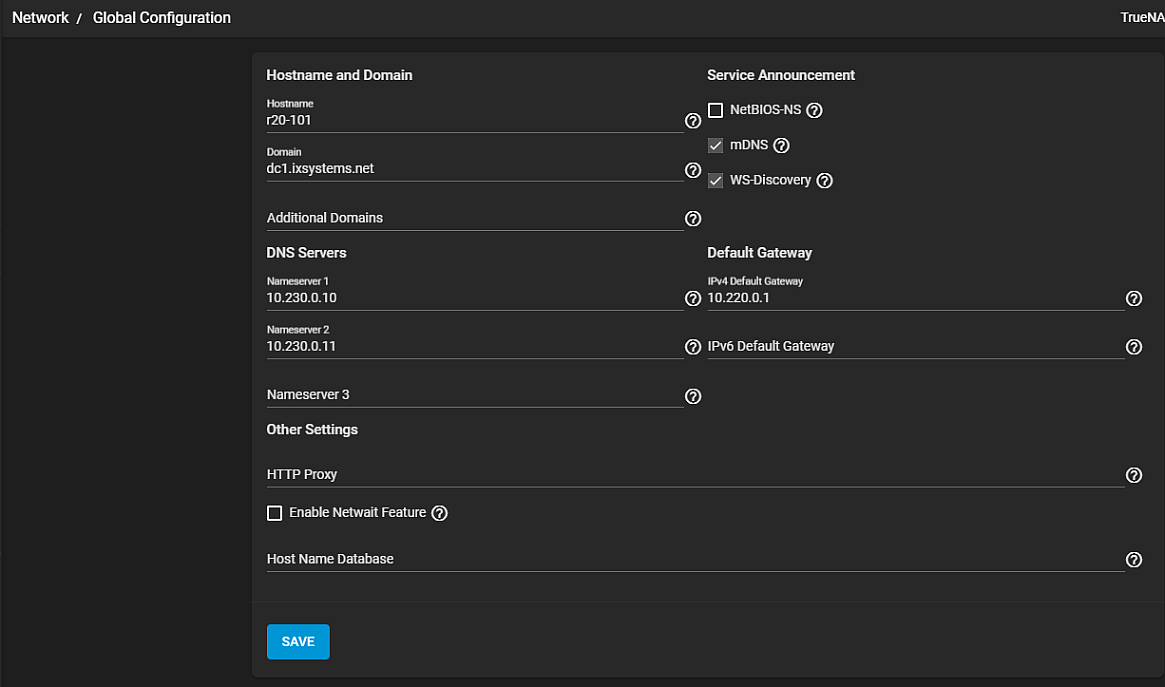
Options are organized into several categories.
Hostname and Domain
Many of these fields have default values you can change to meet requirements of the local network. The Hostname and Domain field values display on the Dashboard > System Information card. Some options only display when the appropriate hardware is present.
| Setting | Description |
|---|---|
| Hostname | Enter the system host name. Upper and lower case alphanumeric, (.) and (-) characters are allowed. |
| Domain | Enter the system domain name. |
| Additional Domains | Enter additional domains to search. Separate entries by pressing Enter. Adding search domains can cause slow DNS lookups |
Service Announcement
| Setting | Description |
|---|---|
| NetBIOS-NS | Select to advertise the SMB service NetBIOS name. Legacy NetBIOS name server. Can be required for legacy SMB1 clients to discover the server. When advertised, the server appears in Network Neighborhood. |
| mDNS | Select to use the system host name (in Hostname) to advertise enabled and runnint services. Multicast DNS. For example, this controls if the server appears under Network on MacOS clients. |
| WS-Discovery | Select to use the SMB Service NetBIOS Name to advertise the server to WS-Discovery clients. This causes the computer to appear in the Network Neighborhood of modern Windows OSes. |
DNS Servers
| Setting | Description |
|---|---|
| Nameserver 1 | Enter the primary DNS server IP address. |
| Nameserver 2 | Enter the secondary DNS server IP address. |
| Nameserver 3 | Enter the tertiary DNS server IP address. |
Default Gateway
| Setting | Description |
|---|---|
| IPv4 Default Gateway | Enter the IP address to use instead of the default gateway provided by DHCP for IPv4 service. Typically not set. |
| IPv6 Default Gateway | Enter the IP address to use instead of the default gateway provided by DHCP for IPv6 service. Typically not set. |
Other Settings
| Setting | Description |
|---|---|
| HTTP Proxy | Enter the proxy information for the network in the format http://my.proxy.server:3128 or http://user:password@my.proxy.server:3128. |
| Enable Netwait Feature | Select to prevents network services from starting until the interface can ping the addresses listed in the Netwait IP list. |
| Netwait IP List | Select only appears when Enable Netwait Feature is set. Enter a list of IP addresses to ping. Separate entries by pressing Enter. Each address is tried until one is successful or the list is exhausted. Leave empty to use the default gateway. |
| Host Name Database | Enter the database host name. Used to add one entry per line which is appended to /etc/hosts. Separate entries by pressing Enter. Use the format IP_address space hostname where multiple host names can be used if separated by a space. Hosts defined here are still accessible by name even when DNS is not available. See hosts for additional information. |