Interface Preferences
Displays a list of general preferences for your FreeCORE.
There are a few adjustable interface preferences. Also included is a built-in theme editor for creating your own FreeCORE color schemes.
To access user preferences, click Settings > Preferences. This page has options to adjust global settings in the web interface. There are also options to manage custom themes and create new themes.
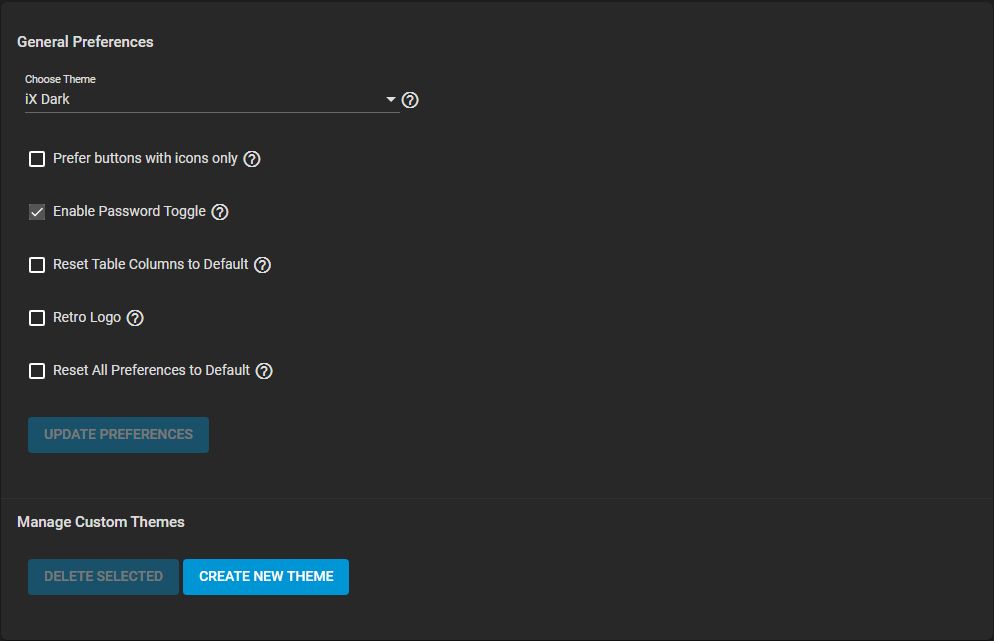
General Preferences
| Name | Description |
|---|---|
| Choose Theme | Select a preferred theme from the dropdown list. Pre-built and custom themes are visible here. |
| Prefer buttons with icons only | Select checkbox to preserve screen space. Displays icons and tooltips instead of text labels. |
| Enable Password Toggle | Select the checkbox to make an eye icon appear next to password fields. Click the icon to reveal the password. |
| Reset Table Columns to Default | Select the checkbox to reset the display of all table columns as the system default. |
| Retro Logo | Select the checkbox to revert branding back to FreeNAS. |
| Reset All Preferences to Default | Select the checkbox to reset all user preferences to their default values. Does not reset custom themes. |
| UPDATE PREFERENCES | Click the button to apply the current checkbox settings to the web interface. |
Manage Custom Themes
| Name | Description |
|---|---|
| theme name (variable) | Use the checkbox to select a custom theme if listed. |
| DELETE SELECTED | Click the button to remove each selected custom theme from the system. |
| CREATE NEW THEME | Click the button to open the theme editor. |
Custom Theme Editor
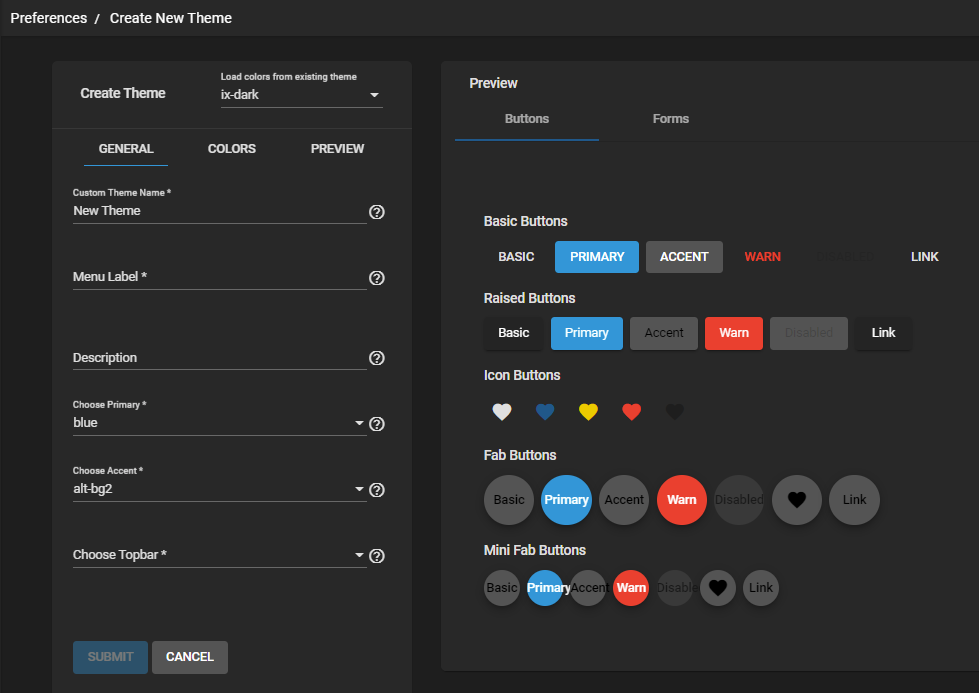
Create Theme
| Name | Description |
|---|---|
| Load colors from existing theme | Select the theme option from the dropdown list. Imports settings into the Create Theme and Preview tabs. |
| GENERAL | Click to display the GENERAL tab with the primary options for a new theme. |
| COLORS | Click to display the COLORS tab with color options for a new theme. |
| PREVIEW | Click to display the PREVIEW tab. The PREVIEW updates to reflect current selections. |
GENERAL
| Name | Description |
|---|---|
| Custom Theme Name | Enter a name to identify the new theme. |
| Menu Label | Enter a short name to use in the FreeCORE web interface menus. |
| Description | Enter a short description of the new theme. |
| Choose Primary | Select a generic color from the dropdown list to use as the primary theme color. Or import a specific color setting. |
| Choose Accent | Select a generic color from the dropdown list to use as the accent color for the theme. Or import a specific color setting. |
| Choose Topbar | Select a color from the dropdown list to use as the color for the top menu bar in the web interface. |
| SUBMIT | Click to save the current selections and create the new theme. |
| CANCEL | Click to return to the Preferences screen without creating a new theme. |
COLORS
| Name | Description |
|---|---|
| Background 1 | Click on the color swatch or enter a hex value. This value applies to the bg1 option in the GENERAL tab. |
| Background 2 | Click on the color swatch or enter a hex value. This value applies to the bg2 option in the GENERAL tab. |
| Foreground 1 | Click on the color swatch or enter a hex value. This value applies to the fg1 option in the GENERAL tab. |
| Foreground 2 | Click on the color swatch or enter a hex value. This value applies to the fg2 option in the GENERAL tab. |
| Alt Background 1 | Click on the color swatch or enter a hex value. This value applies to the alt-bg1 option in the GENERAL tab. |
| Alt Background 2 | Click on the color swatch or enter a hex value. This value applies to the alt-bg2 option in the GENERAL tab. |
| Alt Foreground 1 | Click on the color swatch or enter a hex value. This value applies to the alt-fg1 option in the GENERAL tab. |
| Alt Foreground 2 | Click on the color swatch or enter a hex value. This value applies to the alt-fg2 option in the GENERAL tab. |
| Yellow | Click on the color swatch or enter a hex value. This value applies to the yellow option in the GENERAL tab. |
| Orange | Click on the color swatch or enter a hex value. This value applies to the orange option in the GENERAL tab. |
| Red | Click on the color swatch or enter a hex value. This value applies to the red option in the GENERAL tab. |
| Magenta | Click on the color swatch or enter a hex value. This value applies to the magenta option in the GENERAL tab. |
| Violet | Click on the color swatch or enter a hex value. This value applies to the violet option in the GENERAL tab. |
| Blue | Click on the color swatch or enter a hex value. This value applies to the blue option in the GENERAL tab. |
| Cyan | Click on the color swatch or enter a hex value. This value applies to the cyan option in the GENERAL tab. |
| Green | Click on the color swatch or enter a hex value. This value applies to the green option in the GENERAL tab. |
| SUBMIT | Click the button to save the current selections and create the new theme. |
| CANCEL | Click the button to return to the Preferences screen without creating a new theme. |
PREVIEW
| Name | Description |
|---|---|
| Global Preview | Color selections display in the PREVIEW. Click the toggle to turn the display of the PREVIEW widget on or off. |
Preview
| Name | Description |
|---|---|
| Buttons | This tab shows examples of web interface buttons. The buttons display with the current theme settings applied. |
| Forms | This tab shows examples of web interface form options. The options display with the current theme settings applied. |