Snapshots Screens
Describes the Snapshots screens on FreeCORE.
Use the Storage > Snapshots screens to create and manage snapshots on your FreeCORE.
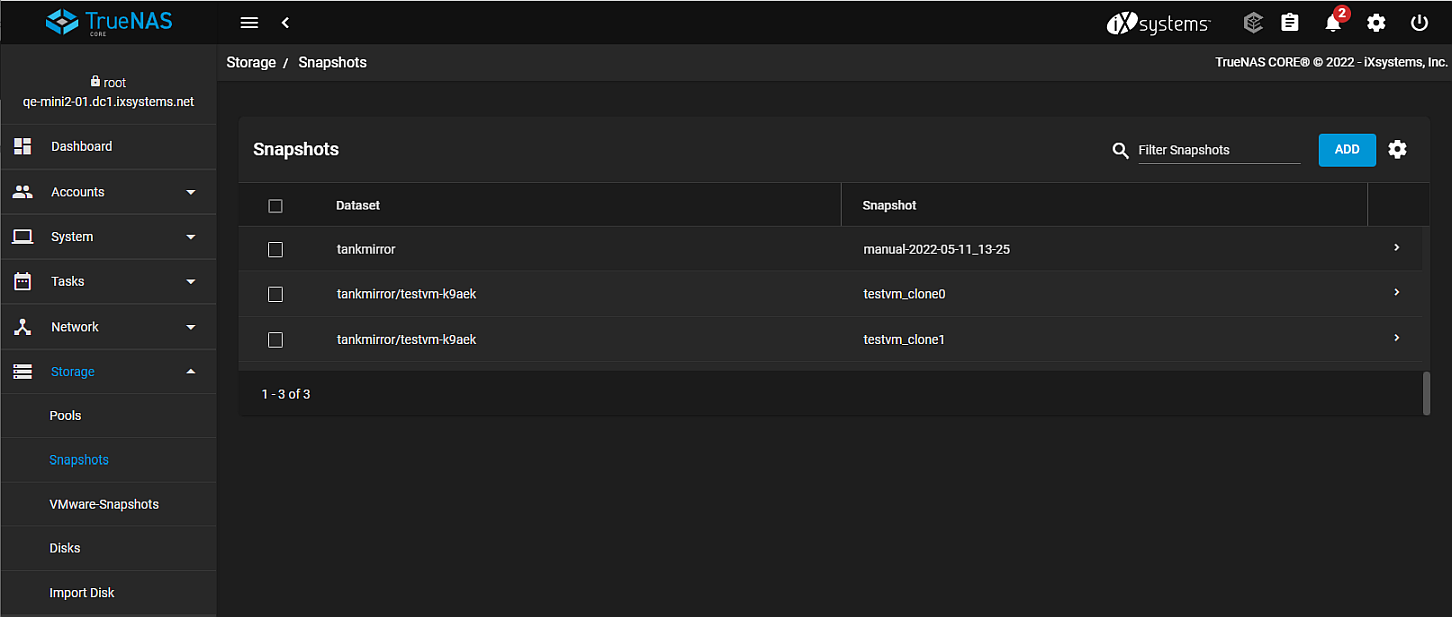
Use the Settings to display the Show Extra Columns dialog, and after clicking SHOW, the Snapshot screen changes to display the blue COLUMNS button with options to modify the table information. It also changes the individual snapshots listed to show the individual snapshot action options from the Options rather than the expand symbol that, after clicking on it, expands the selected snapshot to show details with the action options on the bottom of the expanded view of the snapshot. To return to the previous display click the Settings to display the Hide Extra Columns dialog, and after clicking HIDE, the blue COLUMNS button no longer displays and the list of snapshots displays the expand symbol.
Use ADD to display the Snapshot > Add screen.
Snapshot Add Screen
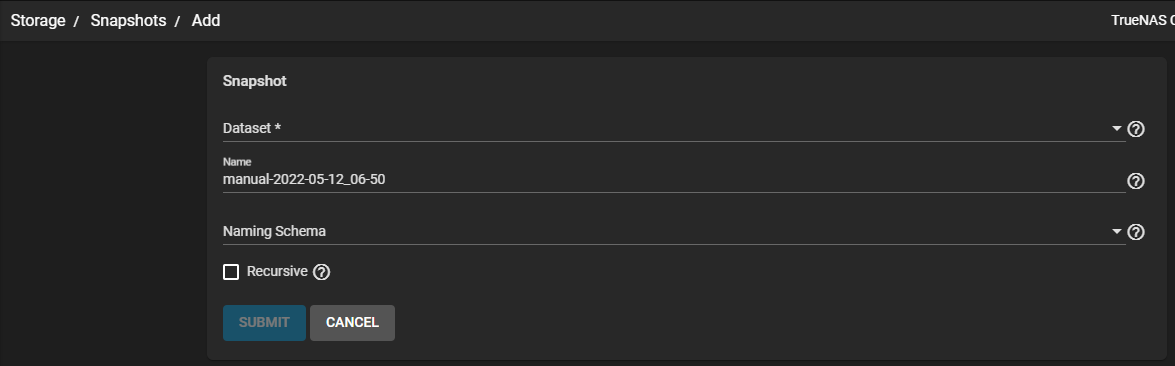
| Name | Description |
|---|---|
| Dataset | Select a dataset or zvol from the dropdown list to use as the storage location for snapshots. |
| Name | Enter a unique name. This cannot be used with the value in Naming Schema |
| Naming Schema | Used to generate a name for the snapshot from a previously created periodic snapshot task. This allows replication of the snapshot. Value cannot be used with a value specified in Name. |
| Recursive | Select to include child datasets of the selected dataset. |
Use SUBMIT to save settings. Use CANCEL to exit without saving and display the Snapshots screen.
Snapshot Details Screen
The expanded snapshot view includes the creation date, space used, and the amount of data accessible by this dataset.
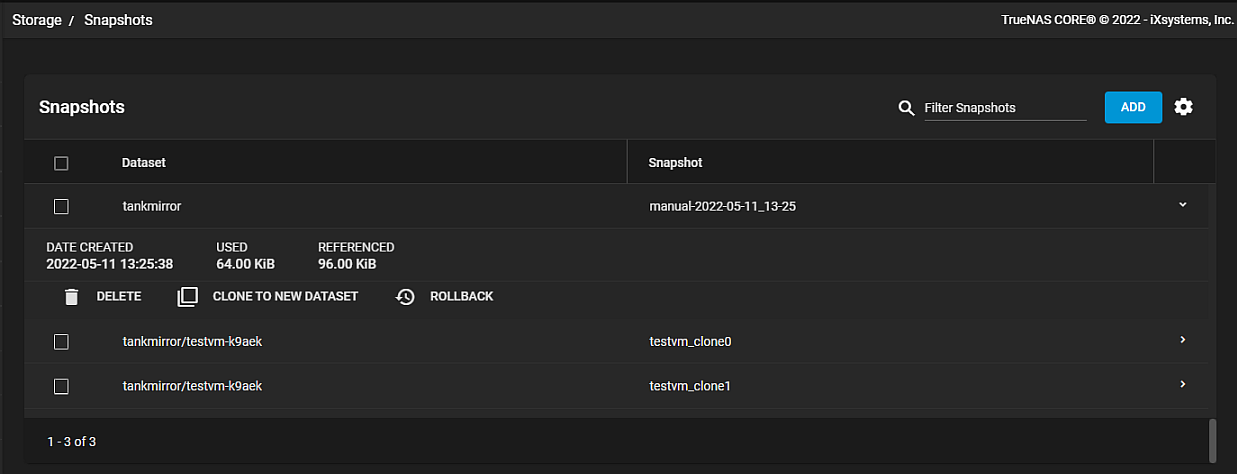
| Name | Icon | Description |
|---|---|---|
| Delete | Delete | Displays a delete confirmation dialog. Select Confirm to activate the DELETE button. |
| Clone to New Dataset | Clone | Displays the Clone to New Dataset screen. |
| Rollback | Restore | Displays the Dataset Rollback From Snapshot dialog. |
Dataset Rollback from Snapshot Dialog
Warning
WARNING: Rolling the dataset back destroys data on the dataset and can destroy additional snapshots that are related to the dataset. This can result in permanent data loss! Do not roll back until all desired data and snapshots are backed up.
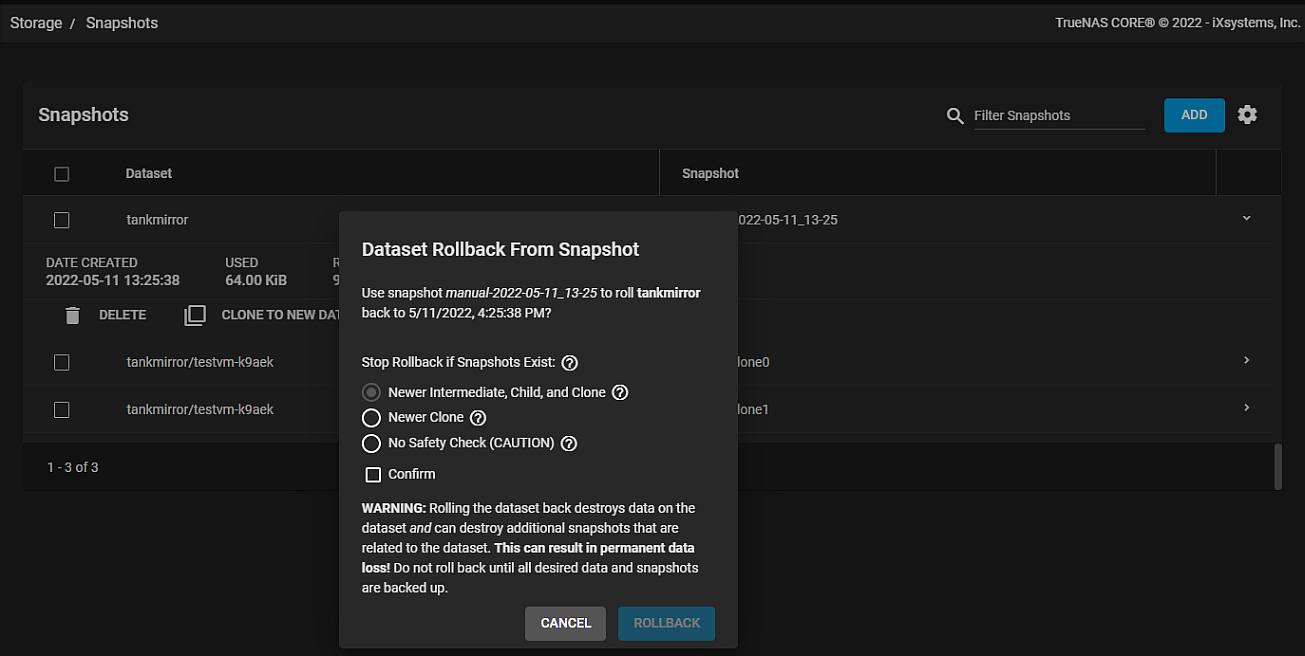
| Name | Description |
|---|---|
| Stop Rollback if Snapshot Exists | Select the safety level for the rollback action. Select the radio button that best fits. Rollback is canceled when the safety check finds additional snapshots that are directly related to the dataset being rolled back. |
| Newer intermediate, Child, and clone | Select to stop rollback when the safety check finds any related intermediate, child dataset, or clone snapshots that are newer than the rollback snapshots. |
| Newer Clone | Select to stop rollback when the safety check finds any related clone snapshots that are newer than the rollback snapshot. |
| No Safety Check (CAUTION) | Select to stop rollback if snapshot exists. The rollback destroys any related intermediate, child dataset, and cloned snapshots that are newer than the rollback snapshot. |
| Confirm | Select to confirm the selection and activate the ROLLBACK button. |
See Creating Snapshots for more information on creating and managing snapshots.